Integrations
Integrations let your agent's outputs flow into the systems where your team already works. Today the platform ships with two CRM integration providers — HubSpot and Zoho CRM — with more on the roadmap. The framework underneath is generic OAuth 2.0; adding new providers is a matter of database seed plus credential configuration, not application code.
In this chapter you'll:
- Tour the Integrations screen
- Walk through the HubSpot and Zoho CRM connect flows
- Understand what each sync does once it's wired up — including how Zoho handles the Lead → Contact lifecycle
The Integrations screen
Open Integrations from the team's left-hand rail.
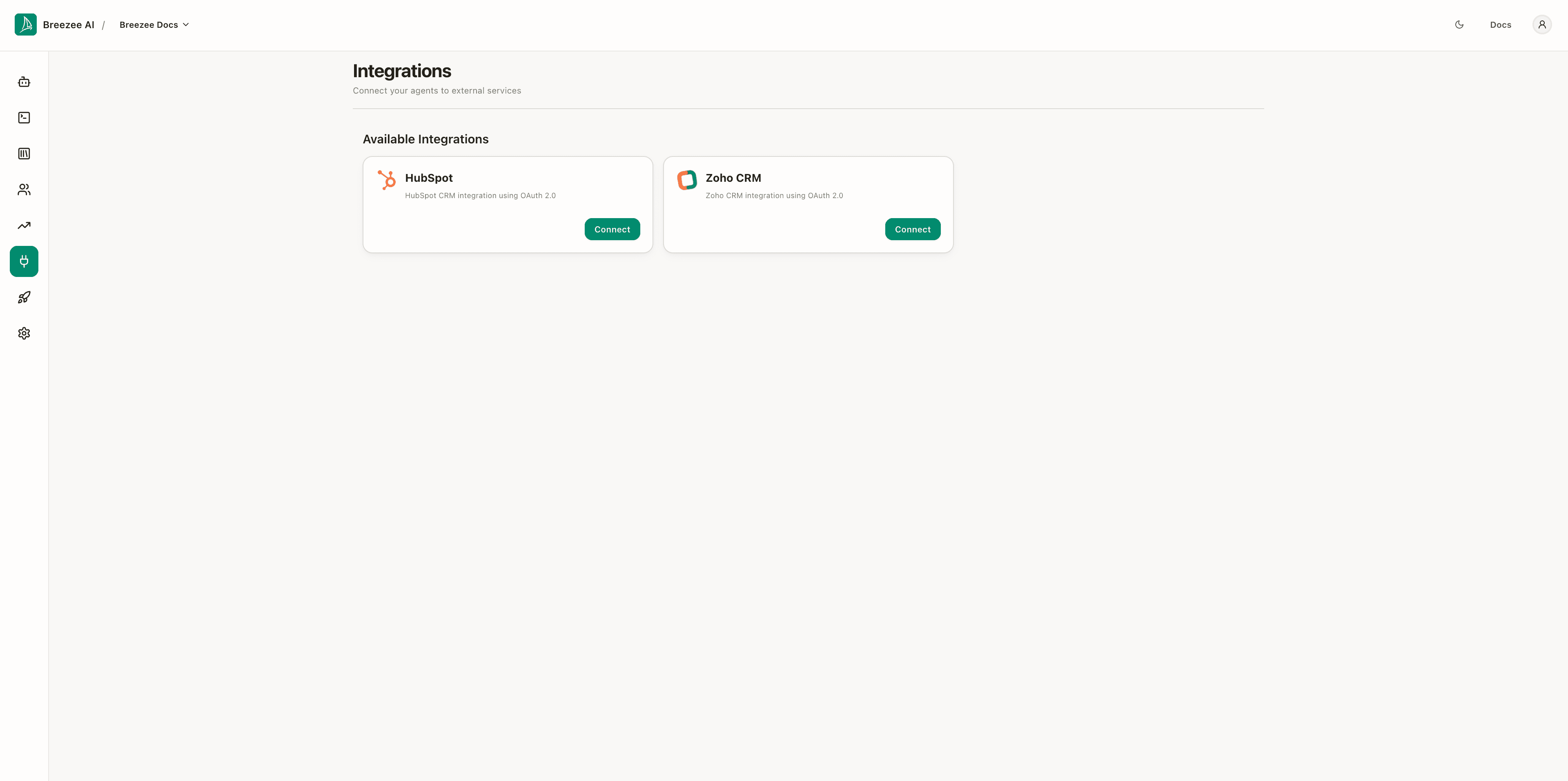
A list of every integration provider available to your tenant. Today this shows two CRM providers, each with a Connect button to start the flow:
- HubSpot — HubSpot CRM integration using OAuth 2.0.
- Zoho CRM — Zoho CRM integration using OAuth 2.0.
A connected integration shows a connected badge, a Syncing on/off toggle to pause or resume the background sync, and a Disconnect action.
Connecting HubSpot
Click Connect on the HubSpot card. The dashboard redirects you to HubSpot's OAuth bridge.
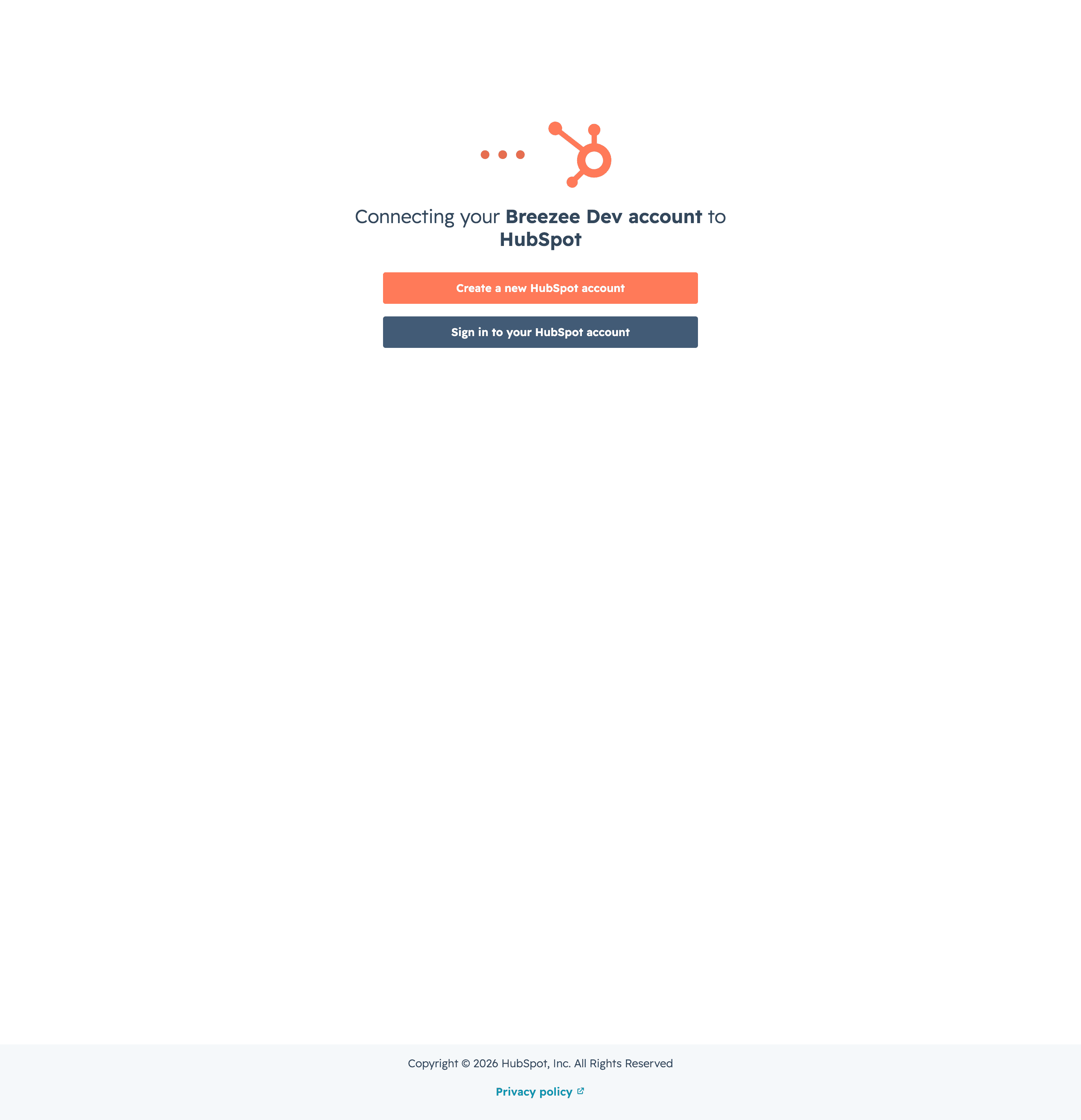
This is HubSpot's screen, not the Breezee dashboard. The text confirms what's being connected:
Connecting your Breezee Dev account to HubSpot.
Two paths:
- Create a new HubSpot account — for tenants who don't have HubSpot yet.
- Sign in to your HubSpot account — for tenants who do, this is the path that completes the grant.
This manual stops at the OAuth handoff. Completing the grant requires real HubSpot credentials and creates a live integration that immediately starts syncing prospect data. For the manual we screenshot the handoff and stop there. The remaining steps in production are:
- Sign in to HubSpot (or create an account)
- Pick the HubSpot portal to connect to
- Review the requested scopes (contacts read/write, companies read/write, schemas read/write)
- Click Allow
- HubSpot redirects you back to the dashboard with an authorisation code, the platform exchanges it for an access token and a refresh token, and the integration is live.
After completion the Integrations screen shows the HubSpot card with a Connected status and a Disconnect action.
What HubSpot sync does
Once the integration is connected, the pipeline starts syncing data from new and updated prospects into your HubSpot account. The sync runs as a background pipeline component called HubSpotContactSync and triggers on:
- New prospect created — when a visitor accepts "Remember me" and a prospect record materialises.
- Existing prospect updated — when subsequent activity adds memories, changes profile matches, or modifies the lead score.
What gets synced:
- Contact fields — first name, last name, phone, mobile phone, and job title from the prospect record.
- Breezee custom properties — two custom properties that Breezee creates automatically on first sync if they don't already exist:
BREEZEE SCORE(the numeric lead score) andBREEZEE SOURCE(the channel that brought the prospect in). These are Breezee-namespaced and do not touch any of HubSpot's built-in fields. - Activity log — chat session summaries and prospect activities (meetings booked, contact-form submissions) appear as notes on the contact's HubSpot timeline.
- Company association — if the agent captured a company name, Breezee searches for a matching HubSpot company record and associates the contact with it.
What is not synced: Individual memory values captured during the chat (industry, company size, budget, pain points, buying timeframe, etc.) are not sent to HubSpot. They remain inside Breezee and drive lead scoring and profile matching there.
The sync is one-way today (Breezee → HubSpot). Updates made in HubSpot don't flow back to the Breezee prospect record.
Which HubSpot fields Breezee will never overwrite
Breezee follows a strict "fill in the blank, never overwrite" policy for all standard contact fields. If a field already has a value in HubSpot, Breezee leaves it untouched — even if Breezee has a different value for that prospect.
| HubSpot field | Breezee behaviour |
|---|---|
| First name | Only written if the field is blank in HubSpot |
| Last name | Only written if the field is blank in HubSpot |
| Phone | Only written if the field is blank in HubSpot |
| Mobile phone | Only written if the field is blank in HubSpot |
| Job title | Only written if the field is blank in HubSpot |
| Lead Status | Never written — remains entirely under your control |
| Any other native HubSpot field | Never written |
The only fields Breezee always updates are its own namespaced custom properties:
| Custom property | Why it always updates |
|---|---|
BREEZEE SCORE | The score changes as the prospect engages — it must stay current |
BREEZEE SOURCE | Reflects the latest source attribution |
Last activity date | Reflects the prospect's most recent interaction |
This means your sales team's manual edits to names, phone numbers, and job titles in HubSpot are always preserved.
Required HubSpot scopes
When you complete the OAuth grant, HubSpot asks for these scopes:
| Scope | Why we need it |
|---|---|
crm.objects.contacts.read | To check whether a prospect already exists as a HubSpot contact before creating a duplicate. |
crm.objects.contacts.write | To create new contacts and update existing ones with captured memories. |
crm.objects.companies.read | To look up companies by name when the prospect provides a company memory. |
crm.objects.companies.write | To create company records when the prospect's company doesn't already exist in HubSpot. |
crm.schemas.contacts.read | To inspect the contact schema before deciding which custom properties to create. |
crm.schemas.contacts.write | To create custom properties for memory types HubSpot doesn't already have. |
The platform requests only the scopes it actually uses — there's no access to deals, tickets, or marketing tools, and read access is scoped to the objects we touch.
Viewing synced data in HubSpot
Once the integration is live, every prospect that comes through Breezee appears as a contact in your HubSpot account. You can view and filter on Breezee-specific fields directly from the HubSpot Contacts view.
Breezee fields in the contacts list
By default the HubSpot contacts table shows standard columns. To add Breezee's fields:
- Open Contacts in HubSpot.
- Click the three-dot menu on any column header, then choose Add column.
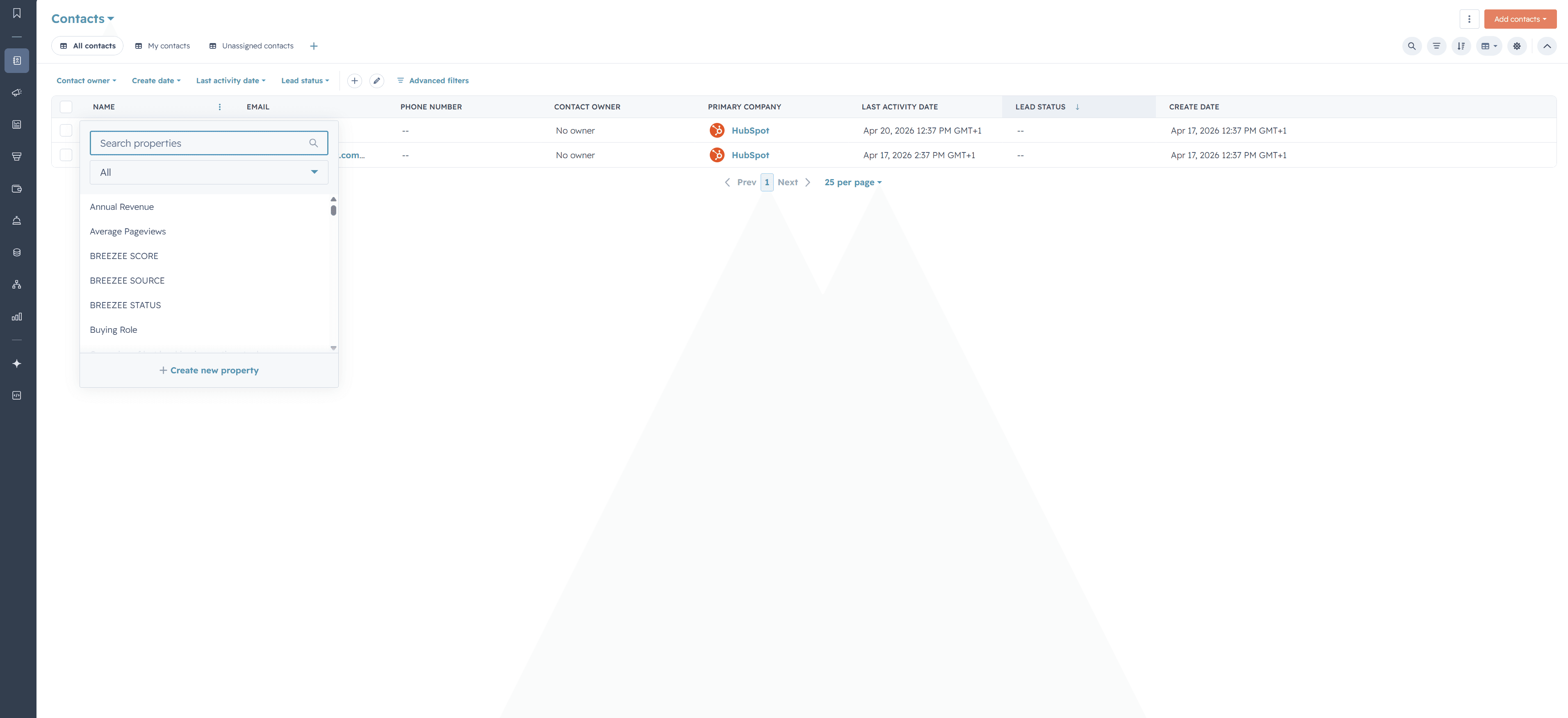
- In the property search panel that opens, you will see Breezee's custom properties listed alongside HubSpot's built-in ones:

| Property | What it contains |
|---|---|
| BREEZEE SCORE | The numeric lead score calculated by Breezee based on engagement, memory, and activity signals. |
| BREEZEE SOURCE | The source channel captured by the Breezee agent (e.g. sAllsbot). |
- Select the properties you want and they appear as columns in the contacts table.
Note: Breezee does not write to HubSpot's native Lead Status or Lead Score fields. Both remain entirely under your control. Breezee only populates its own namespaced custom properties (
BREEZEE SCORE,BREEZEE SOURCE).
Contact activity timeline
Click any contact to open their record. Switch to the Activities tab to see everything Breezee has logged for that prospect.
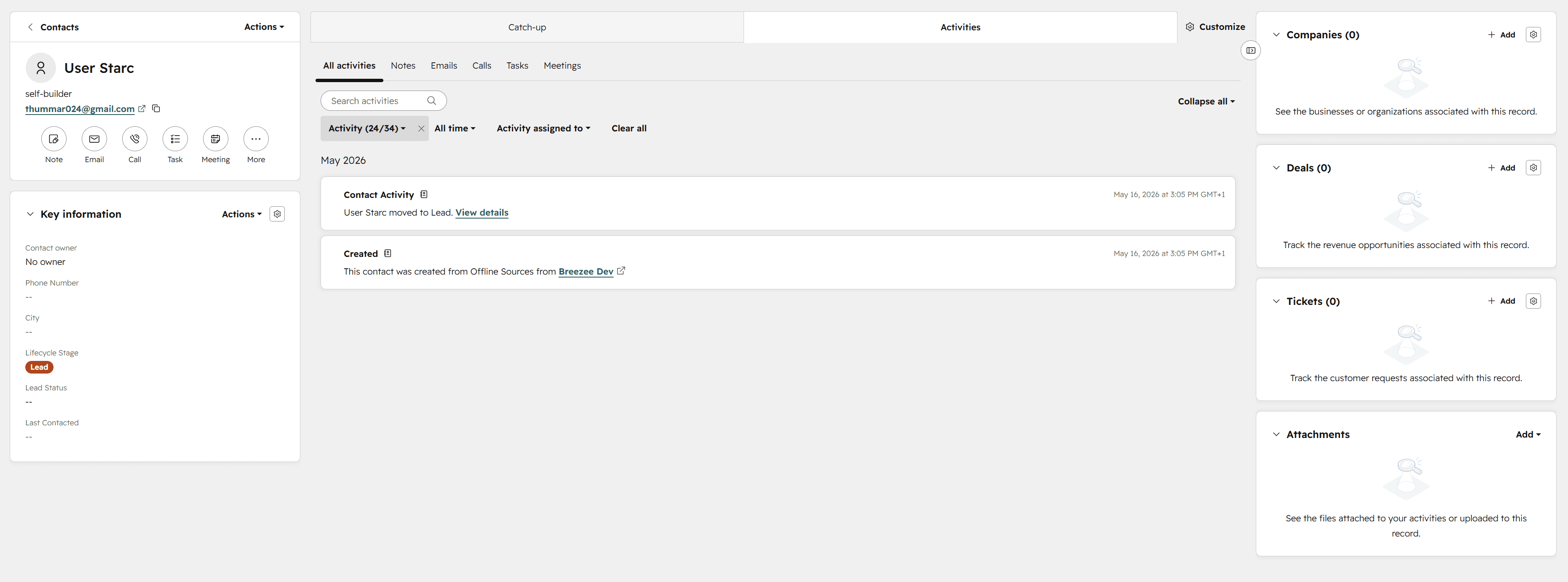
Two activity types appear for Breezee-synced contacts:
- Created — logged when Breezee first synced the prospect to HubSpot (shows the source channel and timestamp).
- Contact Activity — logged when Breezee updates the contact's lifecycle stage or lead score based on new engagement signals (e.g. "User Starc moved to Lead").
All activity entries are attributed to the connected Breezee application so your team can distinguish them from manually logged activities.
Disconnecting
To disconnect the integration, return to the Integrations screen and click Disconnect on the HubSpot card (visible once connected). The platform revokes its access token, stops the sync, and removes its stored OAuth credentials. Data already synced to HubSpot stays there — disconnecting doesn't delete anything in HubSpot.
To delete the synced contacts after disconnecting, you'd do that in HubSpot directly.
Connecting Zoho CRM
Click Connect on the Zoho CRM card. The dashboard redirects you to Zoho's consent screen.
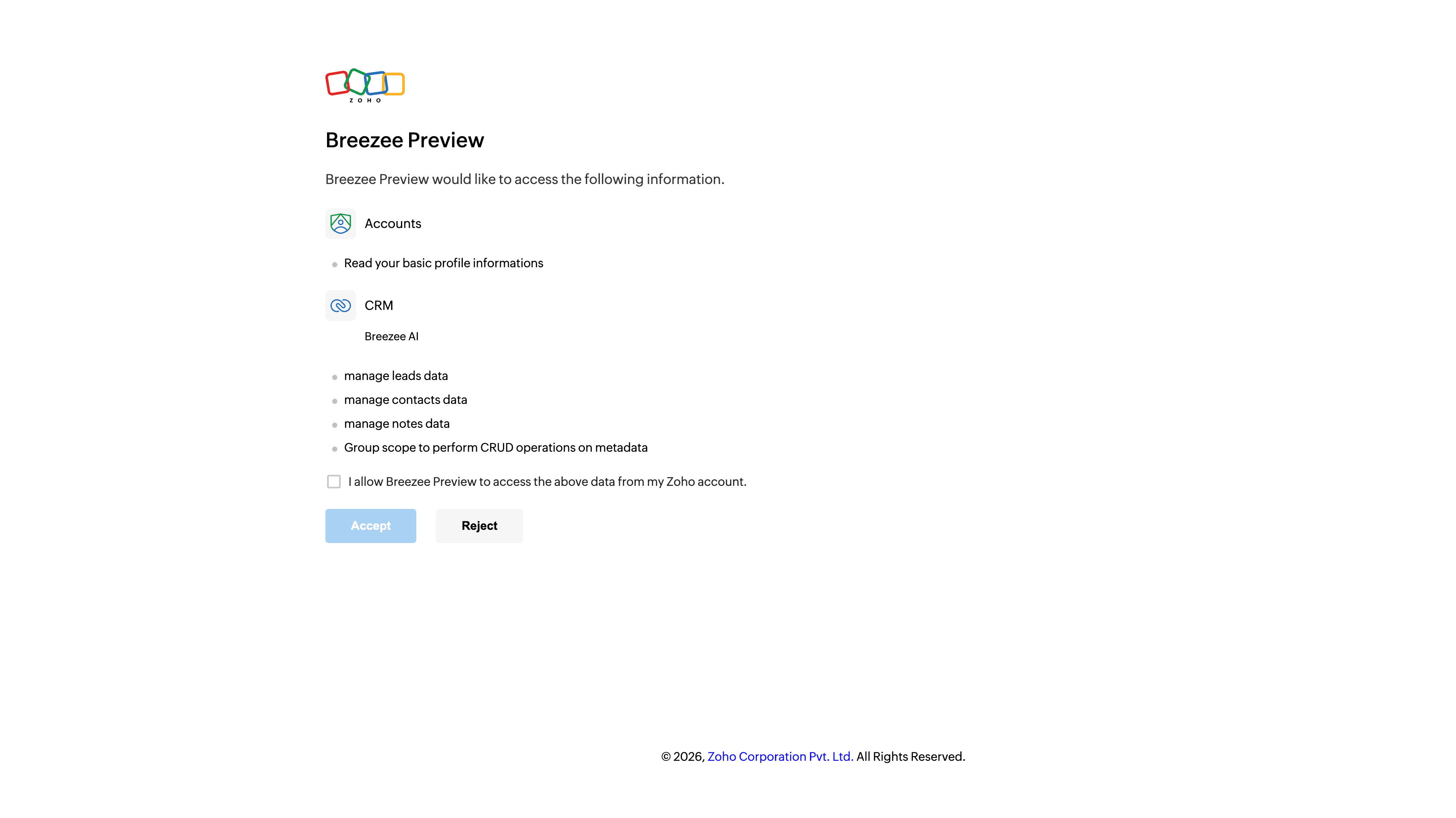
This is Zoho's screen, not the Breezee dashboard. It lists exactly what Breezee is asking for:
- Accounts — read your basic profile information (to identify the connecting account).
- CRM — manage leads data, manage contacts data, manage notes data, and a group scope to perform CRUD operations on metadata (so Breezee can create its own custom fields).
Tick I allow … to access the above data from my Zoho account and click Accept. Zoho redirects you back to the dashboard with an authorisation code, the platform exchanges it for an access token and a refresh token, and the integration is live.
Tip — connect with a dedicated "Breezee AI" user. Zoho attributes everything the integration writes — every Lead, Contact, and Note — to the Zoho user who authorises the connection (its Created By stamp). If you connect with a personal account, your CRM will show those automated notes and records as "by <that person>", which inflates one teammate's activity and breaks the sync if that user is later deactivated.
For a clean setup, create a dedicated Zoho CRM user named Breezee AI (or "Breezee Integration") and authorise the connection while signed in as that user. Every synced note and record will then read "by Breezee AI", clearly separating automation from your team's manual work. This is optional — without it the integration still works, and synced notes are always titled "Note created via Breezee AI" — but it's the recommended approach for production. (It uses one Zoho user licence.)
Zoho is multi–data-centre. Zoho hosts accounts across several regions (EU, US, India, Australia, Japan, China, Canada, Saudi Arabia). Breezee automatically detects which data centre your account belongs to from the OAuth response and routes all API calls — and token refreshes — to the correct region. The same Connect button works regardless of where your Zoho org lives.
After completion the Integrations screen shows the Zoho CRM card with a connected badge, a Syncing on toggle, and a Disconnect action.
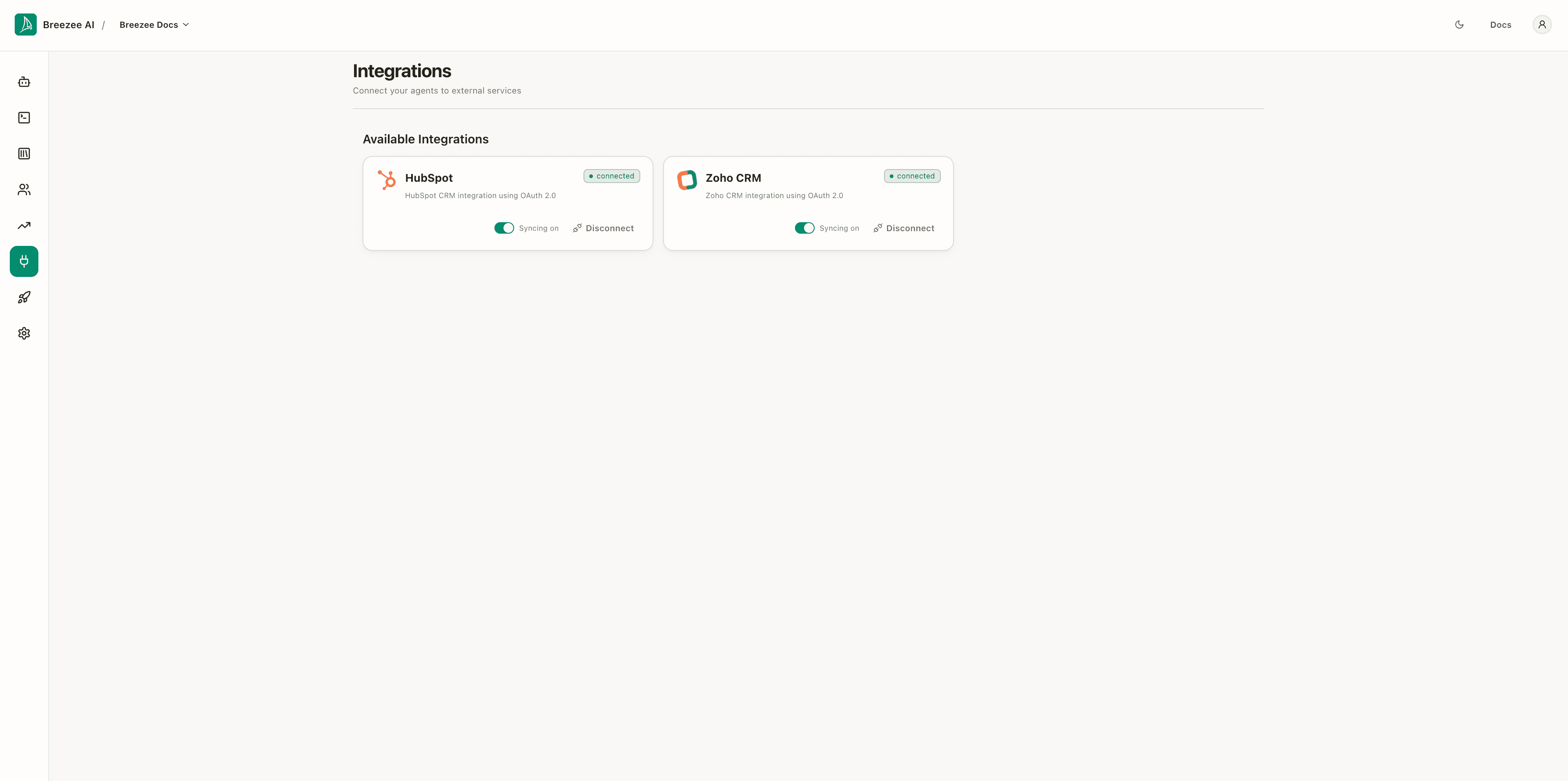
Use the Syncing on/off toggle to pause or resume the background sync without disconnecting — handy when you want to temporarily stop data flowing while keeping the connection.
What Zoho sync does
Once connected, the same batched background pipeline that powers HubSpot syncs new and updated prospects into your Zoho CRM. It triggers on:
- New prospect created — when a visitor accepts "Remember me" and a prospect record materialises.
- Existing prospect updated — when later activity adds memories, changes profile matches, or moves the lead score.
What gets synced:
- Standard fields — first name, last name, phone, mobile, job title, and company (account) name.
- Breezee custom fields —
Breezee Score(the numeric lead score) andBreezee Source(the channel that brought the prospect in). Breezee creates these automatically on first sync, on both the Leads and Contacts modules, if they don't already exist. They are Breezee-namespaced and never touch Zoho's built-in fields. Breezee also sets the native Lead Source field toBreezee AIso you can filter on origin. - Notes — chat session summaries, meeting bookings, and contact-form submissions are written as Notes on the Lead or Contact, not as separate records.
What is not synced: Individual memory values captured during the chat (industry, company size, budget, pain points, buying timeframe, etc.) stay inside Breezee and drive lead scoring and profile matching there.
The sync is one-way (Breezee → Zoho). Changes made in Zoho don't flow back to the Breezee prospect record.
The Lead → Contact lifecycle (data consistency)
Zoho splits a person across two objects: a Lead (pre-qualification) is converted to a Contact once your team qualifies them. Breezee is aware of this lifecycle and follows the person wherever they currently live — which is what keeps your CRM consistent and free of duplicates:
| Situation | What Breezee does |
|---|---|
| New prospect | Creates a Lead in Zoho. |
| Lead already exists | Updates only the data Breezee owns — its custom fields always, standard fields only when blank (see below). It never overwrites edits. |
| Lead already converted to a Contact | Finds the Contact and writes the updated data there — it does not recreate a Lead for someone who has already been converted. |
This promote-aware behaviour means a prospect who progresses through your pipeline keeps receiving fresh Breezee data on the correct record, with no duplicate leads piling up behind a contact.
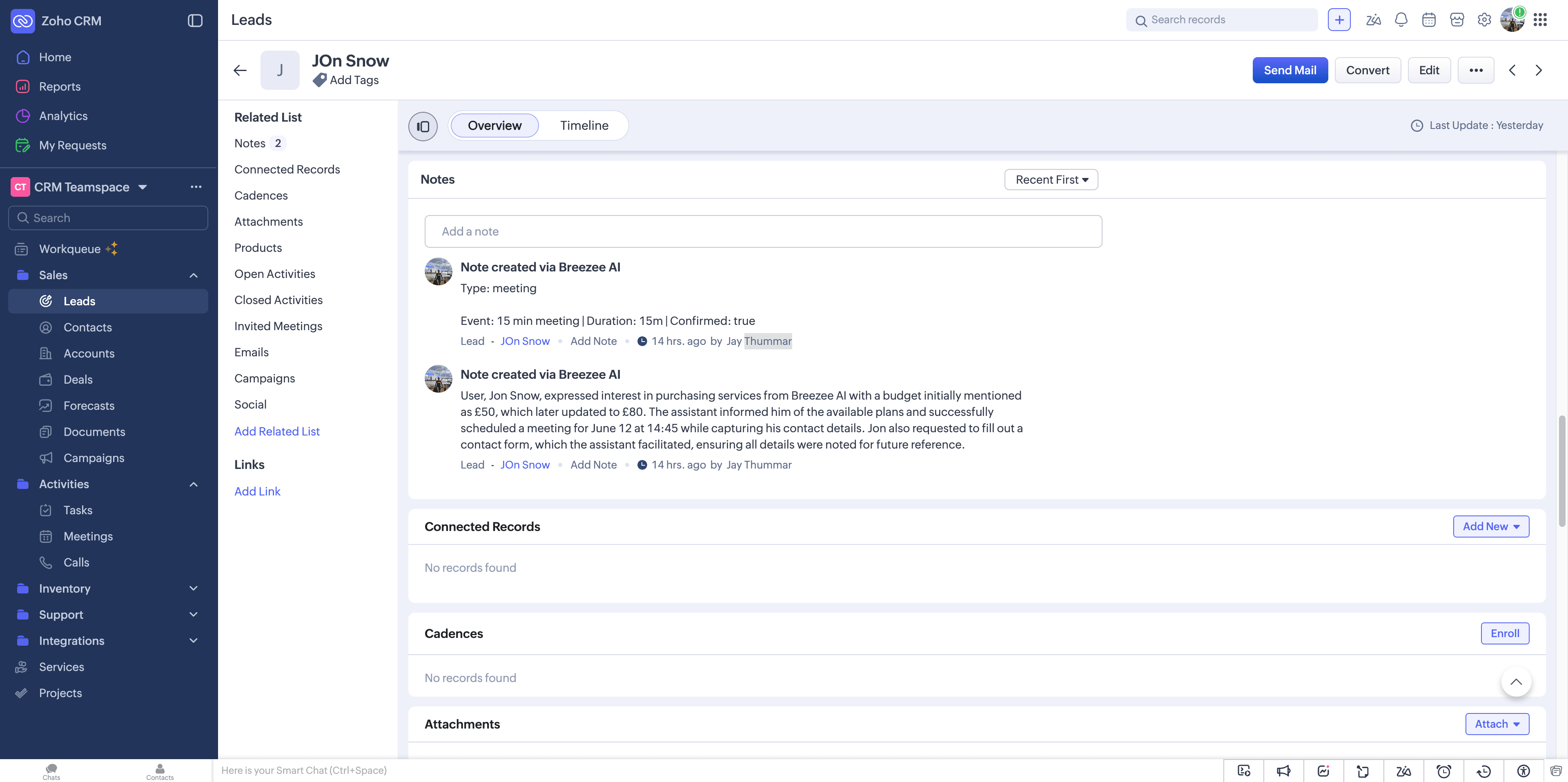
Above: a Lead with two Breezee notes — a confirmed 15-minute meeting booking and a session summary. The Convert button (top right) is Zoho's standard lead-to-contact conversion; once you click it, Breezee's subsequent updates automatically target the resulting Contact.
Which Zoho fields Breezee will never overwrite
As with HubSpot, Breezee follows a strict "fill in the blank, never overwrite" policy for standard fields. If a field already has a value in Zoho, Breezee leaves it untouched — even if Breezee has a different value for that prospect.
| Zoho field | Breezee behaviour |
|---|---|
| First Name | Only written if blank in Zoho |
| Last Name | Only written if blank in Zoho |
| Phone | Only written if blank in Zoho |
| Mobile | Only written if blank in Zoho |
| Title (job title) | Only written if blank in Zoho |
| Account Name (company) | Only written if blank in Zoho |
| Any other native Zoho field | Never written |
The only fields Breezee always updates are its own namespaced custom fields:
| Custom field | Why it always updates |
|---|---|
Breezee Score | The score changes as the prospect engages — it must stay current |
Breezee Source | Reflects the latest source attribution |
This means your sales team's manual edits to names, phone numbers, and job titles in Zoho are always preserved.
Required Zoho scopes
When you complete the OAuth grant, Zoho asks for these scopes:
| Scope | Why we need it |
|---|---|
ZohoCRM.modules.leads.ALL | Create and update Leads, and search Leads to avoid creating duplicates. |
ZohoCRM.modules.contacts.ALL | Update people who have already been converted to Contacts. |
ZohoCRM.modules.notes.ALL | Write session summaries, meetings, and contact requests as Notes. |
ZohoCRM.settings.all | Inspect the field schema and create Breezee's custom fields. |
AaaServer.profile.READ | Read the basic profile of the connecting account. |
offline_access | Obtain a refresh token so the background sync keeps working without re-auth. |
Breezee requests only the scopes it actually uses — there's no access to Deals, Campaigns, or other Zoho modules.
Viewing synced data in Zoho
Every prospect that comes through Breezee appears in Zoho — as a Lead first, and on the Contact once converted. Both modules carry Breezee's custom fields.
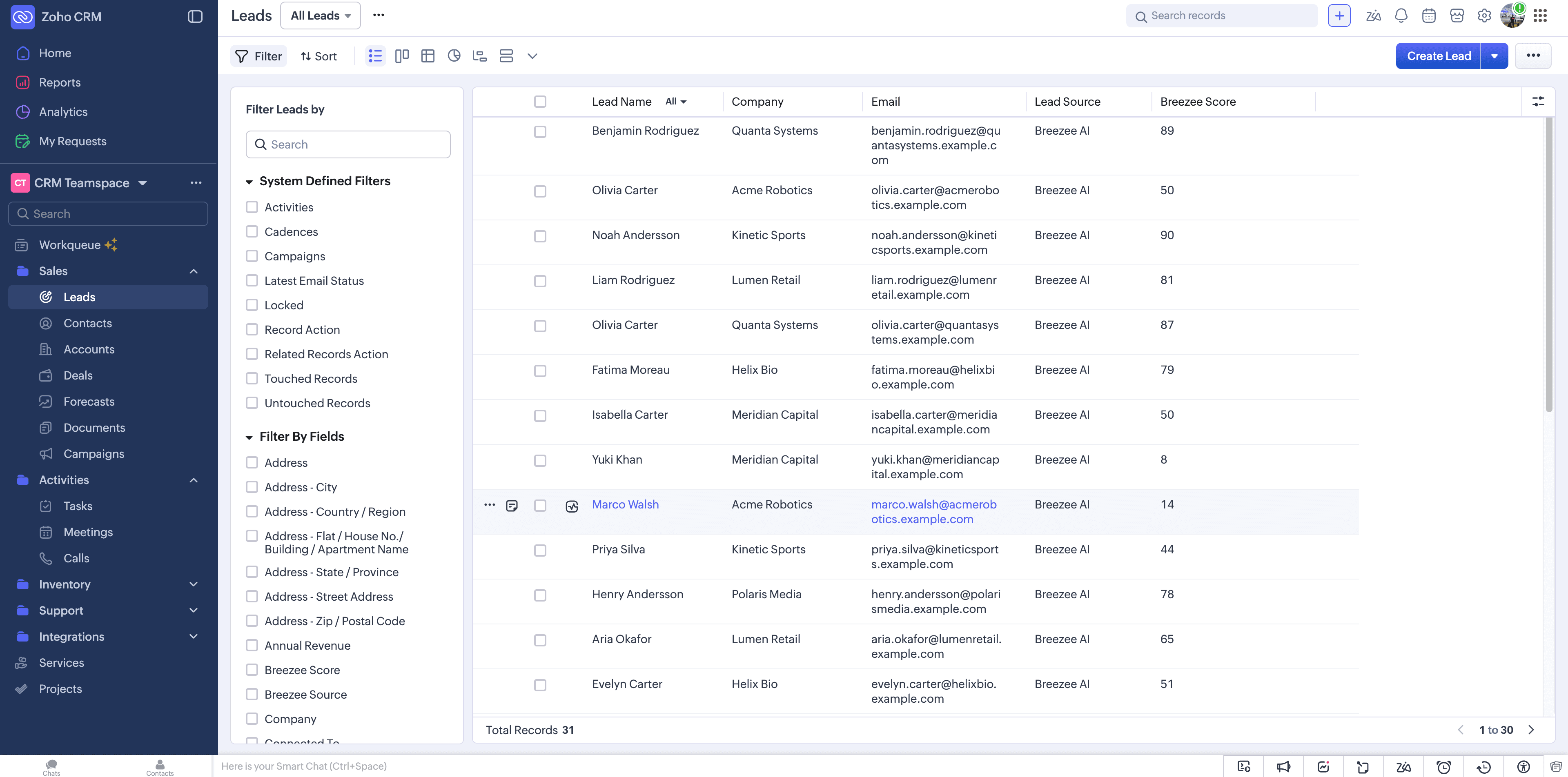
In the Leads module you'll see the synced people with Lead Source set to Breezee AI and a Breezee Score column. Add or filter on Breezee Score / Breezee Source from the column menu, just like any other Zoho field.
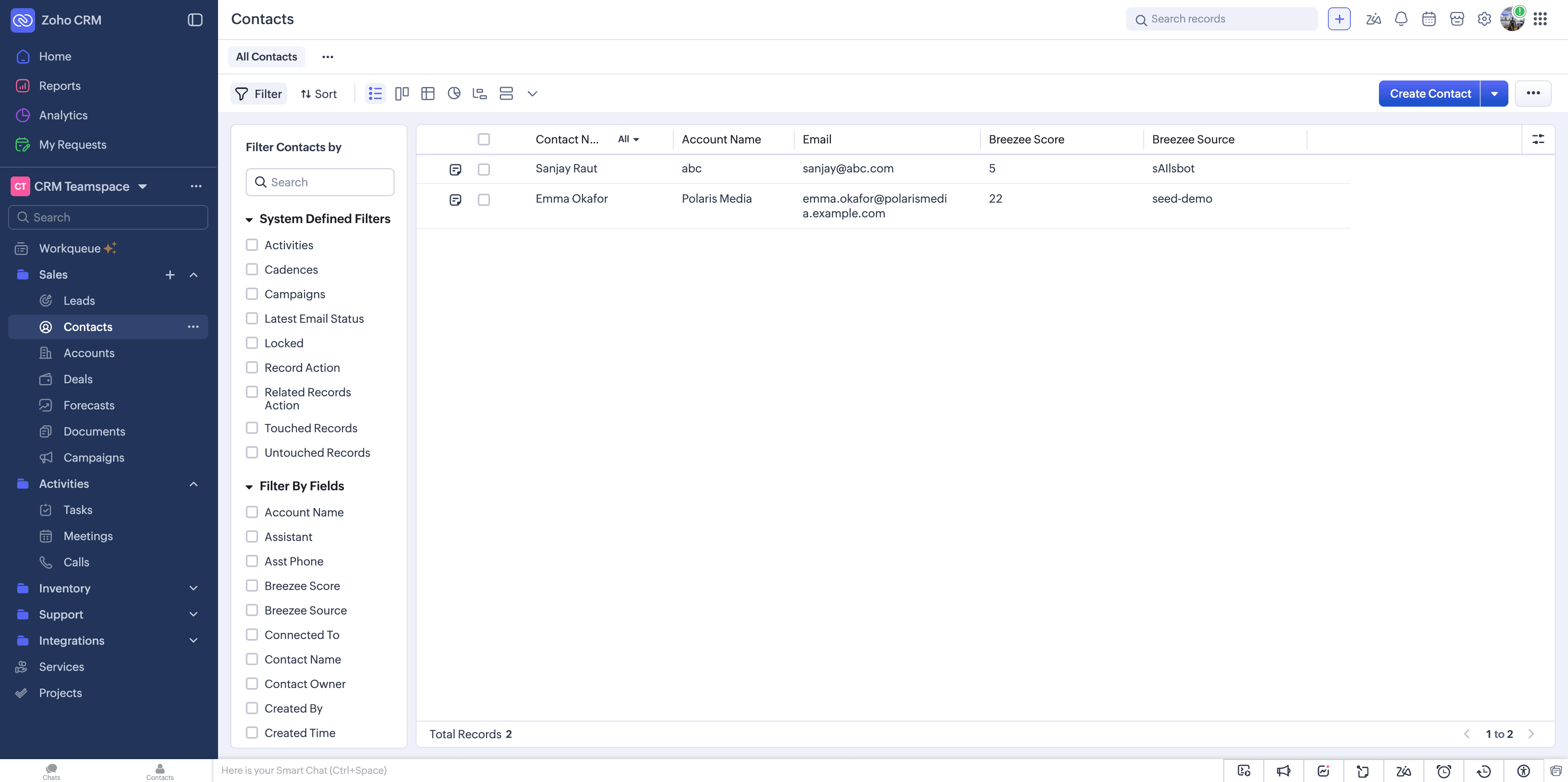
After a Lead is converted, the same Breezee Score and Breezee Source fields are available on the Contacts module — so the data Breezee maintains stays visible no matter where the person sits in your pipeline.
Disconnecting Zoho
To disconnect, return to the Integrations screen and click Disconnect on the Zoho CRM card. The platform revokes its token, stops the sync, and removes its stored OAuth credentials. Data already synced to Zoho stays there — disconnecting doesn't delete anything in Zoho. To pause syncing without disconnecting, use the Syncing on/off toggle instead.
Other integrations on the roadmap
The OAuth framework is generic — adding new providers is configuration plus a credential block in the platform's environment, not application code. Likely future additions in approximate priority order:
- Salesforce CRM — same pattern as HubSpot, different OAuth provider
- Slack — pushing high-priority leads into a sales-team Slack channel
- Microsoft Teams — same shape as Slack
- Email (SMTP/SendGrid) — emailed lead summaries to a configured address
None of these are live today; HubSpot and Zoho CRM are the two integrations currently shipping.
What's next
You've reached the end of the configuration tour. From here:
- Appendix A — Glossary — definitions of every term used in the manual
- Appendix B — Troubleshooting — common issues and their fixes
If you've worked through the manual end-to-end, your tenant is now configured, deployed, and instrumented — ready to handle real visitors. Good luck.