Prospects
The Prospects screen is where every visitor who's interacted with your agent lands. It's your day-to-day operational view of who's in the funnel, what they've told the agent, and which of them are worth following up on. In a real tenant, this is the screen most admins keep pinned all day.
In this chapter you'll:
- Tour the prospects list, its filters, and what each column means
- Open the detail panel for a specific prospect
- Walk through the History and Memory tabs — the full record of everything captured during the conversation
- See how memory types and prospect profiles configured in Memory types & prospect profiles show up here
You should have at least one prospect record by this point — the one created when you ran the playground session in Playground testing and clicked Remember me. If you accepted "Remember me" the prospect will have rich data; if you declined, it'll appear as an anonymous session with no personal details.
The prospects list
Open Prospects from the team's left-hand rail.
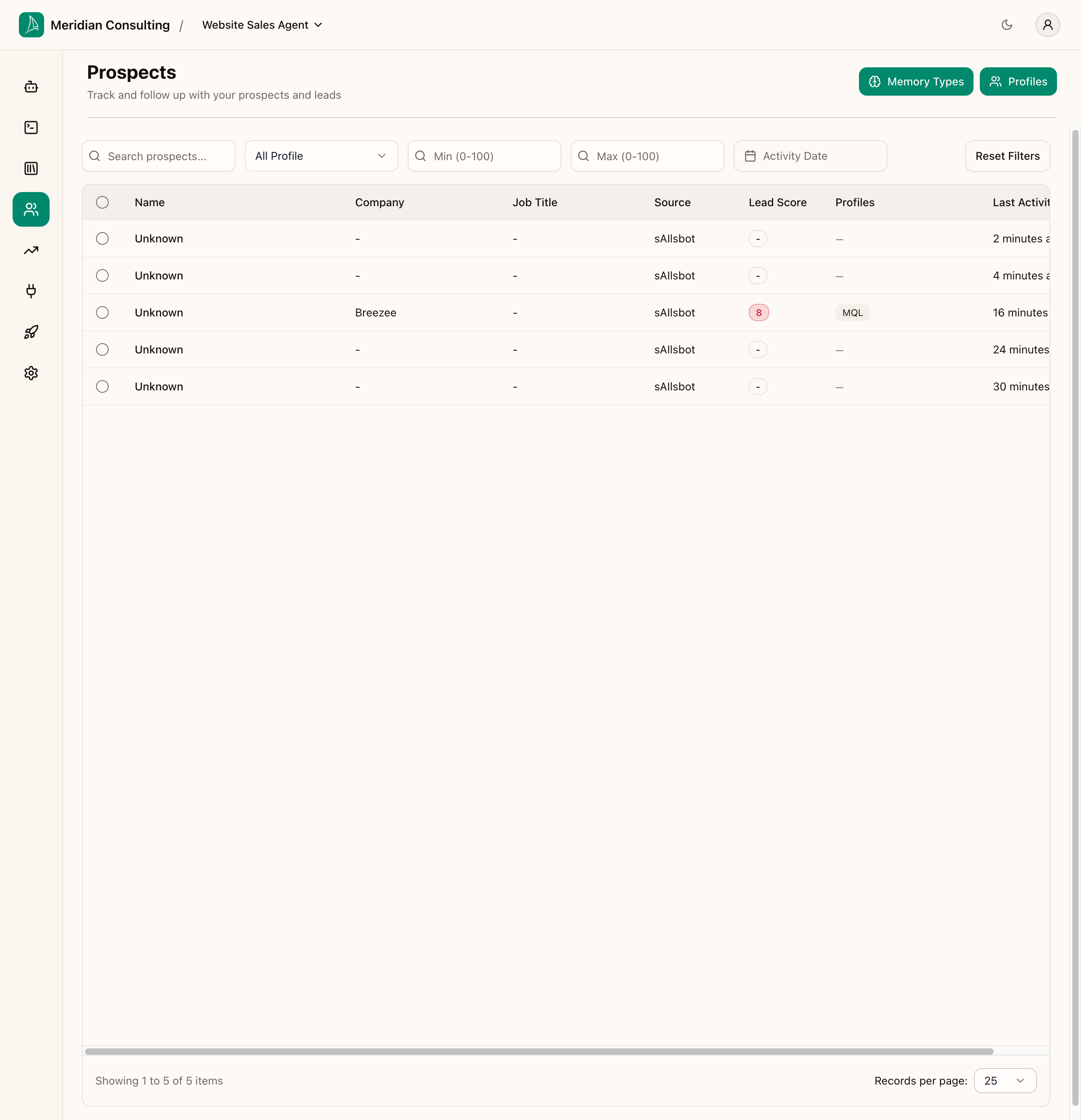
A row per visitor who's chatted with the bot. The columns:
| Column | What it shows |
|---|---|
| Name | First + last name if captured. Otherwise "Unknown" — these are visitors who didn't share personal details or declined "Remember me". |
| Company | The company name memory if captured. |
| Job Title | The job-title memory if captured. |
| Source | The agent type that drove this conversation — for sAIlsbot deployments, every prospect shows sAIlsbot. |
| Lead Score | A 0–100 numeric score the platform computes from the prospect's memories, activities, and profile matches. Higher = warmer. |
| Profiles | The prospect profiles this visitor matches — MQL, SQL, Hot Lead, etc. Driven by the criteria you set up in Memory types & prospect profiles. |
| Last Activity | Time since the most recent message or event. |
Multiple Unknown rows are normal. Every fresh widget session creates a prospect record. Visitors who decline "Remember me", visitors who bounce immediately, visitors testing the widget — they all show up as Unknown with no other detail. Over time the table fills with a mix of named, named-with-rich-context, and anonymous prospects.
Filtering and search
The toolbar above the table gives you the standard set of slicing controls:
- Search box — free-text search across captured names, emails, companies.
- Profile filter — restrict to prospects matching a specific profile (MQL, SQL, Hot Lead, etc.).
- Lead score range — min and max (0–100).
- Activity date — date-range picker.
- Reset filters — clears everything.
The two buttons at the top right of the page — Memory Types and Profiles — are direct shortcuts to the configuration screens you used in Memory types & prospect profiles. Useful when a prospect surfaces a memory or profile match you weren't expecting and you want to jump straight to the configuration to investigate.
Opening a prospect
Click any row to open the detail panel on the right. The most interesting row is usually the one with a profile (MQL, SQL, Hot Lead, etc.) and a non-zero lead score — that's the prospect that's progressed furthest in the funnel.
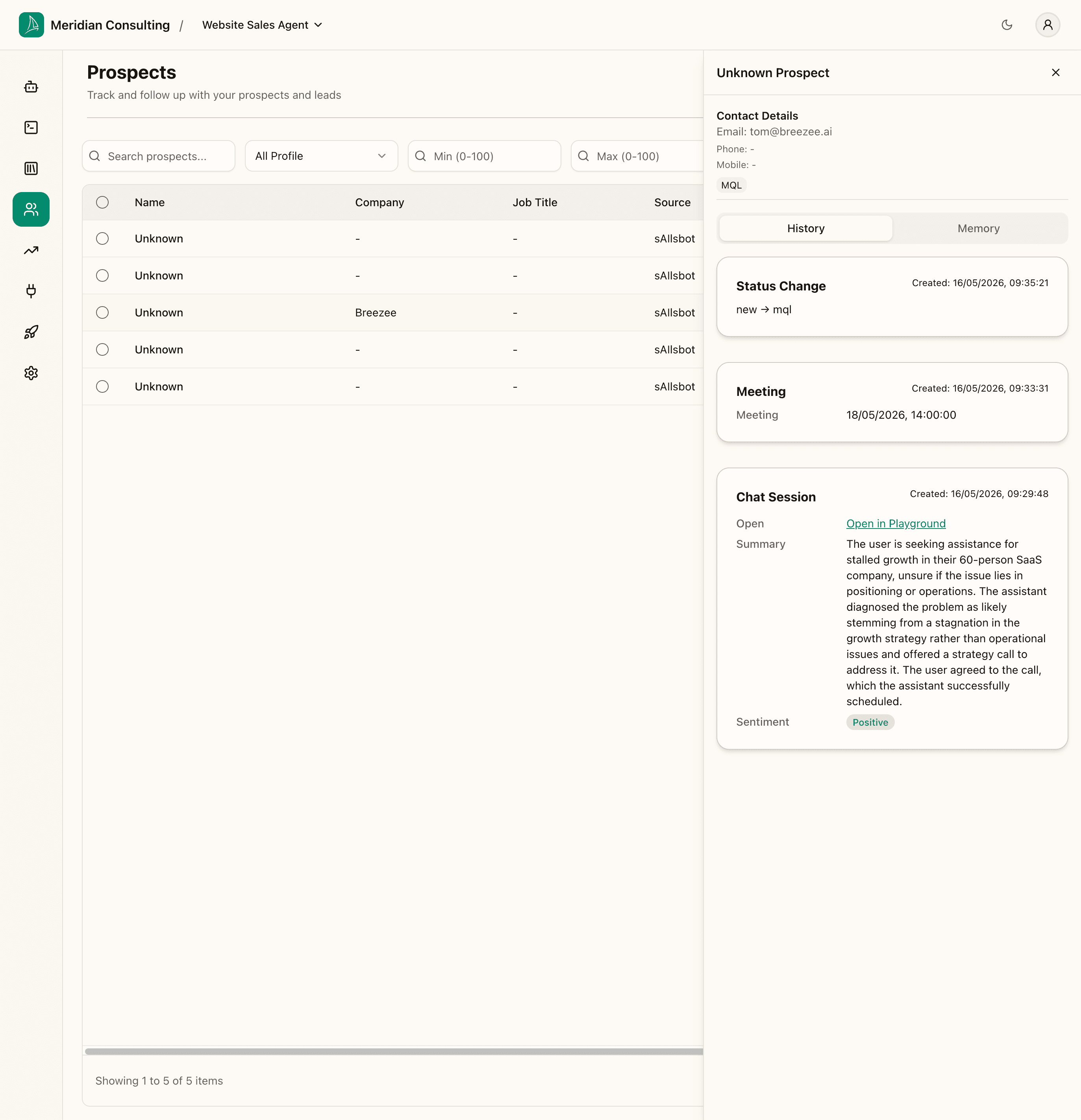
The header
- Heading — the prospect's name if captured, "Unknown Prospect" otherwise.
- Contact Details — email, phone, mobile. Filled in as the agent captures them; "-" until then.
- Profile chips — every profile the prospect currently matches. This one shows the MQL chip because the prospect has both
Current ChallengeandOrganization Sizeset, which was our profile definition in Memory types & prospect profiles.
Two tabs — History and Memory
History tab
The History tab is a timeline of every significant event for this prospect. For our playground session, in reverse chronological order:
- Status Change —
new → mql(16/05/2026, 09:35:21). The platform's profile evaluator promoted the prospect to MQL after the conversation captured the criteria. - Meeting — booked for 18/05/2026 14:00:00 (created 16/05/2026, 09:33:31). The Cal.com booking is recorded as a first-class activity.
- Chat Session — created 16/05/2026, 09:29:48, with an Open in Playground link that takes you back to the original session if you want to read the transcript. Below the link is the AI-generated session summary ("The user is seeking assistance for stalled growth in their 60-person SaaS company...") and the sentiment (Positive).
The history grows as the prospect interacts further: subsequent chat sessions, additional bookings, contact form submissions, profile changes, and integration events (e.g. Synced to HubSpot) all show up as new entries.
Memory tab
Click Memory. This is the structured information the agent extracted and persisted during the conversation, grouped by memory category.
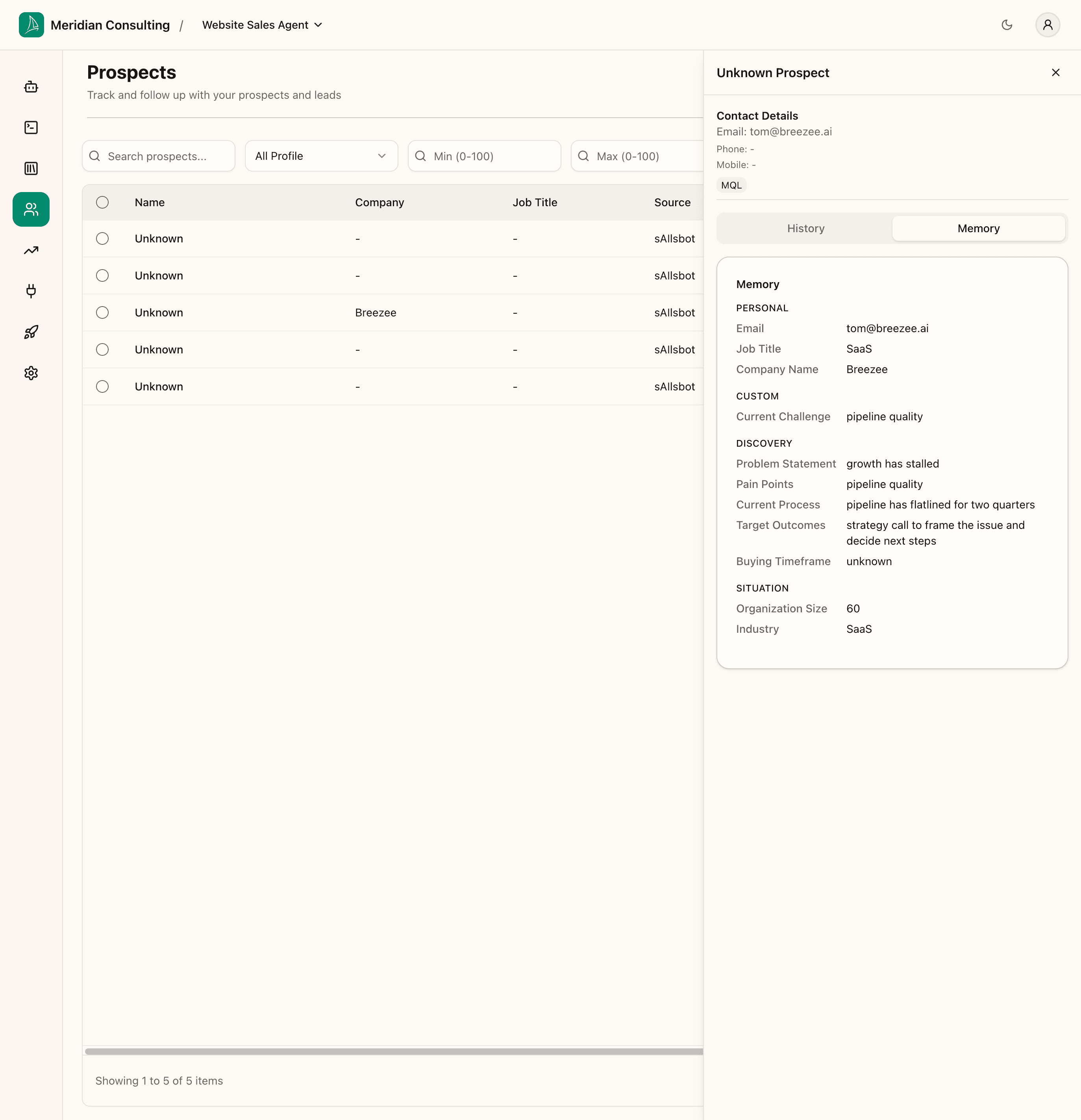
For our prospect:
- Personal — Email:
prospect@example.com, Job Title:SaaS, Company Name:Breezee - Custom — Current Challenge:
pipeline quality(this is the custom memory type we added in Memory types & prospect profiles — it's been populated) - Discovery — Problem Statement:
growth has stalled; Pain Points:pipeline quality; Current Process:pipeline has flatlined for two quarters; Target Outcomes:strategy call to frame the issue and decide next steps; Buying Timeframe:unknown - Situation — Organization Size:
60; Industry:SaaS
Every one of these memories was captured during the conversation, structured by the slot extractor, and persisted because the visitor accepted "Remember me". Note:
- The custom memory we created in Memory types & prospect profiles (
Current Challenge) is right there, populated with the visitor's articulated concern. This is the end-to-end loop closing: configure → consume in skill → capture in conversation → persist on prospect. - Job Title got
SaaSrather than a job role. This is a real quality issue — the model inferred from "we're a 60-person SaaS" that the visitor's job title was "SaaS", which is wrong. In a real tenant you'd tune this either by adjusting the memory type's description (to make it clearer to the extractor what counts as a job title) or by editing the captured value directly on the prospect record. - Some memories are
unknown— that's not a failure; it's the slot extractor explicitly recording "I tried but I couldn't tell." Better than a missing field because it tells you the agent looked.
What lead score and profiles drive
The combination of memories, profile matches, and activities turns into the Lead Score column on the list. A higher lead score is the platform's best guess that this prospect is worth following up on. Use it to sort the list — "show me the highest-scoring prospects I haven't followed up with yet."
Profile matches drive routing rules on subsequent conversations. If this prospect returns and starts a new chat from the same browser (with consent intact), the agent already knows they're MQL — and any Suggest rule keyed on MQL fires from the first turn.
Memories carry across sessions; routing rules don't replay them automatically. A returning visitor's persisted memories will be visible to the responder, but the routing engine works against the current session's slot state. There's a known limitation here — persisted memory doesn't automatically re-trigger routing on a new session. In practice this means the agent picks up the conversation knowing who the visitor is, but routing rules only re-fire if the conversation re-surfaces the relevant facts.
Acting on a prospect
The platform doesn't provide a built-in CRM. The expectation is that you connect HubSpot (see Integrations) and the lead-score / qualified prospects flow into HubSpot for the team to action there.
In the dashboard itself you can:
- Open the original session in the playground — useful if you want to see the full transcript that produced the memories.
- Delete the prospect — Danger Zone action that removes the prospect record. Tied to GDPR erasure requests; should be used carefully.
For now, that's the prospect screen end-to-end.
What's next
You've configured the agent, deployed it, run a conversation, and reviewed the prospect record. The next surface is the aggregate view — how is the agent doing across all the prospects and sessions?