Configuring skills
Skills are the agent's repertoire — the kinds of conversation it knows how to have. Out of the box your agent comes with the full sAIlsbot skill catalogue pre-attached. Skills that work without per-tenant setup ship enabled; skills that need configuration first ship disabled so the agent never reaches for something it can't deliver. In this chapter you'll:
- Tour the skills list, disable any that don't fit, and enable the ones you'll configure
- Set a skill's conversation inputs — what it should gather, and how hard it should push — using the properties you set up in Properties & segments
- Point Book Meeting at a Cal.com event type, then enable it
- Configure Contact Request with custom form copy
- Set conditions on who may reach a skill, and nudges that lean the agent toward it
Actions are part of a skill. The things a skill does — display a form, render a button, embed a booking calendar, search the knowledge base — come with the skill and are configured inline underneath it. There is no separate Actions screen.
The skills list
Open the agent settings (left-hand rail → Agents → click the agent), then click Skills in the agent-settings sub-sidebar.
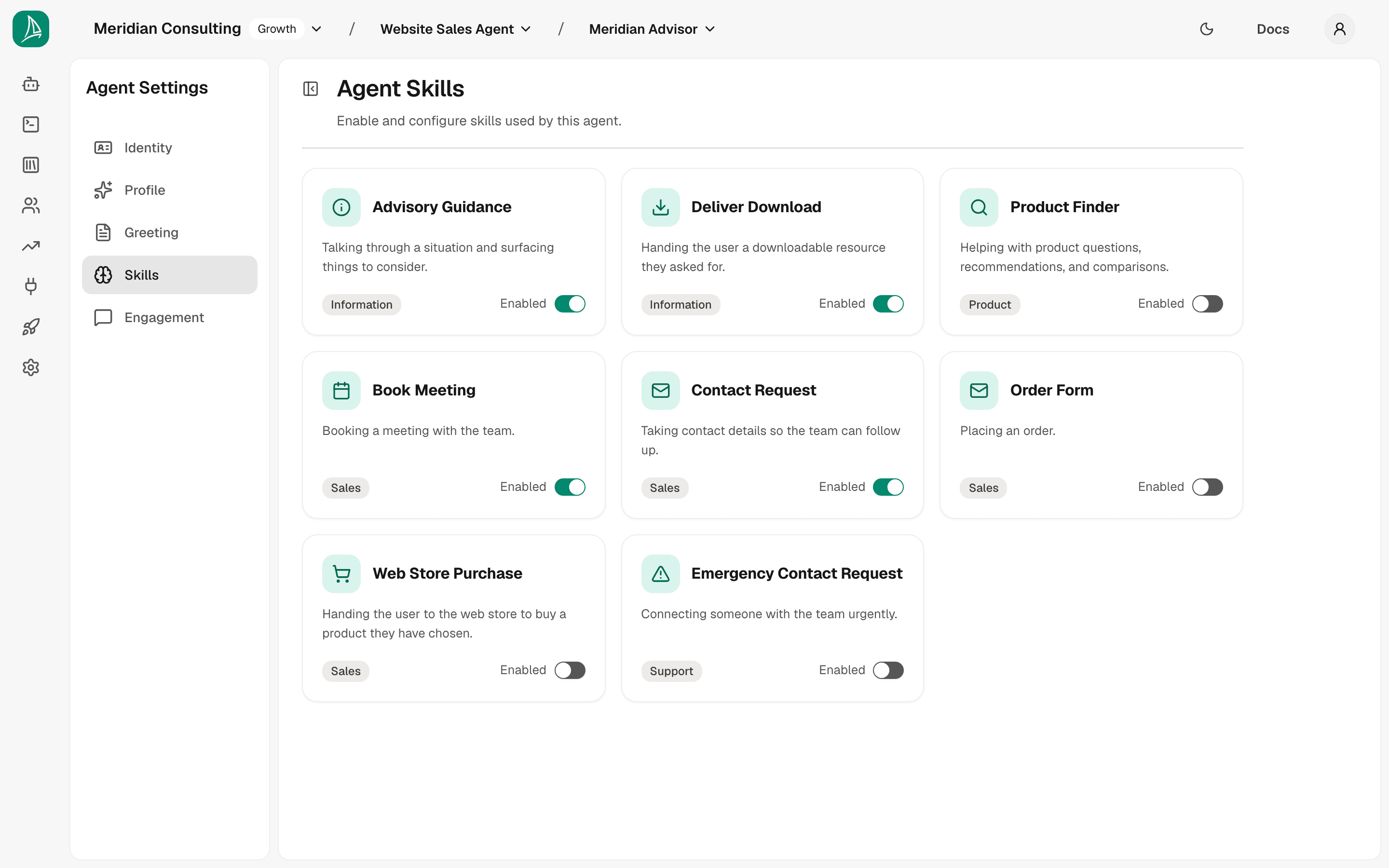
A new sAIlsbot agent shows eight configurable skills. Three are enabled by default; five ship disabled because they need configuration before they can run:
| Skill | Category | Default | What it does |
|---|---|---|---|
| Advisory Guidance | Advisory | Enabled | Talks the visitor through a situation and surfaces things to consider. |
| Contact Request | Sales | Enabled | Takes contact details so the team can follow up. |
| Deliver Download | Content | Enabled | Hands over a guide, spec sheet, or other document on request. |
| Product Finder | Product | Disabled | Helps with product questions, recommendations, comparisons. |
| Book Meeting | Sales | Disabled | Books a meeting with the team via Cal.com. |
| Order Form | Sales | Disabled | Places an order. |
| Web Store Purchase | Sales | Disabled | Sends the visitor to your web store to buy the product they chose. |
| Emergency Contact Request | Support | Disabled | Connects someone with the team urgently. |
Each skill tile shows its category, description and an enabled/disabled switch. Click anywhere else on the tile to open that skill's configure page.
The skills you don't see. Your agent also runs a set of built-in skills that have nothing for you to configure and so aren't listed: Informational (answers questions from your knowledge base), the greeting, the wind-down at the end of a conversation, and the fallbacks for questions it can't answer or that aren't about your business. They're always on. If you're looking for an "Informational" card to configure, that's why there isn't one — its behaviour comes entirely from the content you ingested in Ingesting knowledge.
Deciding which skills to use
Before you configure anything, decide which skills are actually relevant. Leaving an unused skill enabled doesn't break anything, but it gives the planner more options to consider and dilutes the agent's focus.
The three enabled-by-default skills — Advisory Guidance, Contact Request, Deliver Download — work without per-tenant configuration and fit most tenants. Disable any that genuinely don't apply.
The five disabled-by-default skills need configuration before they can run; the rest of this chapter walks through Book Meeting and Contact Request end-to-end and points at what the others would need. Enable each one only after you've configured it:
- Product Finder suits catalogue-style businesses where visitors choose between concrete products with structured attributes (size, colour, plan tier). Needs product attributes configured (see Ingesting knowledge). Services-led businesses should leave it disabled.
- Book Meeting needs a connected Cal.com account and an event type chosen for the skill — set up on the Integrations screen, see Chapter 11. Enable it if your team takes meetings off the chat.
- Order Form is for placing an order through the chat. Configure and enable it if you want orders captured inline; otherwise leave it disabled.
- Web Store Purchase pairs with Product Finder: once the visitor has settled on a product, it points them at your web store to complete the purchase. Only useful if Product Finder is enabled too.
- Emergency Contact Request is for urgent inbound support contact. Leave it disabled unless you have a "page someone immediately" use case.
Click the switch on any skill to enable or disable it. The change isn't saved straight away: a You have unsaved changes bar appears, so you can flip several skills and then click Save once — or Discard to put them back.
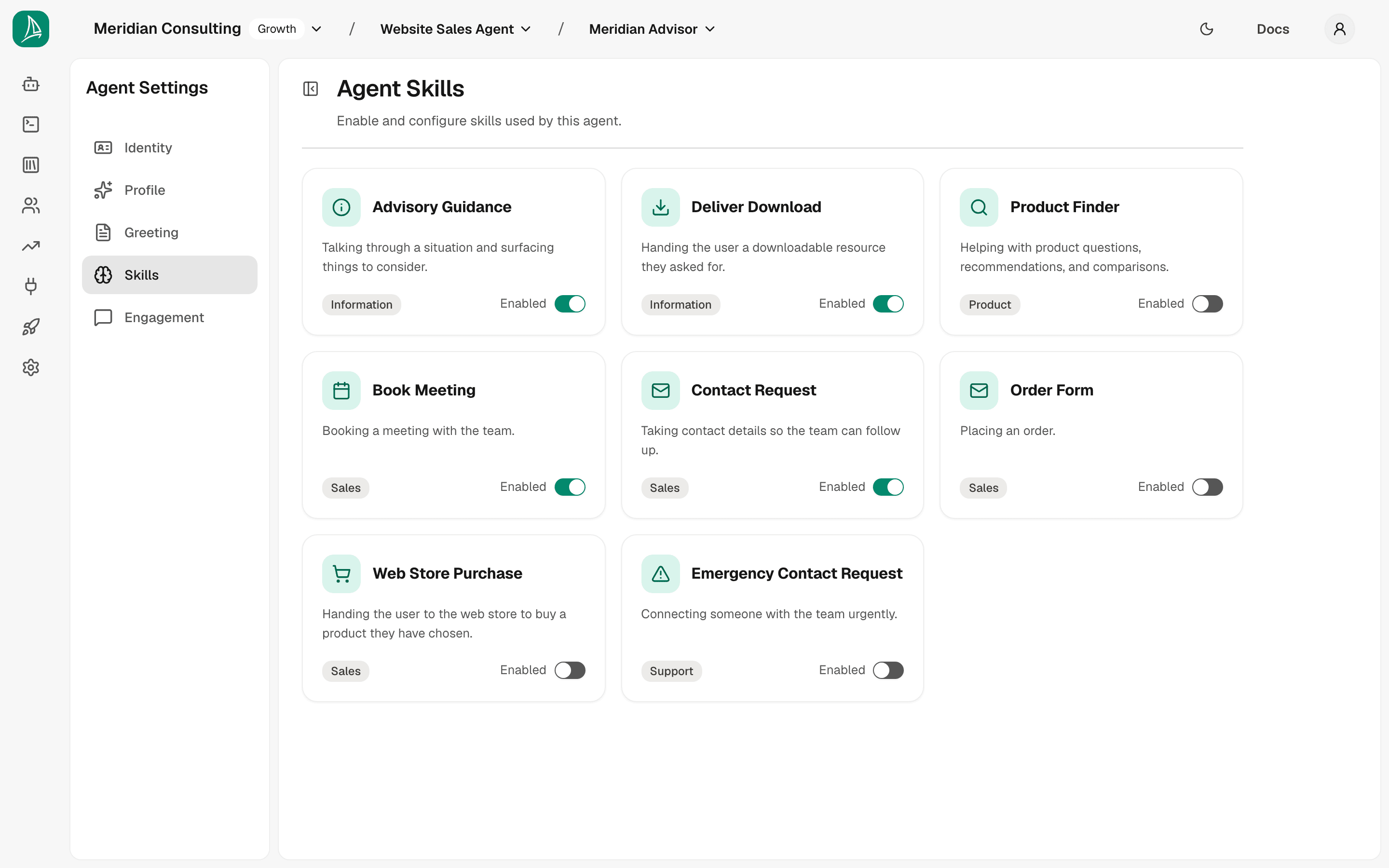
Disabling vs. detaching. Disabling a skill keeps its configuration intact but prevents the agent from using it at runtime. Re-enable any time. There's no separate "remove" — disabled is the off state.
Conversation inputs — telling a skill what to gather
Nearly every skill has a section listing the things it should learn from the visitor. It's the same control everywhere, but each skill names it for its own job:
| Skill | Section heading | What the entries are |
|---|---|---|
| Advisory Guidance | What to learn about the visitor | Properties — what the agent needs to know to advise well |
| Contact Request | Contact form fields | Properties — the fields on the contact form |
| Product Finder | Product attributes to match | Product attributes — the properties it filters the catalogue against |
| Order Form | Order form fields | Properties — the fields on the order form |
Skills that don't name it themselves — Emergency Contact Request, Deliver Download, Web Store Purchase — show the same section under its generic heading, Conversation inputs.
This is where the properties from Properties & segments get put to work. Qualification happens inside whichever conversation the visitor is already having: the skill they've engaged asks for what it needs, when it needs it.
Book Meeting has no inputs section — booking is handled by Cal.com's own form, so there's nothing for the agent to collect first.
Adding a field
Click Add field (the button is named for the skill: Add form field, Add attribute). A picker appears with a dropdown and an Add button.
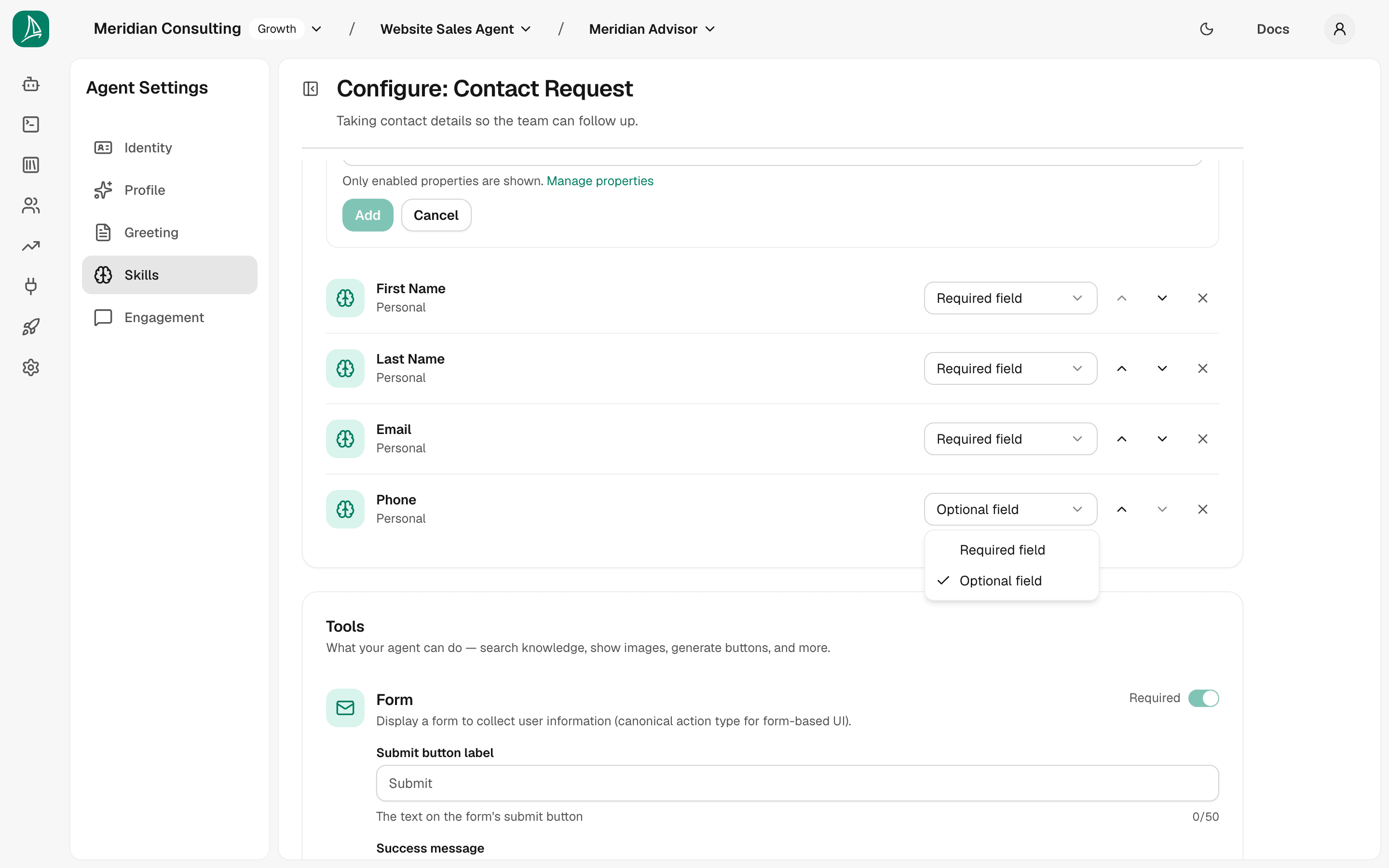
Only enabled properties show up. The dropdown reads from the configuration in Properties & segments — if you don't see a property you expected, check it's enabled on the Properties screen. The page includes a Manage properties link for that exact round-trip. Product Finder is the exception: its dropdown reads product attributes, not properties.
Each added row shows:
- Level — how hard the agent should push for it (below)
- Options — the values it will accept, if the field has a fixed set
- Only when… — makes the field conditional on another field's answer
- Move up / Move down, and Remove
Levels — how hard to push
Every skill offers the same underlying three levels, labelled for what that skill is doing:
| Level | Advisory Guidance | Contact Request | Product Finder | Behaviour |
|---|---|---|---|---|
| Mandatory | Must know to advise well | Required field | Required to search | Pursued until answered. The skill won't finish without it. |
| Optional | Helpful if it comes up | Optional field | Narrows results | Asked when it would sharpen the answer; never insisted on. |
| Inferred | Infer silently | — | — | Worked out from conversation signals. The agent never asks. |
Use Inferred for anything a visitor would find odd to be asked outright — deriving urgency from how often they mention a deadline, say. Form-based skills don't offer it: a form field the visitor never sees can't be filled in.
Order matters. When the agent picks what to ask next it works top-down, so put the fields that matter most at the top.
The Options column
If a field has a fixed set of allowed values — Under £10k / £10k–50k / £50k+ — the row shows them. Two things follow from that, and both are worth knowing:
- The agent will only accept one of those values, so the answer lands in a shape your segments can actually match on.
- The visitor gets tappable chips instead of having to type. One tap answers the question.
Fields with no fixed set — a free-text challenge, a number — are asked as an ordinary question. Options come from the property's matching attribute; if the column is empty and you expected chips, that attribute is where to look.
When the visitor cannot answer
Product Finder only, for now. This behaviour ships on Product Finder's product attributes. Other skills ask their fields as before — a visitor who can't answer will be understood, but won't be offered the explicit way out described here.
Some questions are unanswerable by the person being asked. "Do you need serogroup 1 only, or 1–15?" is a fair question for narrowing a catalogue and an unfair one to put to a school caretaker — and until recently the only way out was for the visitor to leave the conversation they were in and ask for advice instead, which threw away everything they had already told the agent.
Product Finder's ask turns now offer a way to say so. Alongside the answer chips, the visitor gets an option meaning "I'm not sure" — and typing it in their own words does the same thing. Either way the agent:
- Answers its own question from your knowledge base, using content the product search itself cannot reach — guidance pages, FAQs, anything that explains the choice rather than describing a product.
- Asks the question again in the same reply, so the thread is never dropped.
Nothing else changes: the field stays unfilled until the visitor actually answers, the agent stays in the same skill, and no product recommendation is made off the back of it.
If your content cannot answer, the agent says so and offers a sensible starting point — "I don't have enough here to settle that; we can start with X for now and you can change it" — rather than inventing an answer or repeating the question. That fallback is automatic and needs no configuration.
There is nothing to switch on. But there is something worth doing: write down the answers to the narrowing questions your own fields ask. A short guidance page or FAQ entry per hard question ("Should I test water or biofilm?", "What sensitivity do I need?") is what turns this from a sensible default into a real answer. Content that explains a choice is what gets retrieved here; a specifications table is not.
Making a field conditional
The Only when… control makes a field apply only in certain cases: "only ask about container size when the product type is tank". The dropdown lists the other fields on this skill and their values, so you can only build a dependency that can actually be satisfied.
Use it to keep a list short in practice while still covering the branches that genuinely need covering.
Click Save fields to commit. The button sits at the foot of the fields section and appears only once something is pending, with a count of what it will write — each section of the page saves its own work, so there is no single Save that commits everything at once. The change takes effect for new conversations immediately.
Iterating in production. A reasonable starting point is two or three Mandatory fields and four or five Optional ones. Resist the temptation to mark everything mandatory — the agent will become an interrogator and visitors will bounce. Watch real conversations in the playground and on the live widget, then tune the list based on what actually surfaces.
Configuring Book Meeting — set up from Integrations
Booking runs through a connected Cal account: you authorise Breezee once on the Integrations screen, and the skill then offers your real event types in a dropdown.
Because the setup starts with the account connection, the whole flow — connecting Cal, choosing the event type for this skill, and what a visitor sees when they book — is documented together in Chapter 11 — Integrations.
In short:
- Integrations → Cal.com → Connect, and approve on Cal’s consent screen.
- Come back to Skills, open the Book Meeting tile, and pick an event type (e.g. “Intro call · 15 min”).
- Back on the Skills list, switch Book Meeting on and click Save in the unsaved-changes bar — the skill ships disabled, and the switch is what lets the agent reach for it.
If you connect Cal after opening the skill, reopen the panel. Until the account is linked, the configuration shows “Connect Cal.com on the Integrations screen to choose an event type for this skill” instead of the dropdown.
Configuring Contact Request — the form-based fallback
Contact Request is the skill the agent uses when a visitor wants follow-up but isn't ready to book a meeting on the spot. It surfaces an inline form, captures details, and submits them — a softer alternative to a meeting booking for visitors who'd rather have someone reach out to them.
Open the Contact Request tile.
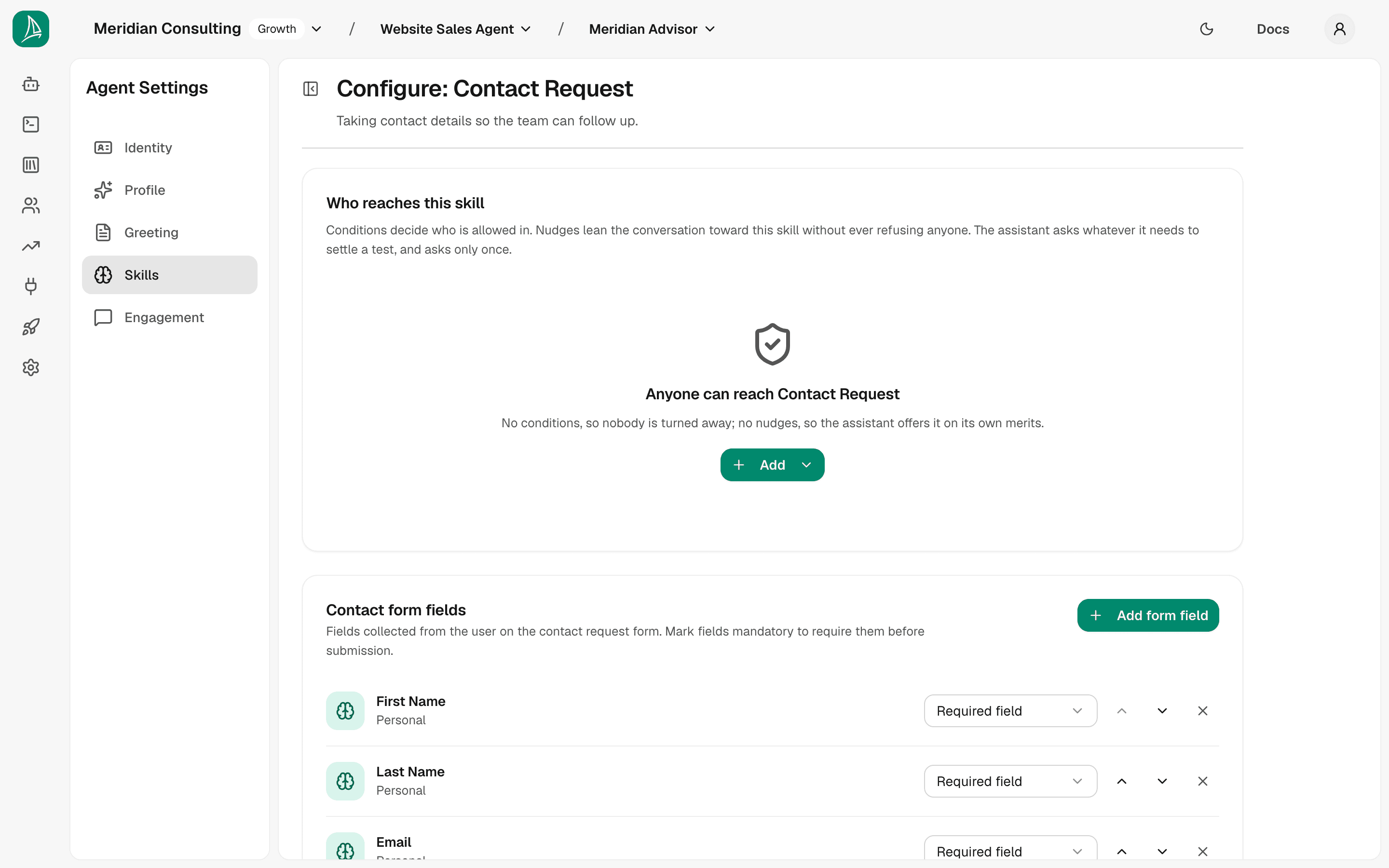
The skill has two sections: form fields, and the form tool itself.
Form fields
Four default fields are pre-attached: First Name (required), Last Name (required), Email (required), Phone (optional). Each has its own mode dropdown — Required or Optional — plus move-up / move-down / remove controls. Use Add form field to add more from the enabled properties.
For most tenants the defaults are fine: name + email required, phone optional. Resist the temptation to add fields you'd like in your CRM but don't actually need before the team responds — the form's job is to capture intent, not to do the discovery.
Form tool — the inline submission UI
Below the fields, the Form tool has three pieces of customizable copy:
- Submit button label — the call-to-action on the submit button (default: "Submit")
- Success message — what the agent says after a successful submission
- Error message — what the agent says if submission fails
The defaults are generic; customising them is the single highest-leverage thing you can do here because it's the moment a visitor crosses from "asking questions" to "expecting a response." Write copy that sounds like your team would say it, sets a realistic expectation of when the visitor will hear back, and offers a fallback channel if the submission fails.
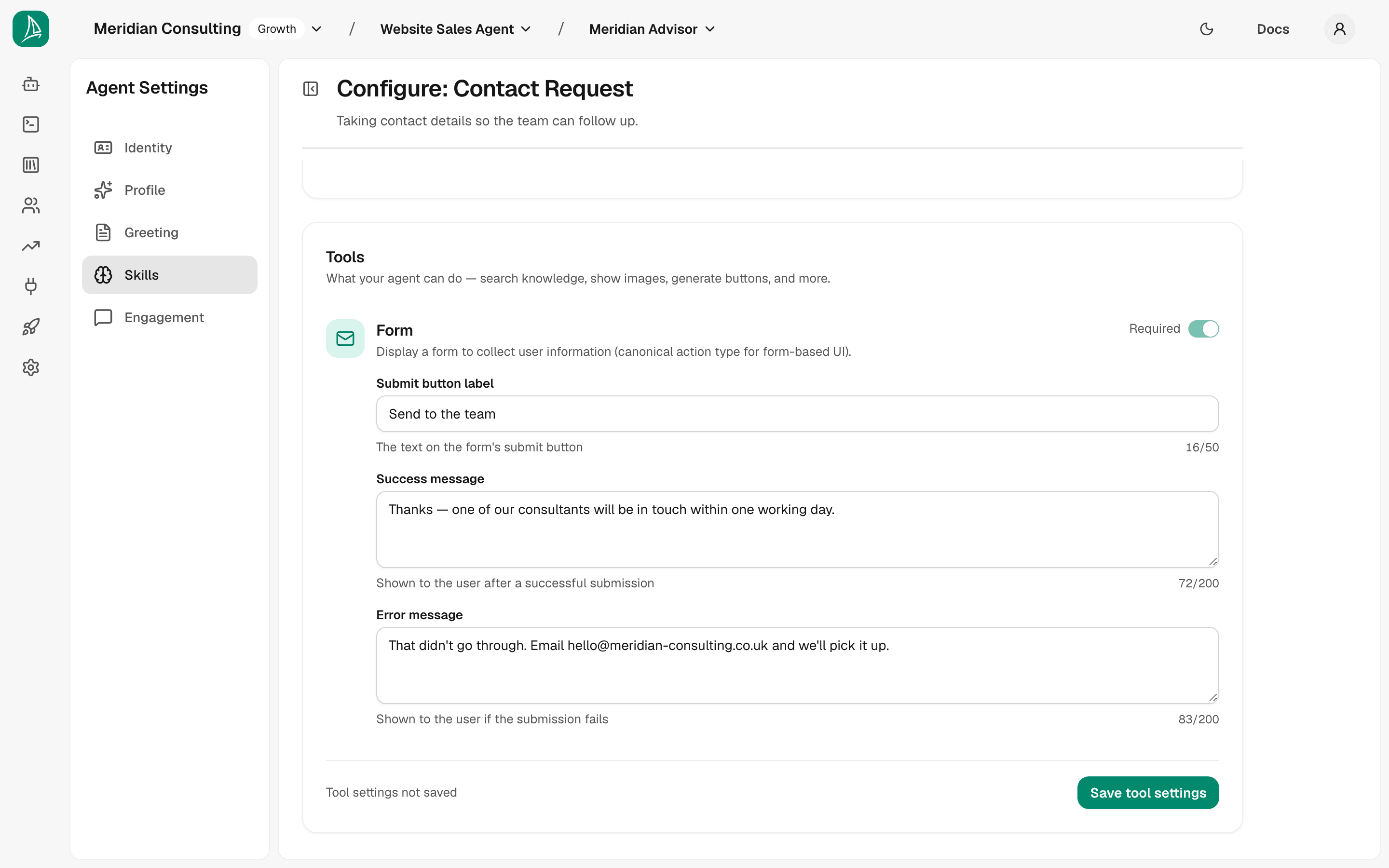
Click Save tool settings.
Product Finder — the screen, and why we left it disabled
Even when Product Finder isn't a fit, it's worth a look at what the screen offers so you know when it would be.
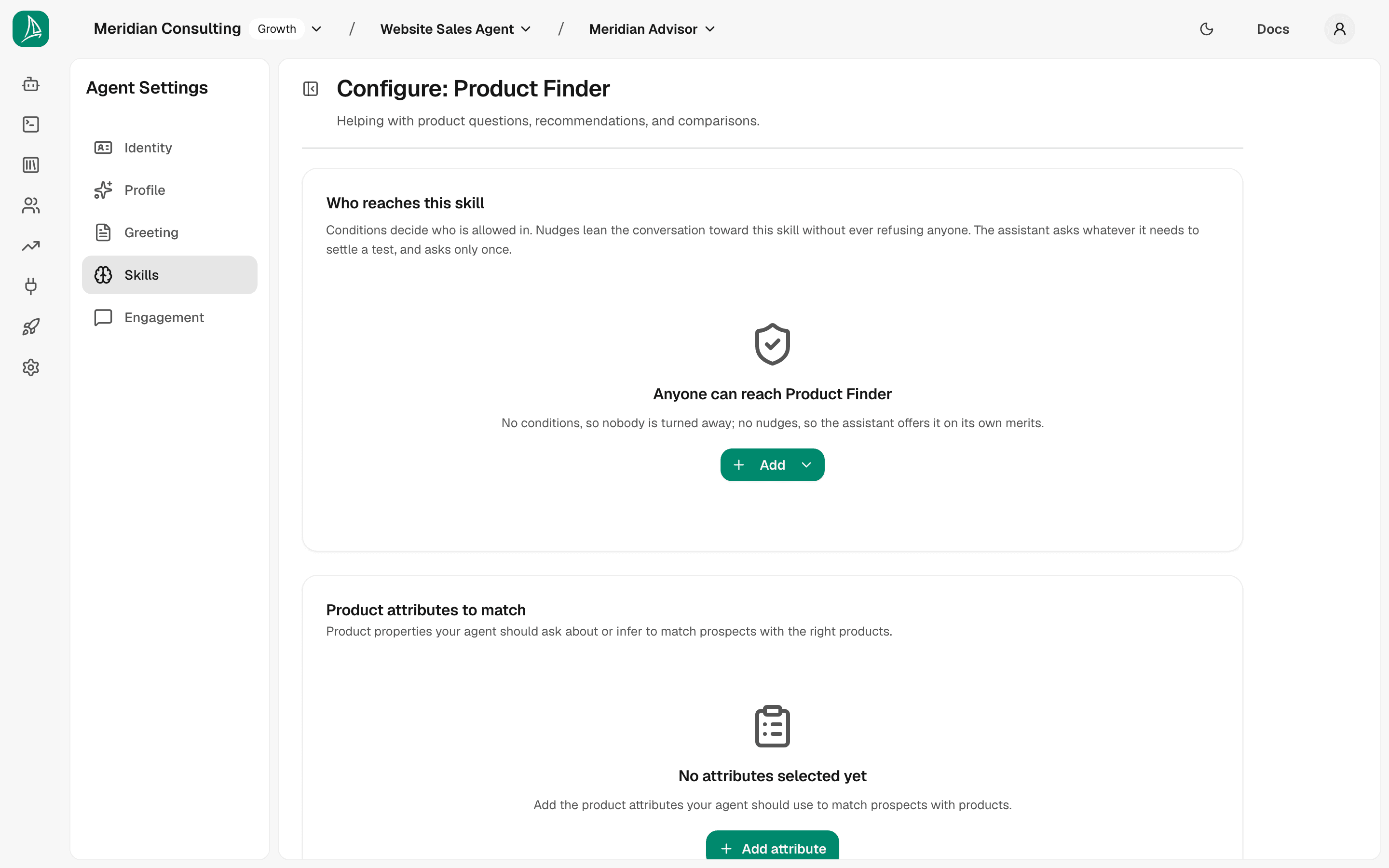
Two sections:
- Product attributes to match — the structured attributes the agent should ask about or infer to narrow down a product recommendation. These come from the Attributes screen in the Content section (introduced in Ingesting knowledge). For a product-led tenant — a hiking-gear retailer, a SaaS plan finder, a consumer-electronics store — you'd define attributes like
waterproof_rating,plan_tier,screen_size, then add them here so the agent knows to ask about them. - Tools — Find Product (a required tool that queries the catalogue against the attribute constraints) plus optional Display Cards (with up to 5 cards per response, locked to 3 during beta), Model-generated Button, and Model-generated Image.
For services-led tenants none of this maps cleanly — there's no catalogue to filter, and the attributes that would drive filtering don't exist. Leave Product Finder disabled in those cases.
When you would use Product Finder
If your tenant has dedicated product pages on a website you've scraped, and you've defined attributes (see Ingesting knowledge) extracted from those pages, Product Finder lets the agent walk a visitor through a guided choice. The flow looks roughly like this:
- Visitor asks an open-ended question ("I need a waterproof jacket for spring hiking")
- Agent uses Product Finder to identify the attributes it needs to narrow the catalogue (
waterproof_rating,weight_class,intended_use) - Agent asks for or infers each attribute over a few turns
- Agent queries the catalogue with the constraints and surfaces a card or two with the matched products
If that flow doesn't match what your customers actually want from chat — leave Product Finder disabled.
How this page saves
Each section of a skill's configure page commits its own work, and says which work it is committing. There is no page-wide Save.
| Section | How it saves |
|---|---|
| Who reaches this skill | Each condition or nudge saves itself, from its own card. |
| What to learn about the visitor | Save fields, at the foot of the section, once something is pending. |
| Tools | A tool's on/off switch saves the moment you flip it — a toast confirms which tool and which way. Its settings, where a tool has them, save with Save tool settings. |
Two consequences worth knowing:
- Flipping a tool takes effect immediately. There is no undo and nothing to confirm; flip it back if you did not mean it.
- Leaving with something unsaved still warns you, and now names only what is genuinely pending — a typed field or a half-written rule, never a switch you have already flipped.
There is no Back to skills button. Use the sidebar, as on every other screen.
Conditions and nudges — who reaches this skill
The rest of this chapter says what a skill does. The first section on a skill's configure page, Who reaches this skill, says when the agent reaches for it — and it sits on the skill itself because that is what it is about. Every skill has it, including ones you have never set a rule on.
One list, holding two kinds of rule, and the difference between them is the whole point. Each card says which kind it is:
- A condition stands in front of the skill and decides who may enter. It is binding: when the agent can't yet tell which side of it a visitor is on, it asks one qualifying question, and the answer decides.
- A nudge leans the conversation toward the skill. It is a preference, not a rule — it lifts the skill's ranking, and the agent may still do something else.
Neither writes prompt text. The runtime evaluates them deterministically, so the behaviour is predictable and testable. A fresh agent has neither — the section says so in a line, "Anyone can reach Book Meeting", and the agent picks skills from the visitor's message alone.
Conditions are listed first, then nudges. That ordering is not cosmetic: it is what keeps the OR between conditions readable, as below.
Both kinds rest on Properties & segments. A rule that names a segment needs that segment to exist first; a rule carrying a one-off test needs only the property it checks. Either way, nothing matches until the agent has something to remember about the visitor.
Conditions and nudges are a plan feature. If your plan doesn't include them, the section tells you so and shows which plan unlocks them, rather than disappearing.
How they feed into the chat turn
Rules are evaluated between the planners (intent, tool, slot extraction) and the responder in the chat pipeline (see Introduction). A nudge that fires puts its skill forward as a candidate for how the agent ends its reply; when one is worth offering, the reply closes by inviting the visitor toward it — "…and since you mentioned a rollout across three sites, would a quick call help?"
A condition works earlier and harder: it is checked when the agent is about to start the skill, however the visitor arrived — including when they ask for it outright.
This deterministic layer exists because pure LLM-driven skill selection was noisy: small wording changes in the prompt could swing behaviour. Conditions and nudges let you anchor the most important decisions in configuration rather than relying on the model to do the right thing on every turn.
Adding a nudge
Open the skill and, under Who reaches this skill at the top of the page, click Add nudge. A card appears at the bottom of the list, open for editing, headed New nudge until you've filled it in.
A nudge has two fields:
| Field | Required | What it does |
|---|---|---|
| Who | Yes | A segment, or a one-off test of this rule's own. When it matches, it fires. |
| Why, in your words | No | Your reason. The agent weaves it into the offer. |
There is no "which skill" field. The page you are on is the skill, and a nudge authored here leans toward it.
For a first nudge on Book Meeting, push the agent toward booking when a prospect has reached the MQL segment configured in Properties & segments:
- Who:
MQL
Click Save.
What "MQL matches" means in practice. In Properties & segments we defined MQL as
Current Challenge present AND Organization Size present. So this nudge fires once a visitor has told the agent both (a) what they're trying to fix and (b) the size of their organisation. From that turn onwards, the agent is steered toward offering a meeting.
Nudge lifecycle — pending, fired, resolved
Nudges have a per-session lifecycle the engine tracks:
- Pending — criteria are met; the nudge is ready to fire but hasn't yet. The agent will see it on the next turn.
- Fired — the nudge has just been applied to the current turn.
- Resolved (acted on) — the agent followed the nudge (e.g. it actually invoked the skill). Done for this session unless criteria change again.
- Resolved (dismissed) — the visitor moved past it (typically after a couple of turns); the nudge has gone quiet.
If the criteria stop matching and then start matching again — a property value updated, revised, updated again — the nudge cycles back into Pending and can fire again. That deliberate cycling lets a nudge re-engage when the underlying signals genuinely change. It also means nudges don't fire on every turn just because they technically still match.
Why this matters as a configuration discipline
Nudges are powerful, and easy to over-use:
- Don't nudge toward more than one thing per segment. If MQL prospects should "book a meeting or request contact", pick the higher-confidence outcome and let the other happen organically.
- Prefer specific segments over generic ones. A nudge keyed on
Hot Leadfires less often than one keyed onWarm Lead; the former pushes harder when it does, which is usually what you want. - Trust the lifecycle. Don't stretch a nudge's criteria to keep it active. The engine quiets a nudge once it has fired, because bounded persistence beats constant nagging.
Adding a condition
Some skills are worth protecting. You might be happy for anyone to ask questions, but want only serious buyers reaching your calendar.
Under Who reaches this skill, click Add condition. The new card joins the conditions at the top of the list, above any nudges.
A condition has three parts:
| Part | Required | What it does |
|---|---|---|
| Who | Yes | A segment, or a one-off test of this condition's own. Whoever matches may enter. |
| Why, in your words | No | Your reason. The agent says it when it asks, and when it turns someone away. |
| Everyone else | No | Optionally, a skill to send the people it refuses. |
As with a nudge, nothing asks which skill the condition guards — the page has already said so.
A worked example on Book Meeting:
- Who:
Funded Project(the segment matching a real budget) - Why: "Projects with budget behind them need pricing and timings agreed with a person."
- Everyone else → send them to:
Contact Request
Click Save.
Where the people it refuses go
By default nobody else gets in and the conversation simply carries on — the agent doesn't offer the skill, and doesn't offer anywhere else either. The panel says so before offering the change.
Click Send everyone else somewhere to name a destination instead. Which you want depends on whether you have somewhere better to send people: if you do, say so, because a visitor turned away with nowhere to go is a visitor who leaves.
Naming a destination does not close it. Sending refused visitors to Contact Request leaves Contact Request open to everyone, including the people this condition admits. If you also want to keep them out of it, that is a second condition, written on Contact Request's own page. Two rules, each saying what it does on the page it belongs to.
What the visitor sees
The condition only speaks up when it needs to. If the agent already knows enough to decide, the visitor never notices it.
When it doesn't know, the visitor asks to book and gets a question first:
Visitor: I'd like to book a demo Agent: Absolutely — I can help get a demo booked. To make sure I point you the right way, what budget range are you working with?
[ We're under 100 ][ We're in the 100-500 range ][ We're above 500 ]
They tap an answer, and it resolves:
- The answer matches → the booking calendar appears, as normal.
- The answer doesn't → the agent doesn't book, and offers the destination skill instead, or simply doesn't book if none is named.
- They never answer → the condition keeps holding. It will not book on persistence alone; that's the point of it.
Answers appear as tappable options when the question has a fixed set of them, and as an ordinary question when it doesn't — a number has no natural set of buttons.
Asked once. The answer is remembered for the rest of the conversation. There is nothing to configure: the agent will not ask the same qualifying question twice in one session.
Two things that will catch you out
The question can only be asked if the field exists. A condition's segment points at a property. That property also needs a matching attribute — set up on the Attributes screen with its type and a description — or the agent knows it needs to ask something but has nothing to ask with. The symptom is distinctive: it asks a vaguely related question every turn and never books. See Properties & segments.
Write "Why, in your words" for the visitor, not for yourself. It is not an internal note — the agent weaves it into both the question and where it takes people. "Low-value leads shouldn't get calendar time" is true and would be insulting to read. Write what the answer settles, and describe what it gets them.
More than one condition on the same skill
You can add several conditions to one skill. They compose OR — a visitor who matches any of them gets in, and is only turned away when none admits. The list shows an OR between the cards so the relationship is visible where it applies.
The OR appears between conditions and nowhere else. Nudges sit below them with no bar between, because nudges do not compose at all: each adds its own weight, and none is an alternative way through a door it cannot open.
That's deliberate, and it's how you write an exception. A low-budget visitor normally finds no way to a meeting — but add a second condition admitting existing customers, and an existing customer with a small budget still gets the calendar.
The catch is that two conditions on one skill should test different things. Two keyed on the same property will both be settled by one answer, which is rarely what you meant.
Seeing "Anyone who is not …" on an existing condition? Conditions used to be written the other way round — naming the segment to steer away. Those rules were translated automatically and behave exactly as before; the card just states honestly what the rule always did. You can leave it alone, or pick a segment to say who it admits instead. Picking one changes what happens to visitors who match neither segment — they used to get in, and they won't afterwards — so check both segments' definitions before you swap.
Segment or test?
Every rule's Who is one dropdown. It lists every segment, and then, under Just this rule, a single entry called A one-off test…. Until you pick one it reads Select a segment or a test.
- A segment — one of the segments from Properties & segments. The rule applies to whoever matches it, and keeps applying to whoever matches it after you refine the segment later.
- A one-off test — picking it reveals one row: a property, a comparison, a value. One property, one comparison, one value — that is the whole of it. The properties and comparisons on offer are the same ones the Segments screen offers, in the same controls.
A test is a single check. There is no way to add a second to a card, and that is on purpose: a combination of checks, kept together under a name, is exactly what a segment is. If your rule needs two things to be true, build a segment.
Segments are the recommended path, and the card says so. Two things a segment gives you that a test on a card does not:
- Reuse. A segment is defined once and used by as many rules as you like. Refine the definition and every rule using it follows. Two cards carrying the same test, written separately, will drift apart the first time you edit one of them.
- Reporting. Matching a segment is recorded against the prospect, so they show up under that segment on the Prospects screen and anywhere else segments are counted. A visitor who matched a test written on a card was never in a segment, so they appear in none of that.
Use a test when the rule genuinely is a one-off and a named segment would only ever be used by it. If you find yourself writing the same test on a second card, make it a segment instead.
A saved rule answers "who" exactly once. It carries a segment or a test, never both — a rule holding both would quietly use only one of them. Asking once, in one dropdown, is what makes that impossible to get wrong. While the card is open you can look at a segment and come back, and the test you had typed is still there; whatever the dropdown says when you save is what is stored, and the other answer is discarded. Close the card without saving and both are gone.
If a test's property is turned off. Turning a property off on the Properties screen removes it from every test that used it — segments and cards alike. A card left with nothing to test is inert: it stops deciding anything. A condition in that state lets everyone through, and a nudge in that state never applies. The card says which, in red, on the collapsed line —
No test set — anyone can enter.on a condition,No test set — this nudge never applies.on a nudge — and it cannot be saved again until you give it something to test.If a test has a comparison but no value. A card reading
No value setis the opposite failure and worth knowing about: the door is shut for everyone, and the agent still asks the question. The collapsed line says so —No value set — nobody gets in, and the question is still asked.Fill in the value, or switch the comparison to one that needs none.If a card was set up with more than one test. Nothing writes a card that way now, but an older rule may have been. The Who dropdown reads
2 tests(or however many) with an amber outline, the collapsed line readsThis rule has more than one test — use a segment for that., and the card refuses to save until it is fixed rather than dropping the extras without telling you. Picking A one-off test… again clears what was there and starts you on a single fresh row; picking a segment that covers what the rule was testing keeps all of it.
Nudge or condition?
A nudge expresses a preference: it lifts the skill's ranking so the agent leans toward offering it. It cannot stop the agent doing something, and it cannot make the agent ask a question first.
When you need either of those — "only serious buyers reach my calendar" — you want a condition. A condition applies however the visitor arrives, including when they ask for the skill outright.
If you find yourself wanting a nudge to "make sure" something happens, you want a condition.
Editing and removing
Each card has a ⋯ menu at the end of its row, holding Edit condition / Edit nudge, which expands the card, and Remove condition / Remove nudge. The card's own label — Condition or Nudge, beside its heading — tells you which you are about to edit.
Each save writes one kind: saving a condition writes this agent's conditions, saving a nudge writes its nudges. Neither touches the other.
When a rule isn't behaving
Three diagnostic moves:
- Check the segment actually matches. Open the Prospects screen, find a relevant prospect, and look at the segment labels on their detail panel. If the prospect isn't carrying the segment you expected, the criteria on the segment itself need tuning — not the rule.
- Check skill enablement. A rule on a disabled skill silently does nothing.
- If a nudge fires but the skill still never runs, the skill probably carries a condition that has not been satisfied. A nudge cannot get a visitor past a condition — that is exactly the difference between the two.
- If Save seems to do nothing, look for a broken rule elsewhere on the agent. Saving a condition checks every condition on this agent, not just the one you edited — and the same goes for nudges. If any one of them can't be saved (it points at a deleted segment, has no value set, or carries more than one test), nothing is written. That rule opens with its problem shown, but if it lives on a different skill's page you won't see it from here. Open the agent's other skills, fix or remove the rule showing a red line, then save again.
Skills not deep-dived here
For brevity this chapter walks Book Meeting and Contact Request end-to-end. The rest work the same way mechanically:
- Advisory Guidance — enabled out of the box with an empty input list, which makes it purely reactive: it advises when asked and never chases anything. That's a deliberate starting point, not an oversight — the platform doesn't presume to know what your discovery conversation needs. Add two or three fields under What to learn about the visitor and it starts steering the conversation toward them. This is the single highest-leverage thing to tune once you've watched a few real sessions.
- Deliver Download — hands over a document when the visitor asks for one. Nothing to configure; it draws on the content you've ingested.
- Order Form, Emergency Contact Request — form skills, configured exactly like Contact Request above.
- Web Store Purchase — points the visitor at your web store once they've chosen a product. Only worth enabling alongside Product Finder.
What's next
The configuration story is complete — agent personality, content, properties, segments, skills, and the conditions and nudges that decide when each skill is reached. Time to test it.