Account & onboarding
This chapter covers getting into the dashboard for the first time and setting up your tenant. By the end of it, you'll have:
- A Breezee AI user account
- A signed-in session
- An organisation (the top-level tenant that owns everything else)
- A populated personal profile
If your organisation has already been created and you're being added to it as a team member, skip ahead to Organisation & team management.
Creating your account
Breezee AI accounts use email and a password. Sign-up is self-service from the sign-up page.
Navigate to the sign-up page
From the login screen, click the Sign up link at the bottom.
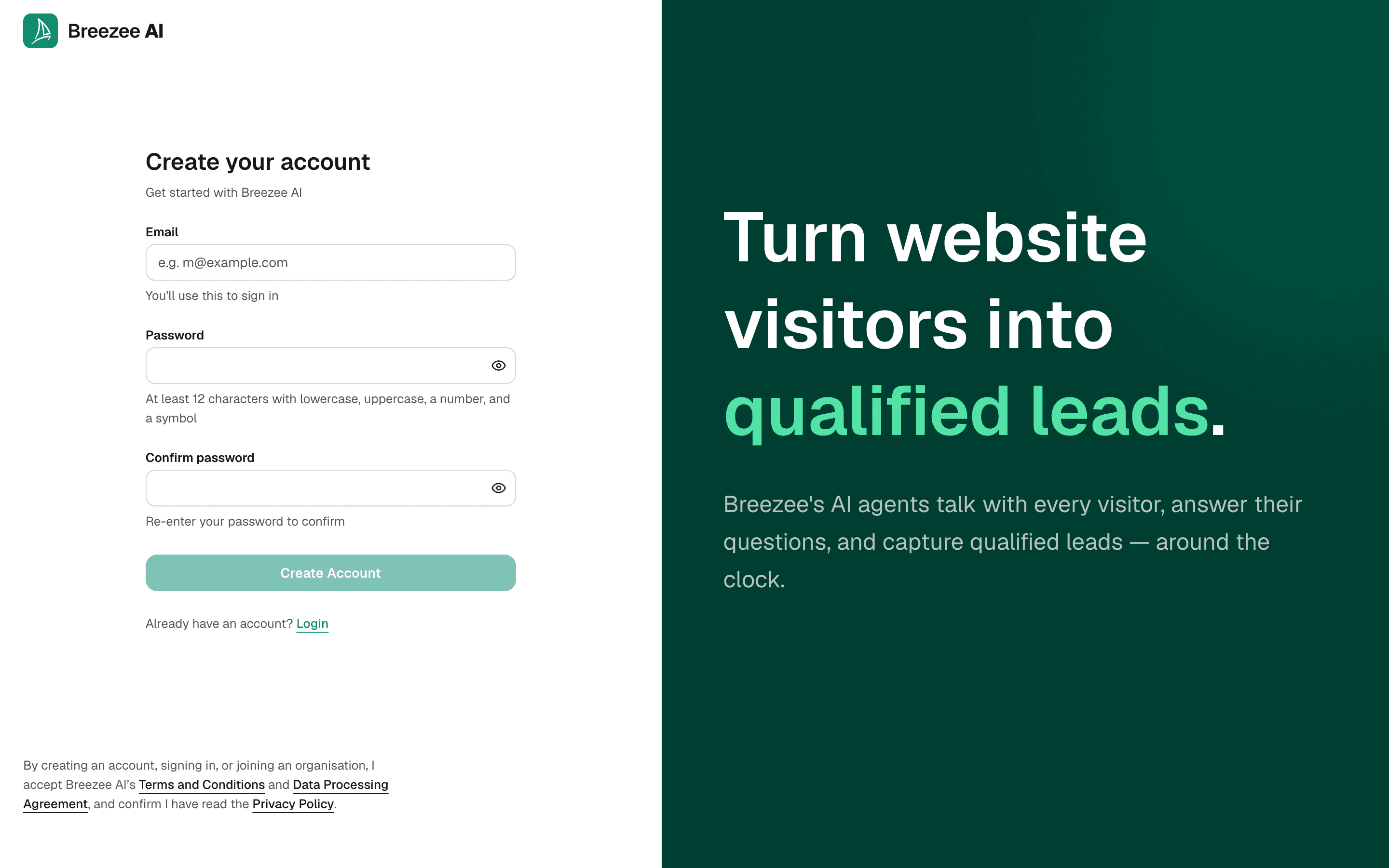
You'll be asked for:
- Email — your work email; you'll sign in with this. If you're going to create your organisation, use your business address — see Creating your organisation.
- Password — chosen by you, checked against standard length and complexity rules
- Confirm password — to catch typos
Your name isn't asked for here. You add it to your profile once you're in — see Setting up your personal profile.
Confirm your email
After submitting the sign-up form, Breezee AI emails you a confirmation link. Click it to activate the account. Until you confirm, the account exists but can't be used to log in.
If the confirmation email doesn't arrive within a few minutes, check your spam folder. The sender is the email address configured for your Breezee AI deployment (typically no-reply@breezee.ai or your organisation's SMTP sender).
Forgotten password
If you forget your password later, use the Forgot your password? link on the login screen.
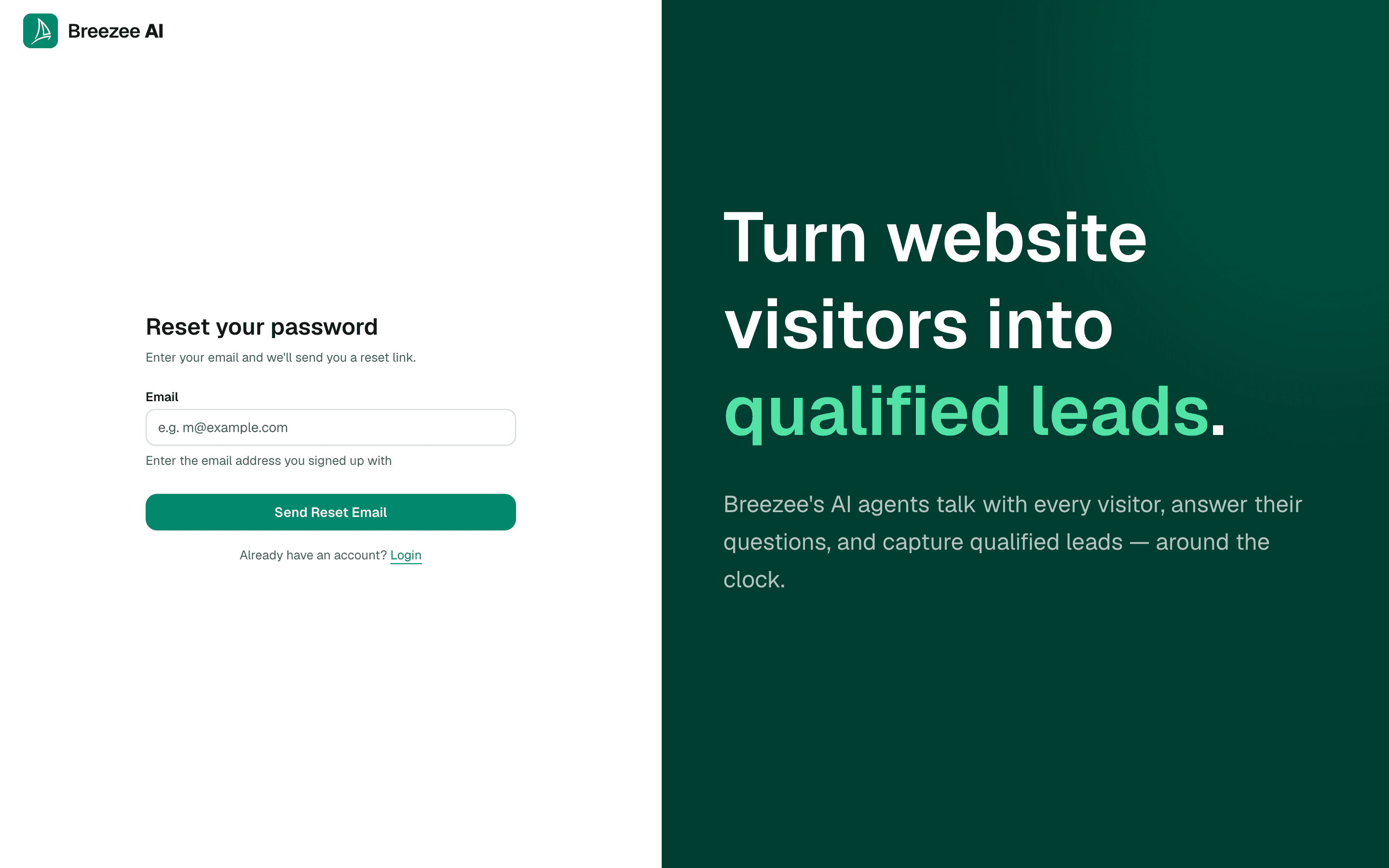
Enter your email and click Send Reset Email; Breezee AI sends a password-reset link. The link is single-use and expires after a short window.
Logging in
Once your account is confirmed, log in from the dashboard sign-in page.
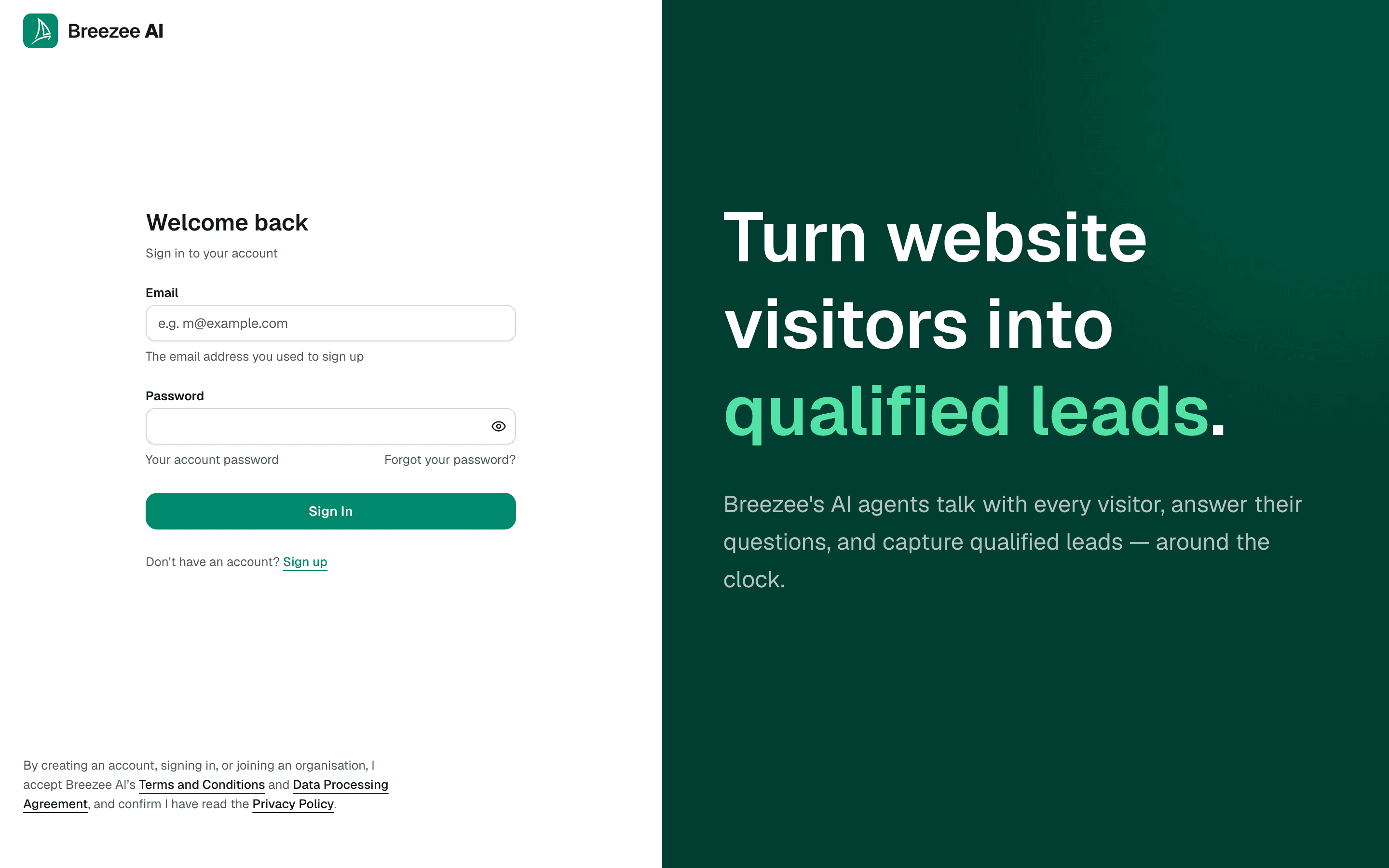
Enter your email and password, then click Sign In. The platform decides what to do with you based on whether you already belong to an organisation:
- No organisation yet — you're sent to the Create Organisation screen. This is the path covered in the next section of this chapter.
- Already a member of an organisation — you're sent straight to the dashboard home page.
The documents you agree to
Underneath the sign-in, sign-up, and set-a-password screens there's a single line naming the documents that govern your use of Breezee AI:
By creating an account or signing in, I accept Breezee AI's Terms and Conditions and Data Processing Agreement, and confirm I have read the Privacy Policy.
All three names are links. They open in a new tab, so you can read them without losing whatever you'd typed.
A few things worth knowing about that sentence:
- It's the whole agreement step. There's no tick box and no separate screen. Creating your account or signing in is the act of accepting, exactly as the sentence says.
- The Privacy Policy is there to be read, not accepted. It explains what we do with personal data; it isn't something you sign.
- We record the date. Breezee AI stores the date your organisation's agreement began and who accepted it, so we can give you a copy of that record if you ever ask for one.
- It also appears on the invitation path. If a colleague invites you and you arrive at the set-a-password screen, the same line is there — you don't pass through sign-up, so this is where you see it.
Creating your organisation
The first thing every brand-new account does is create an organisation. The organisation is the top-level tenant — everything you do in the dashboard (teams, agents, content, deployments, prospects, integrations) belongs to it.
You arrive at this screen automatically after your first successful login:
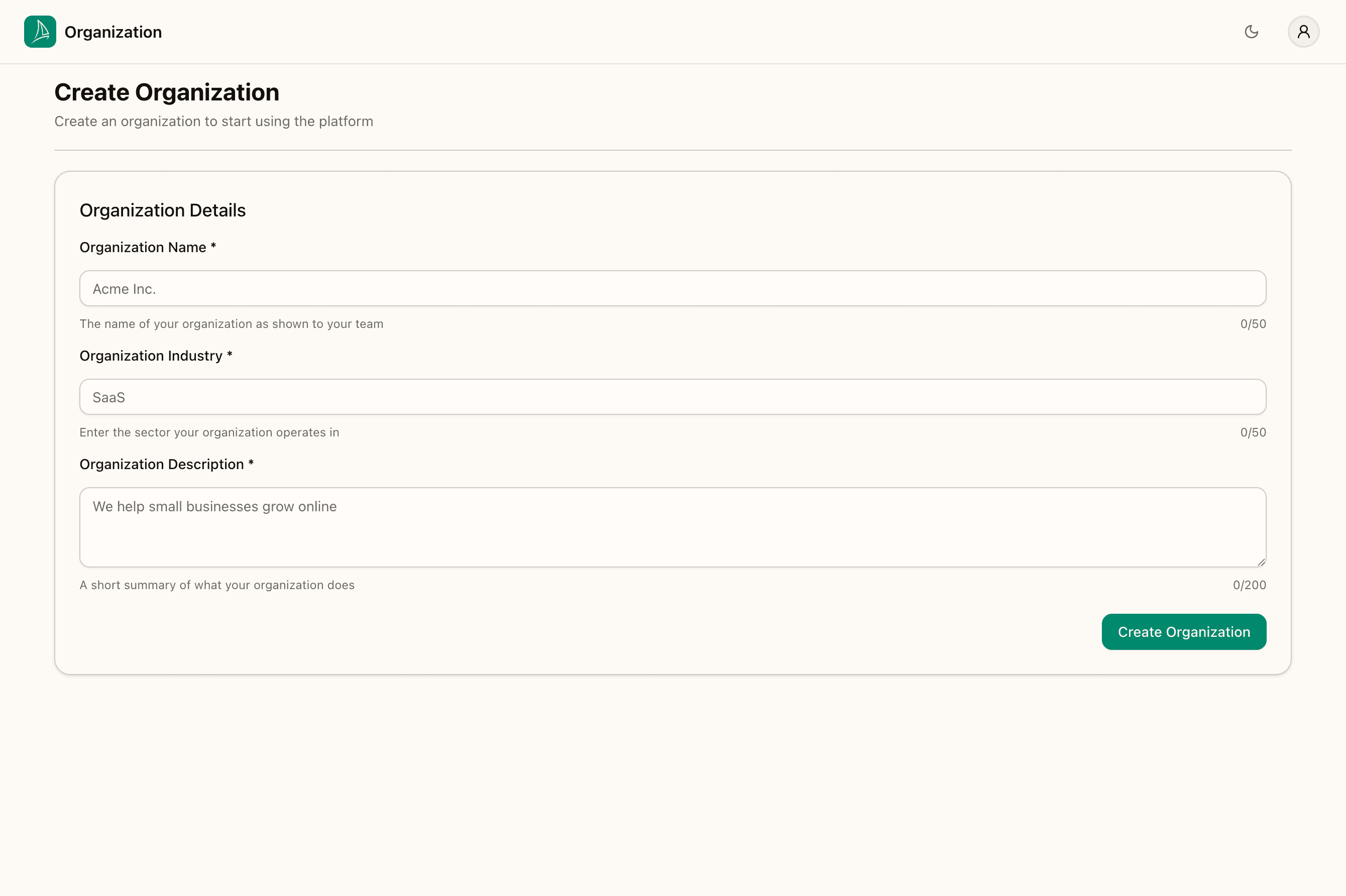
Three required fields: Organization Name (your business as it should appear to your team), Organization Industry, and Organization Description — a short description of what your business does.
Two rules apply to creating an organisation, and neither applies to being invited into one:
- It needs a business email address. If you signed up with a personal address (Gmail, Outlook and the like), you'll see Please use a business email address. Sign up again with your work address.
- One organisation per email domain. If somebody at your company has already created one, you'll be told an organisation already exists for your email domain. Ask one of its owners to invite you instead — see Organisation & team management.
Important: the description is fed to the AI agent as grounding context. Write it the way you'd describe your business to a new hire on day one — what you do, who you do it for, what makes you different. The agent will reach for this whenever it needs to talk about who you are. Don't fill it with marketing fluff; concrete and specific is better than aspirational.
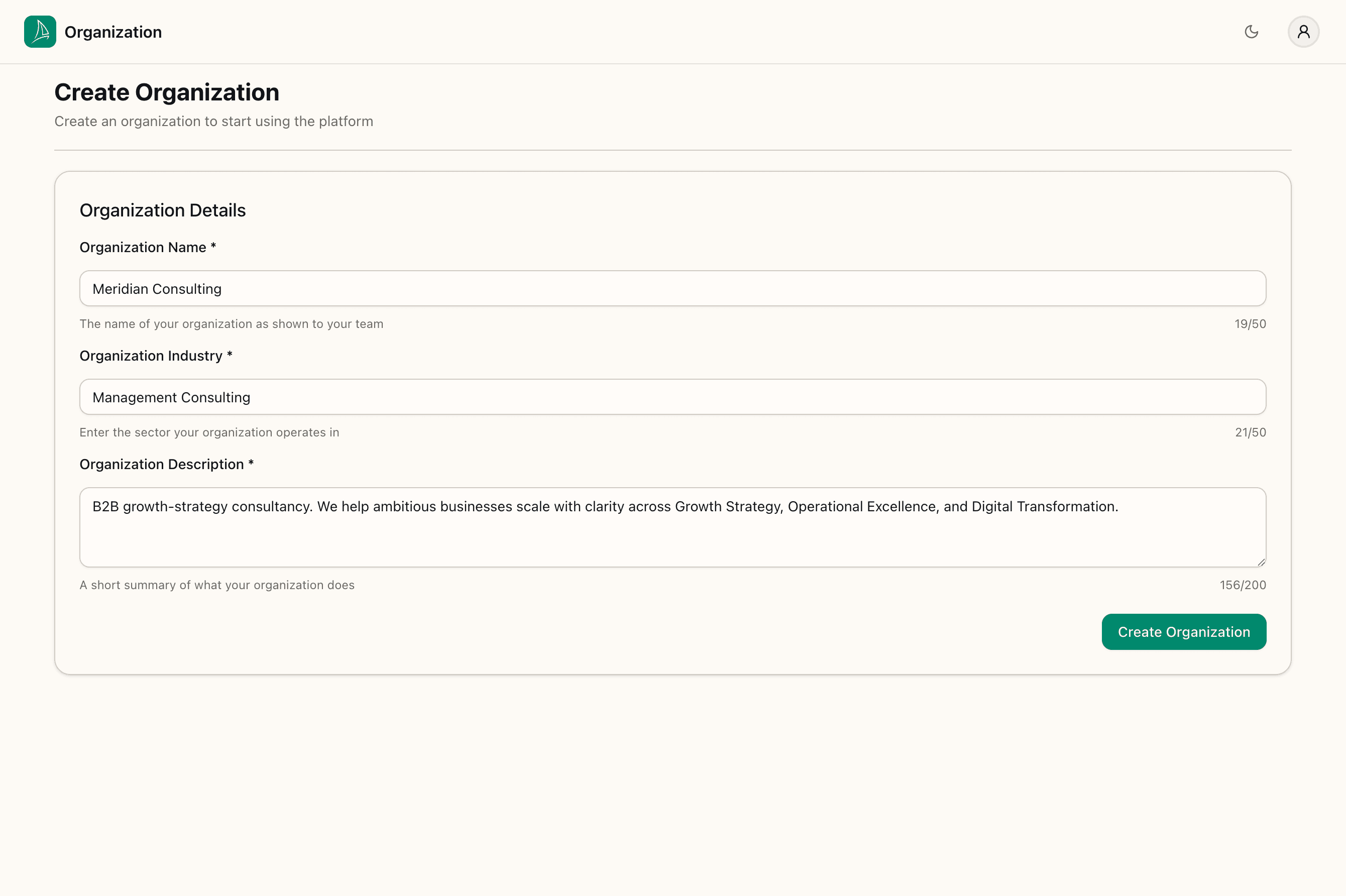
Click Create Organization. You're redirected to the dashboard home page — titled Teams — which is empty for a brand-new organisation:
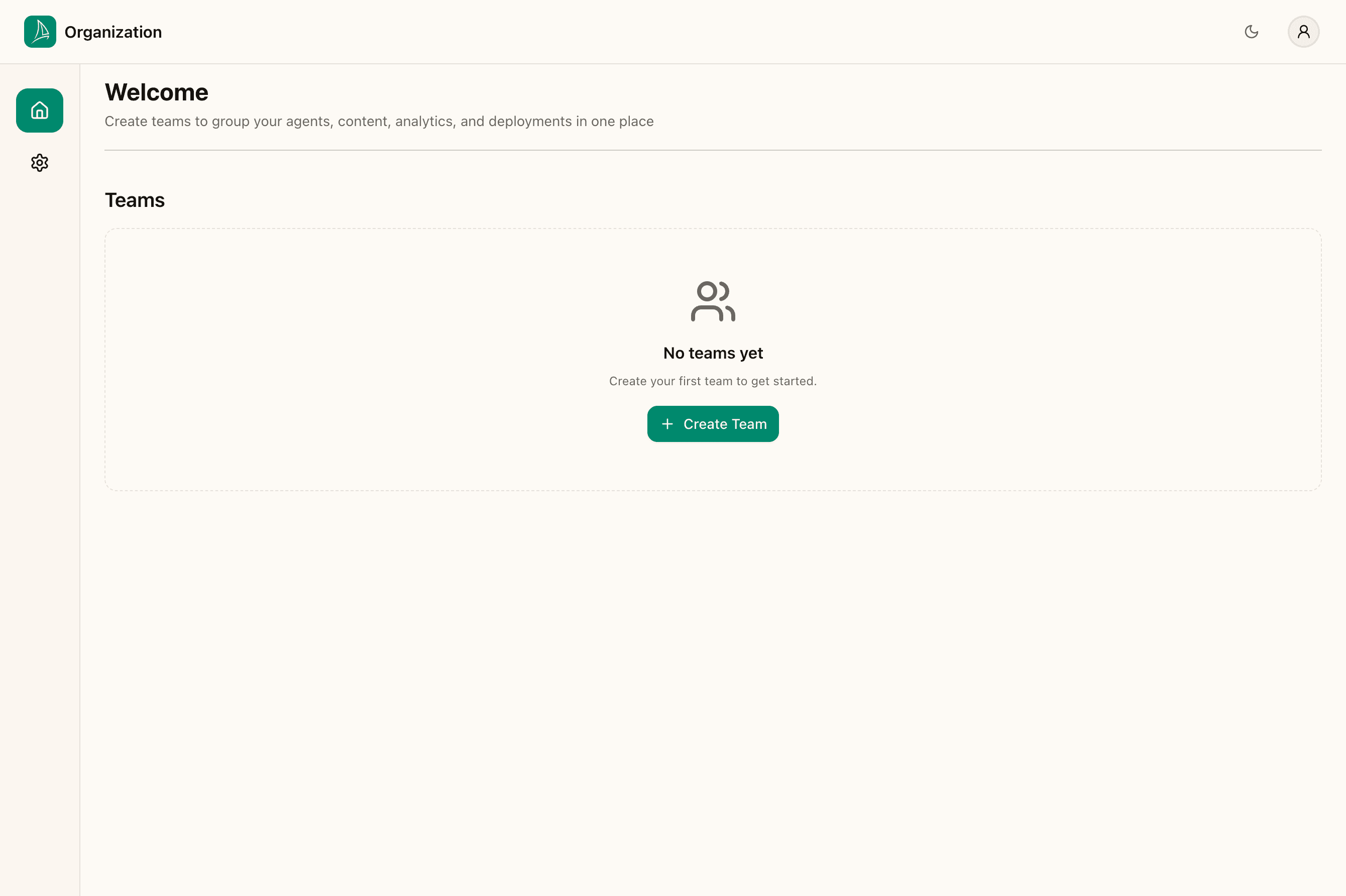
The "No teams yet" state is expected. You'll create your first team in Organisation & team management.
What just happened under the hood. Creating the organisation also creates your membership in it as an owner. Your account now has full rights to add team members, create teams, configure agents, and manage billing. Other people you invite later join the same organisation and see the same teams.
Your organisation starts on a 14-day trial. A new organisation gets every Growth feature on a smaller allowance for fourteen days. Choose a plan before it ends to keep your agent answering; if you don't, the organisation moves to the Free plan — the agent stops taking conversations, but nothing you've built is deleted. See Billing & usage.
If your account is on the beta
While Breezee AI is in beta, accounts taking part carry a short notice across the top of every dashboard page:
You're on the Breezee beta. Features may change and the service is provided as-is under the Beta Access Agreement.
The last three words link to the Beta Access Agreement itself, which sets out what "as-is" means and what you can expect while the product is still changing under you.
- It's a notice, not a prompt. There's nothing to agree to and no button to press. It's there so the terms that apply to your account are visible rather than buried.
- You can close it. The × on the right hides it while you move around the dashboard. It comes back when you reload the page or next sign in, which is deliberate — a notice you can switch off permanently stops being a notice.
- It disappears on its own. When your account moves off the beta, the notice stops appearing and the Beta Access Agreement stops applying. Nothing you have to do.
If you don't see this notice, your account isn't on the beta and the Terms and Conditions govern it on their own.
Setting up your personal profile
Before moving on to teams and agents, take a minute to fill in your personal profile. It's surfaced in the activity log (so your colleagues can see who did what) and in places where the dashboard addresses you by name.
Open the user menu
The user menu lives in the top-right of every dashboard page. Click the avatar circle to open it.
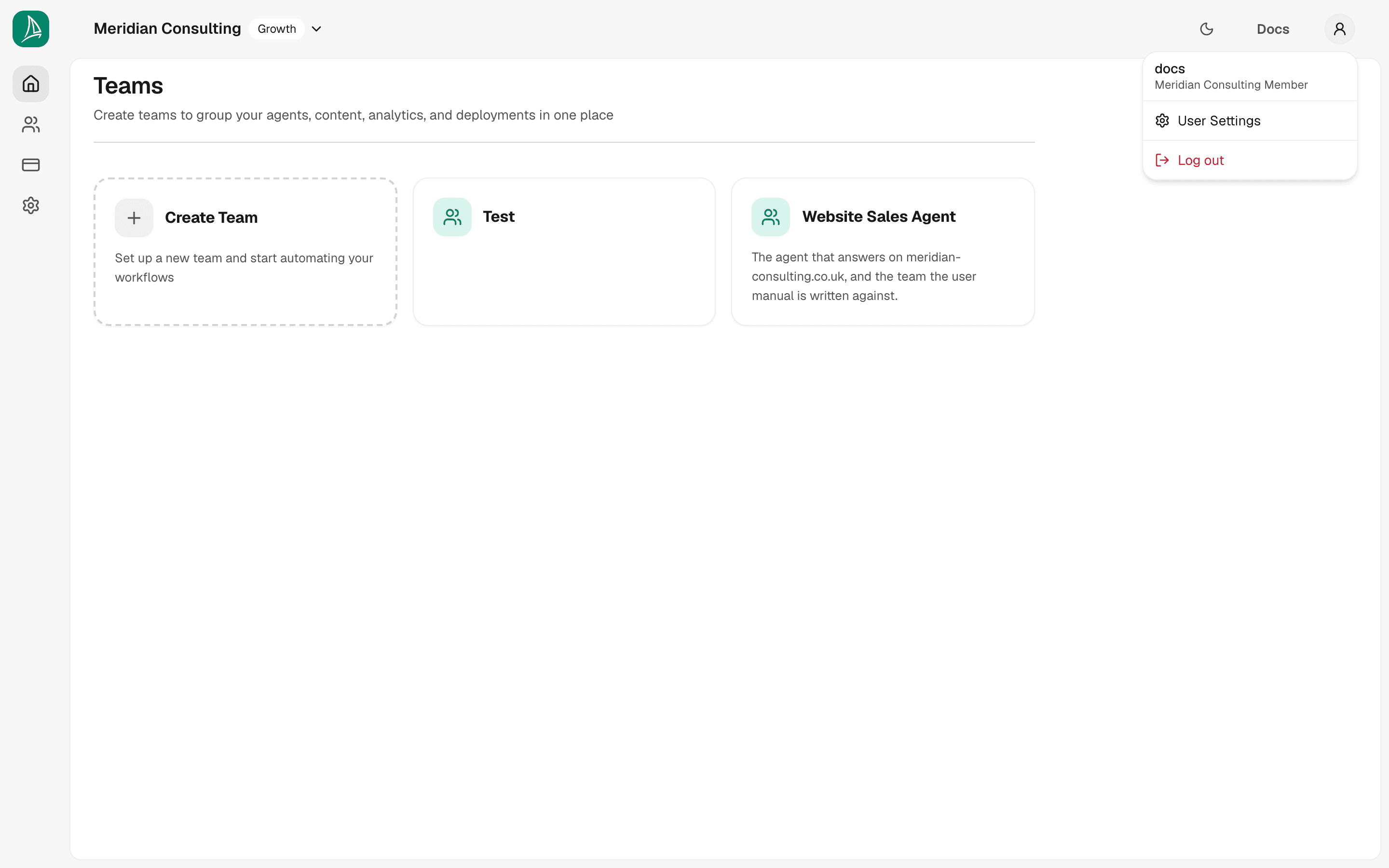
The menu has two items:
- User Settings — opens this page
- Log out — signs you out and returns you to the login screen
Edit your profile
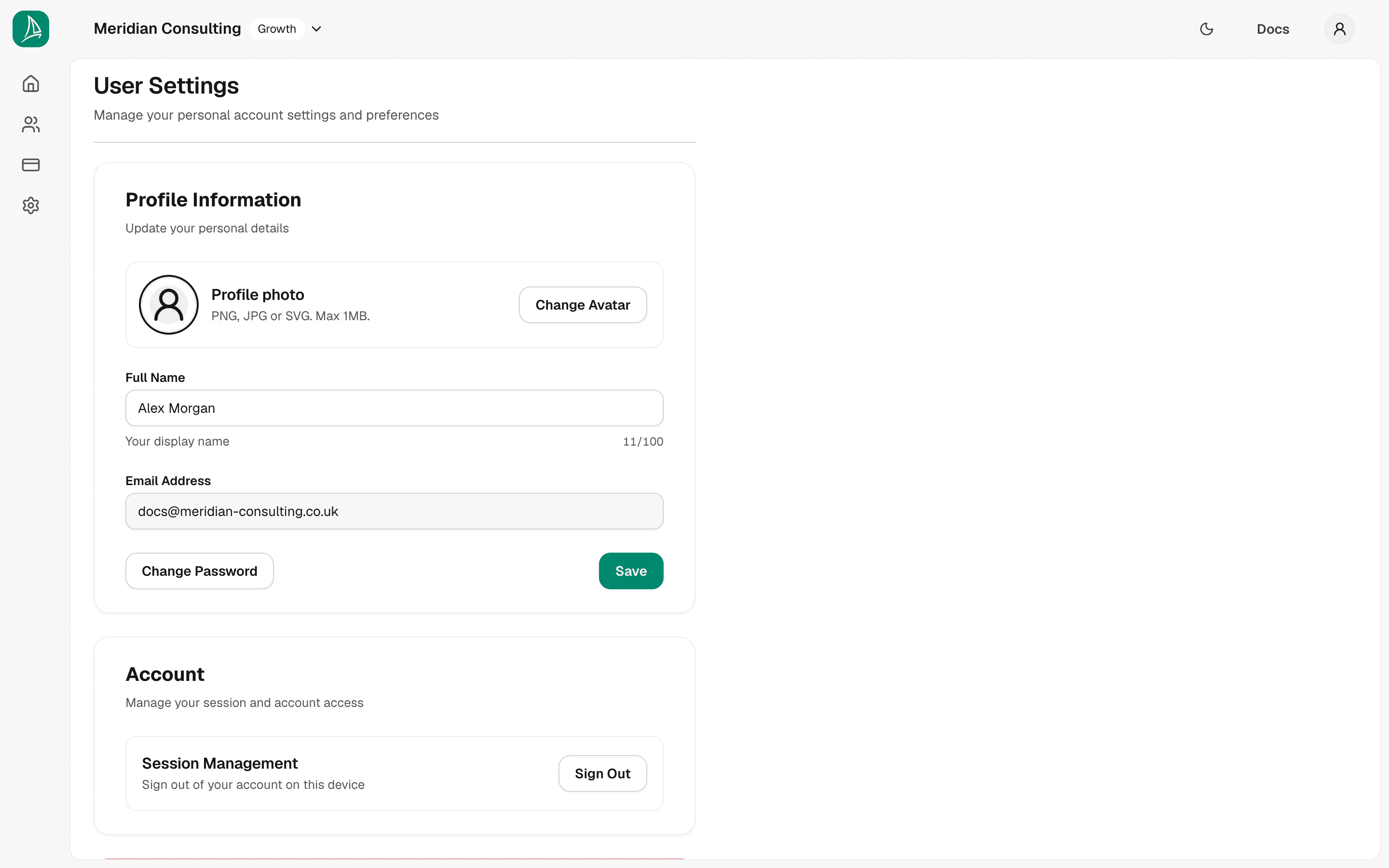
Click User Settings to open the profile page.
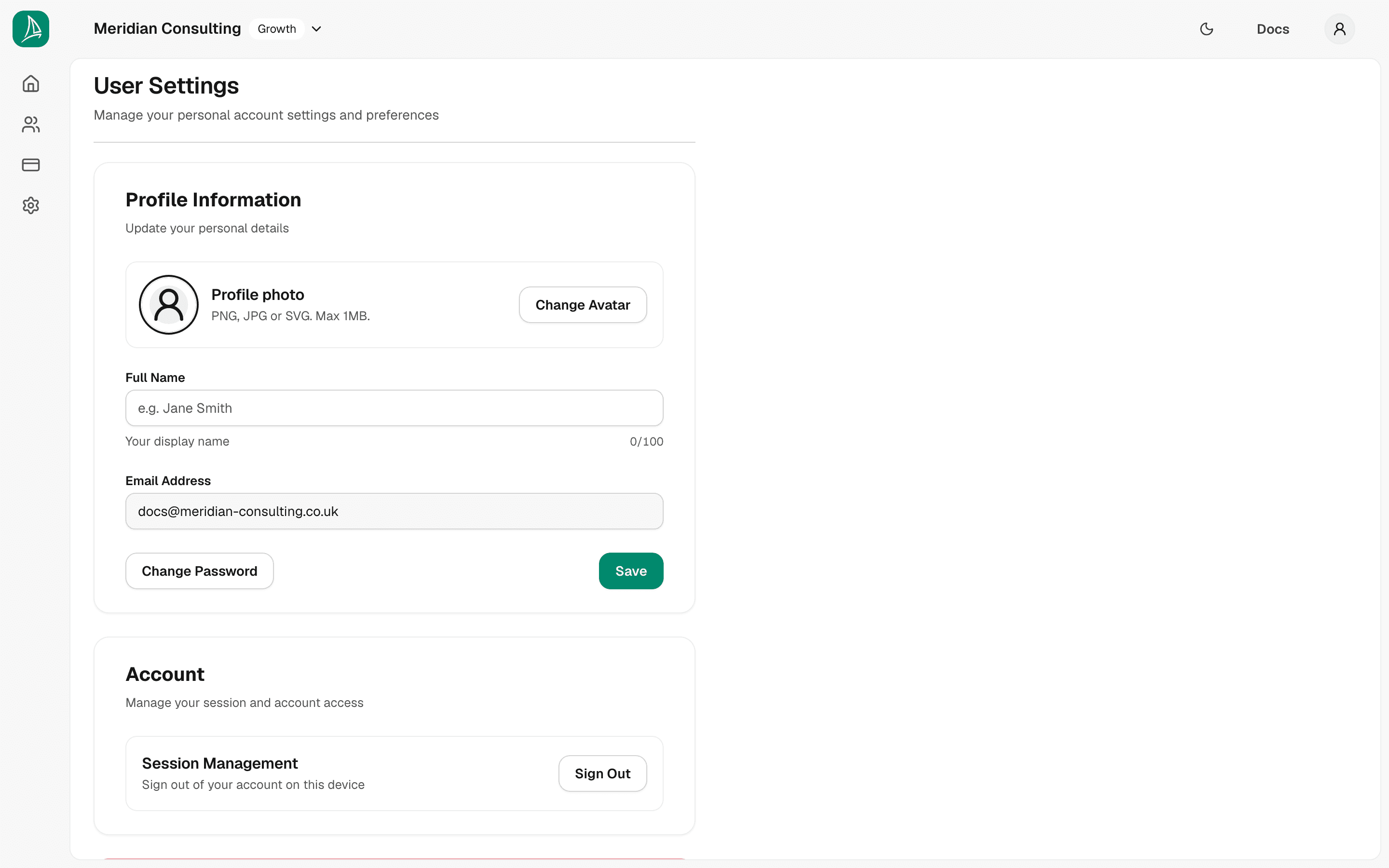
The page has three sections:
Profile Information. The bit you'll use most often.
- Profile photo — a small avatar shown next to your name throughout the dashboard. Click Change Avatar to upload a PNG, JPG, or SVG up to 1 MB.
- Full Name — your display name. Up to 100 characters.
- Email Address — your login email. Read-only here; if you need to change it, contact support.
- Change Password — opens the password reset flow described earlier.
Account. Session Management — a one-click Sign Out that signs you out on this device.
Your organisation's plan isn't shown here. It lives on the organisation's Billing & Usage page — see Billing & usage.
Delete Account. Permanently delete your user account. This removes your access; it does not delete the organisation or anything you've created in it. Use sparingly.
Fill in your name and save
Type your name into the Full Name field.
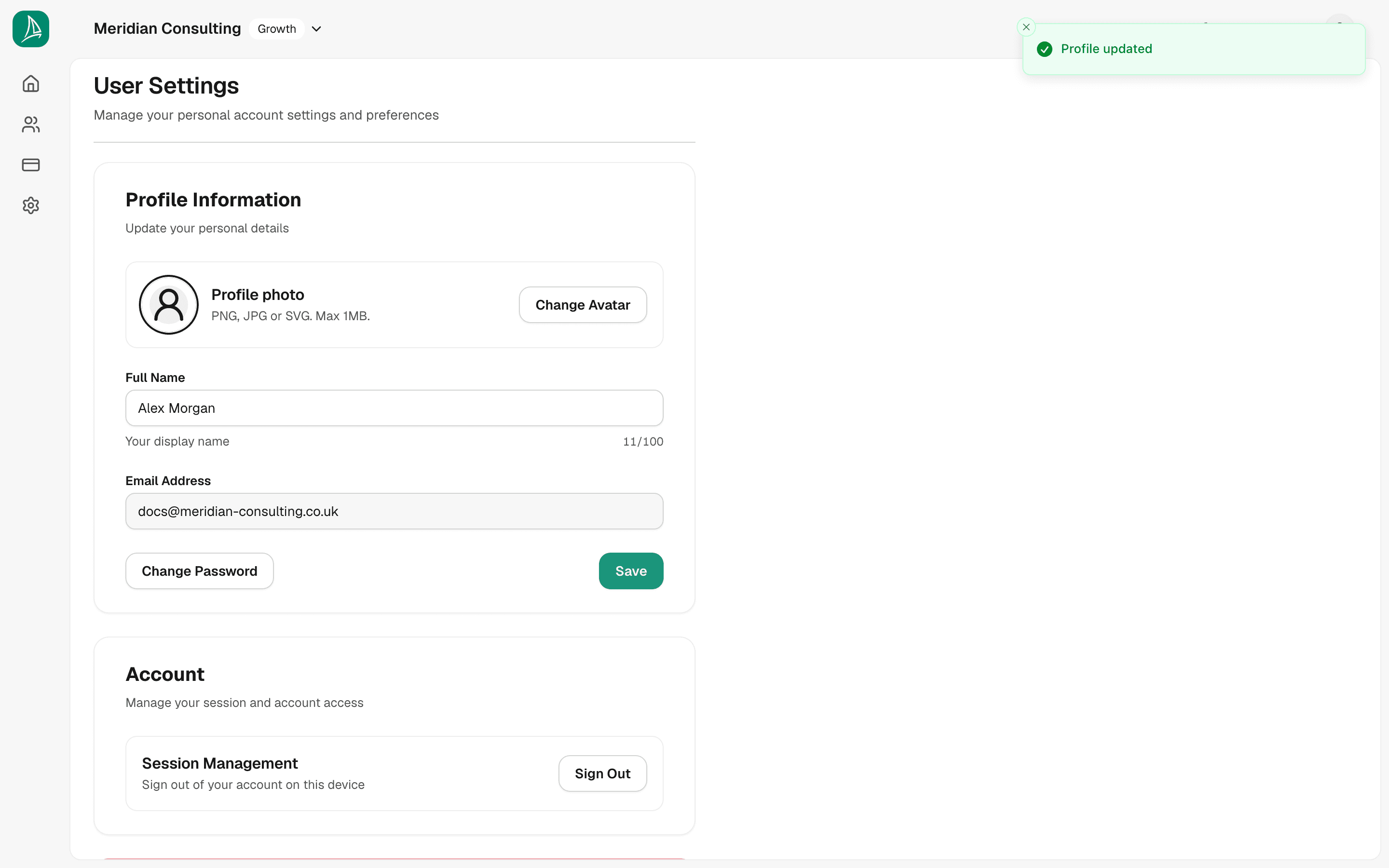
Click Save at the foot of the Profile Information card. A Profile updated confirmation appears, and the name is used wherever the dashboard addresses you.
What's next
You've got an account, you've created your organisation, and your profile is set. The next thing to do is create your first team — the workspace where agents, content, prospects, and deployments live.