Memory types & prospect profiles
The agent will talk to visitors who arrive knowing nothing about your business and leave with you knowing — ideally — quite a lot about them. Memory types are the schema for what the agent remembers about each visitor. Prospect profiles are named patterns over that memory state — labels like "MQL" or "Hot Lead" that classify a prospect for routing and triage.
This page is sequenced deliberately: Configuring skills and Routing rules both depend on what you set up here. Get this right first.
By the end of this chapter you'll have:
- Reviewed the seeded memory types catalogue and toggled one off and on
- Added a custom memory type
- Configured one prospect profile (MQL) with criteria built from memory types
Note: the qualification page has been removed. Earlier versions of the product had a dedicated Qualification page for MQL/SQL thresholds and lead scoring. That has been retired — prospect profiles, covered later in this chapter, now do the work it used to do.
Opening the memory types screen
Click Prospects in the left-hand rail, then click Memory Types from the top of the page.
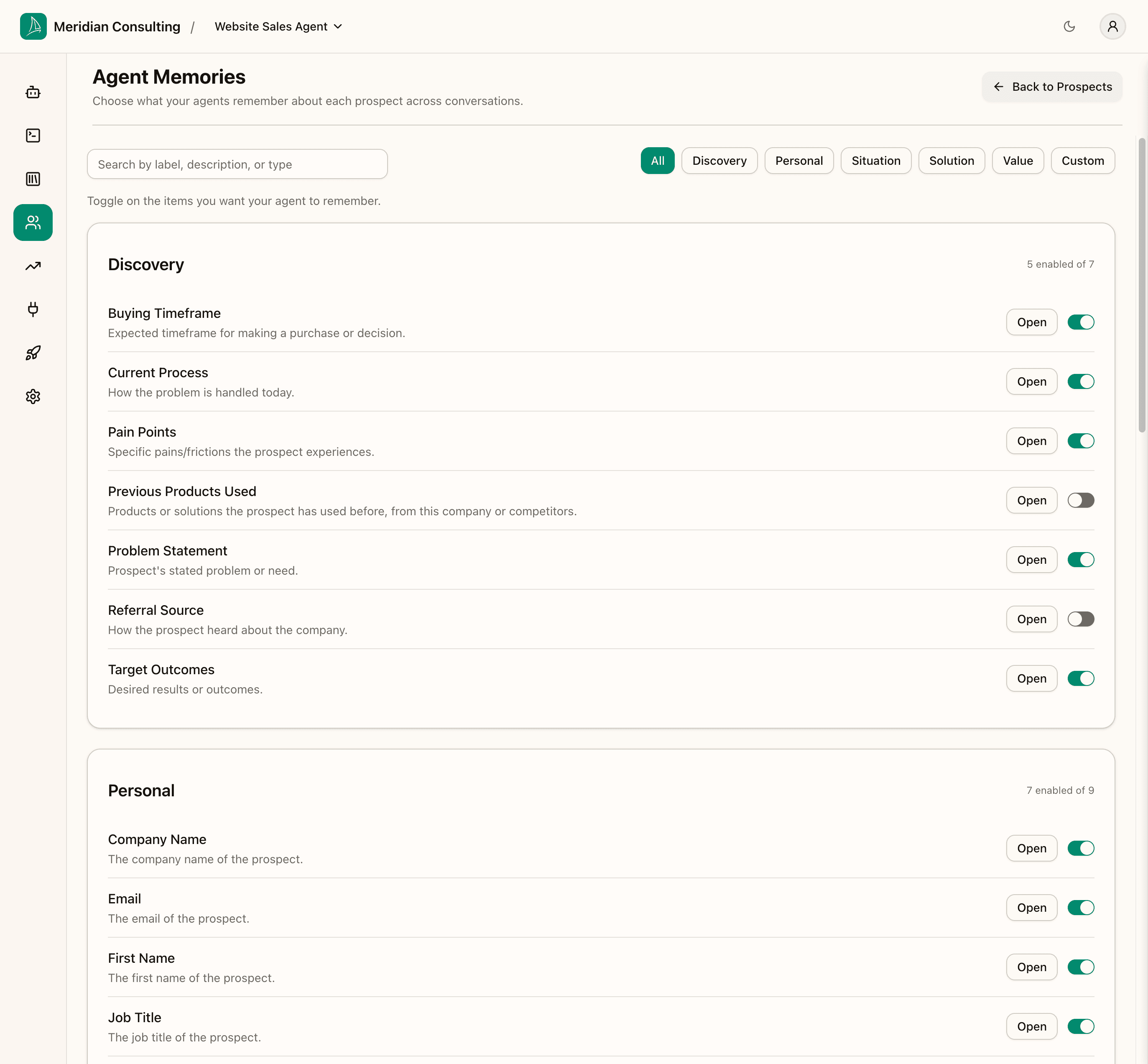
The page has a search box on the left and a row of category filter buttons on the right: All, Discovery, Personal, Situation, Solution, Value, and Custom. All is selected by default and shows every memory type grouped into category cards.
Each category card shows how many memory types are enabled vs. available — e.g. Discovery: 5 enabled of 7. Toggles on the right of each row control what's on and off.
Enabled vs. required. Toggling a memory type on doesn't force the agent to ask for it on every conversation — it just enables the agent to capture and remember that value when it surfaces naturally. Skills and routing decide when the agent should actively pursue specific memories. Toggle on liberally; the agent will not become pushy just because you enabled something.
The built-in categories
| Category | What it covers |
|---|---|
| Discovery | What the prospect is trying to do — pain points, buying timeframe, target outcomes |
| Personal | Who the prospect is — name, email, job title, contact details |
| Situation | Context about their business — industry, org size, tech stack, geography |
| Solution | What they need from a product — capabilities, integrations, success criteria |
| Value | The commercial picture — budget, ROI goal, decision criteria, approval process |
| Custom | Memory types you add yourself |
How this maps to tools you may already use. HubSpot calls these Contact Properties and uses Smart Lists to classify contacts. Salesforce calls them Fields and uses Lead Scoring rules. Intercom calls them Attributes and uses Segments. Breezee's memory types are the equivalent of those properties/attributes; prospect profiles (covered below) are the equivalent of those smart lists or segments — but evaluated in real time during the conversation rather than after the fact.
Inspecting a built-in memory type
Click Open on any seeded memory type — for example, Current Process — to open its detail panel on the right.
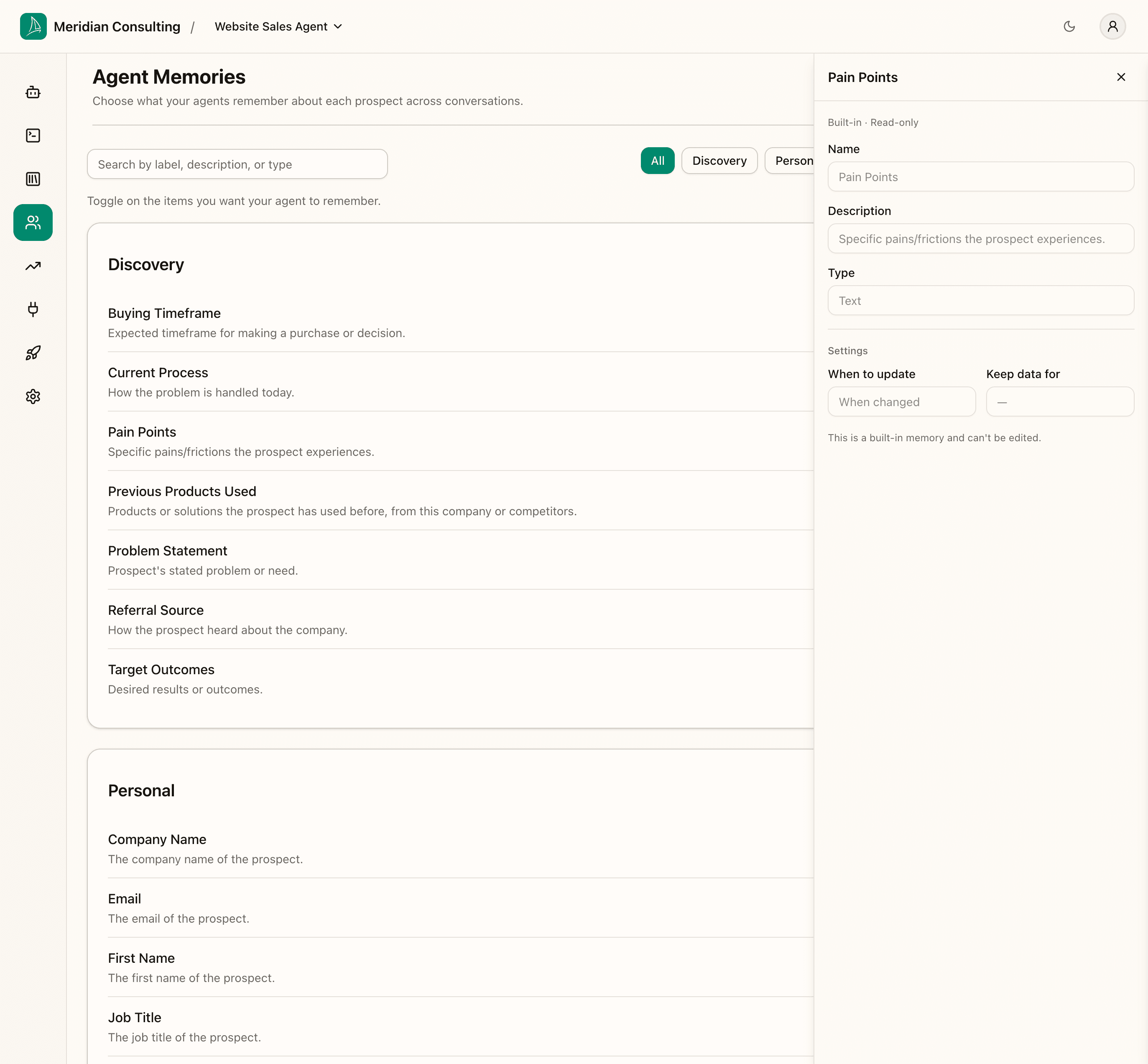
Built-in memory types show their name, description, data type (Text, in this case), and settings (when to update, retention period). They're marked Built-in · Read-only — you can enable, disable, and use them in profiles, but you cannot edit them.
Toggling a memory type off and back on
Find a memory type you want to disable and click its toggle. The "X enabled of Y" counter in that category card updates immediately. The agent will stop trying to capture that value on future conversations. Click the toggle again to re-enable.
The seeded set covers the standard B2B discovery axis well. Most teams leave it largely as-is, then add one or two custom memory types for concepts specific to their business.
Adding a custom memory type
Click the Custom button in the filter row to show only custom memory types. A fresh team has none.
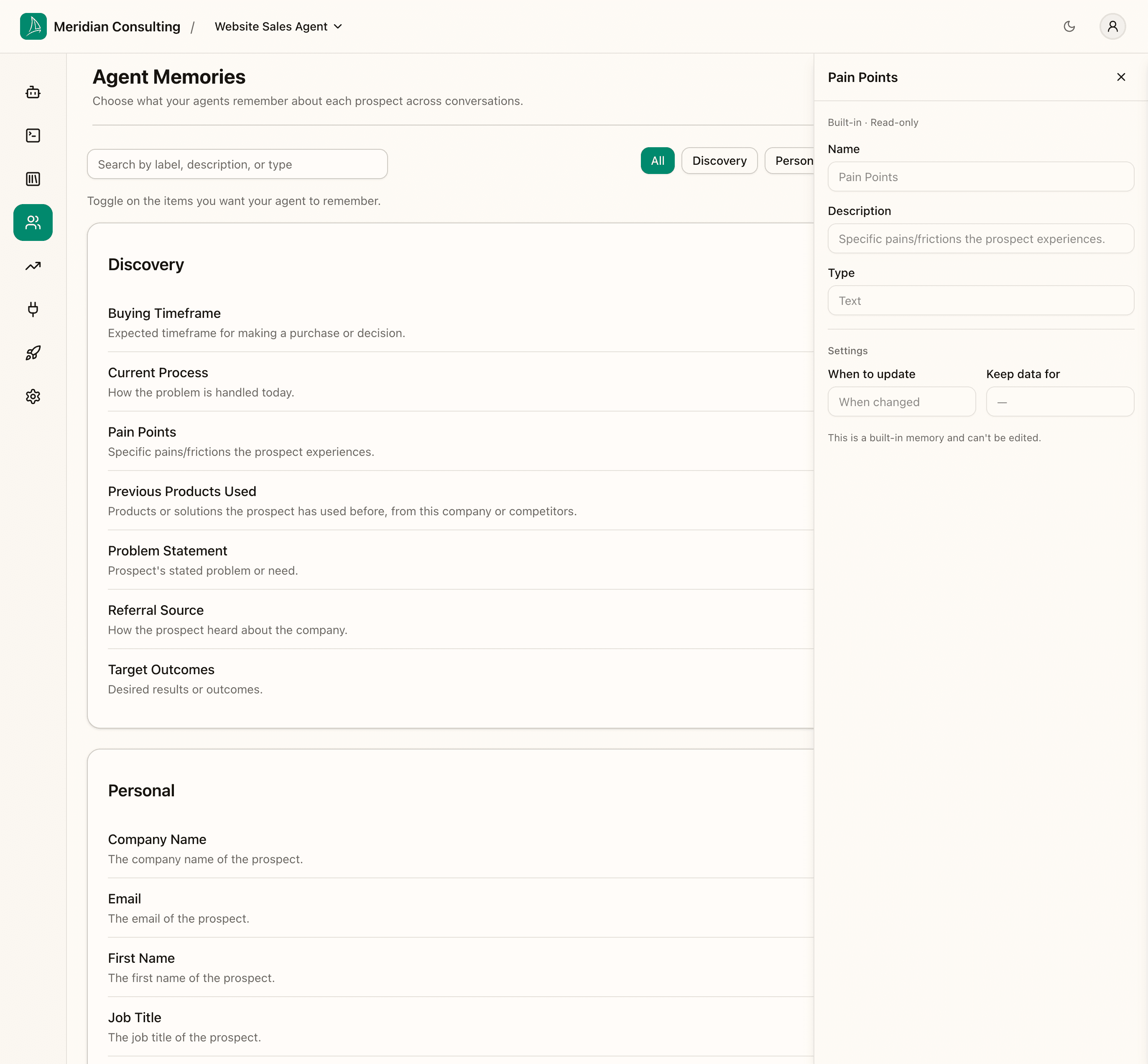
Click Create Memory to open the create form in the right-hand panel.
The form takes:
- Name — up to 50 characters. What you (and the agent prompts) will call this memory.
- Description — up to 200 characters. A short explanation shown to your team.
- Type — the data type (see the table below). Text is the default. The type you choose here determines which conditions are available when you use this memory in a profile criterion.
- When to update — controls how aggressively the agent overwrites an existing value when new information surfaces.
- Keep data for — how long the memory is retained. 12 months by default.
Memory type data types
| Type label | What it stores | Example |
|---|---|---|
| Text | Free-form text of any length | "Wants to reduce support ticket volume" |
| List of choices | One of a fixed set of values you define | Industry: "Healthcare", "Finance", "Retail" |
| Yes / No | A boolean flag | Uses Salesforce: Yes / No |
| Number | A numeric value, optionally bounded | Employee count: 250 |
| Date | A calendar date | Trial start: 2025-03-01 |
| Date & Time | A date with a time component | Demo booked: 2025-03-01 14:00 |
| An email address (validated format) | prospect@company.com | |
| Website link | A URL (validated format) | https://company.com |
Type is permanent. Once a custom memory type is saved, its type can't be changed. If you need a different type, use the Duplicate as new link in the configure panel to copy it and pick a new type.
For List of choices types, enter the allowed values in the Options field, separated by commas (e.g. Enterprise, Mid-market, SMB). You can also turn on Allow more than one choice if a prospect may legitimately hold multiple values (e.g. a use-case memory where "Sales automation" and "Marketing automation" can both apply).
The screenshot below shows a custom memory type called Current Challenge — a free-text capture of what's prompting the visitor to engage.
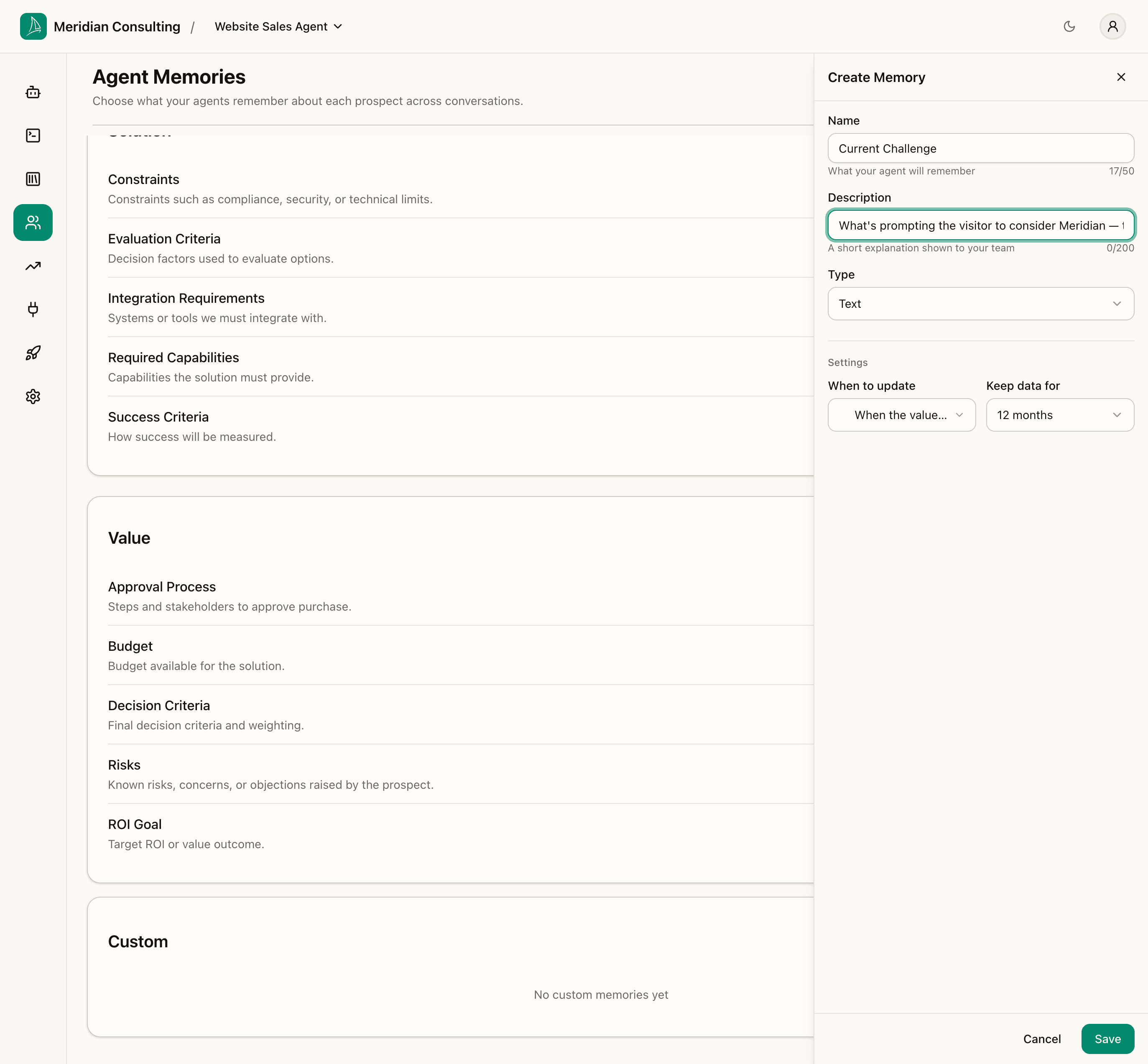
Click Save. The new memory appears in the Custom card, defaults to enabled, and is immediately available to skills, routing, and prospect profiles.
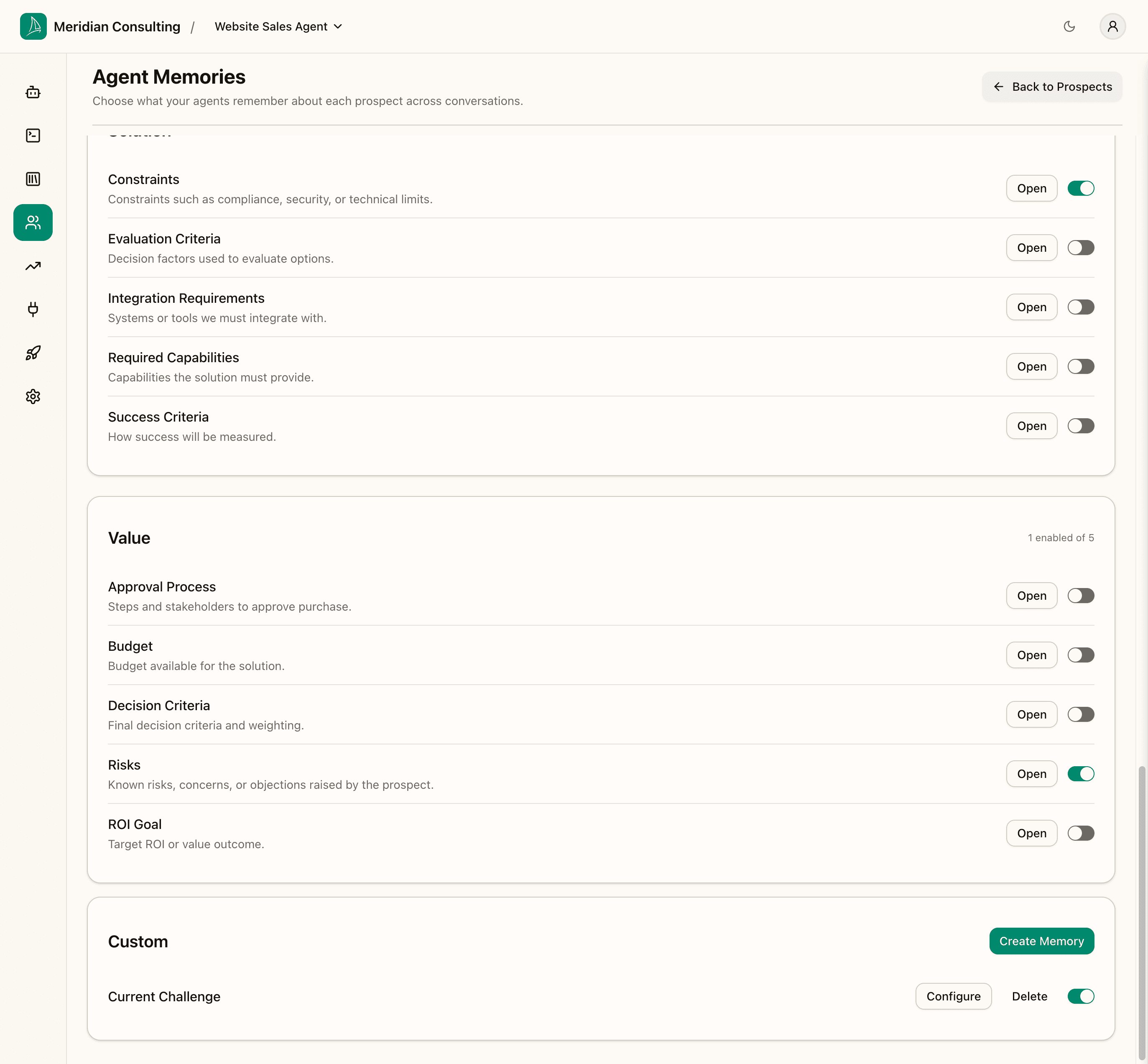
Each custom memory has its own Configure (edit) and Delete buttons alongside the standard enable/disable switch.
When you change any toggle, an unsaved changes banner appears at the bottom of the page. Click Save there to commit. Changes are local until you save.
Prospect profiles
Navigate to Prospects in the left-hand rail, then click Profiles at the top of the page.
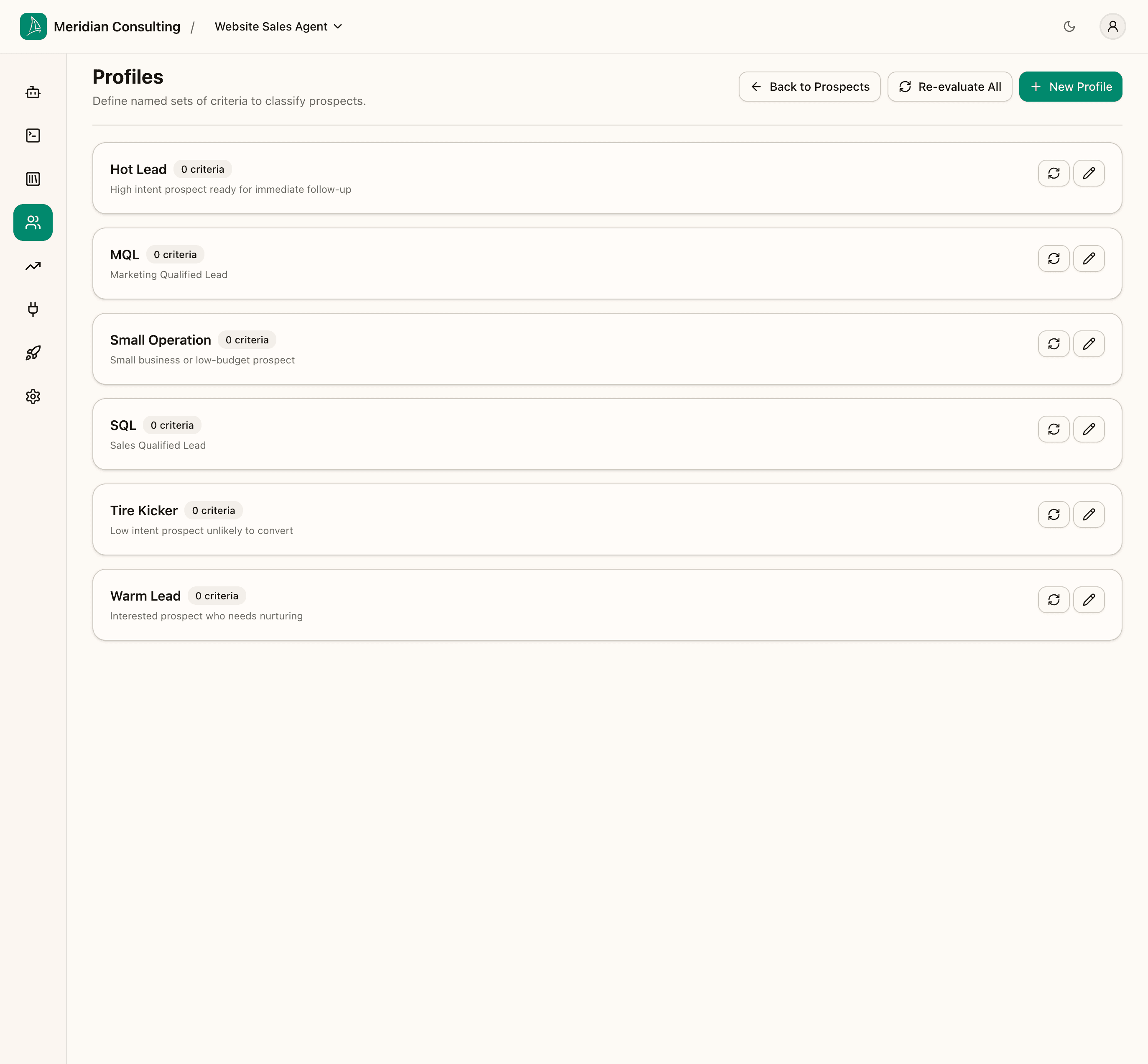
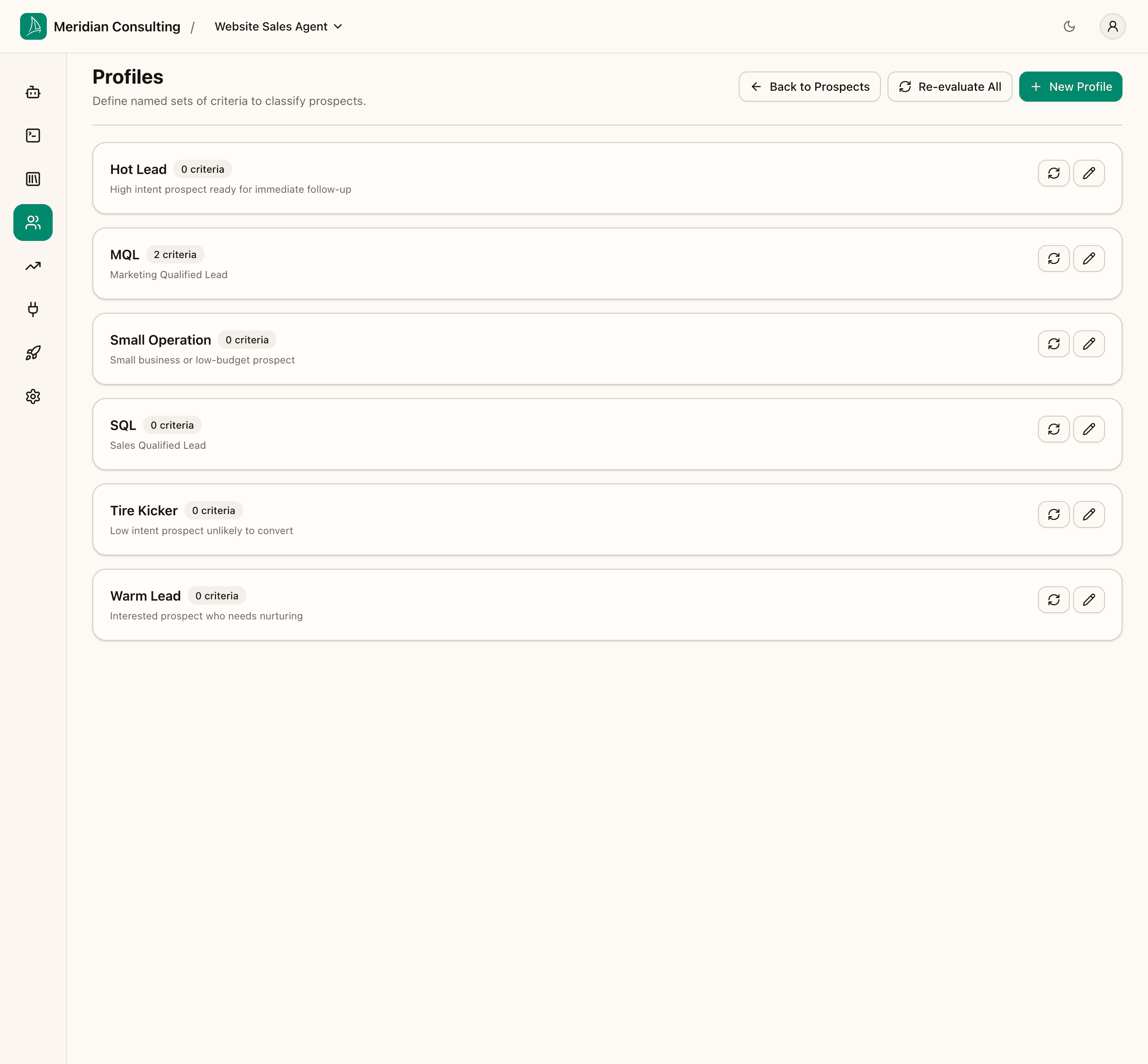
The page lists the seeded profiles — Hot Lead, MQL, Small Operation, SQL, Tire Kicker, Warm Lead — each one a recognisable shape from B2B sales playbooks. All start with 0 criteria: they're empty templates waiting for you to define what they mean for your business.
A prospect profile is, mechanically:
- A name and description for the segment
- A set of criteria, each one a condition on a memory type
- A match mode — either All criteria (AND) or Any criterion (OR)
When a visitor's accumulated memory state satisfies a profile's criteria, that prospect is classified under that profile. One prospect can match multiple profiles simultaneously (e.g. Warm Lead and Small Operation). Profiles are evaluated continuously during the conversation and continue to update after the chat ends as background processing surfaces new information.
How this maps to tools you may already use. HubSpot's Smart Lists match contacts on property values — same idea. Salesforce Lead Scoring uses point thresholds; Breezee uses explicit criteria instead of scores. Intercom Segments use attribute filters. The mental model is the same in all cases: you define the shape of a qualified prospect, and the system tells you who fits.
Two actions are available at the top of the list:
- Add Profile — creates a new named profile alongside the seeded ones.
- Apply banner (appears after you save criteria changes) — re-evaluates every existing prospect against the updated profile. Use this after changing a profile's criteria to refresh which prospects are classified under it.
Editing the MQL profile
Click Edit profile on MQL to expand the editor inline.
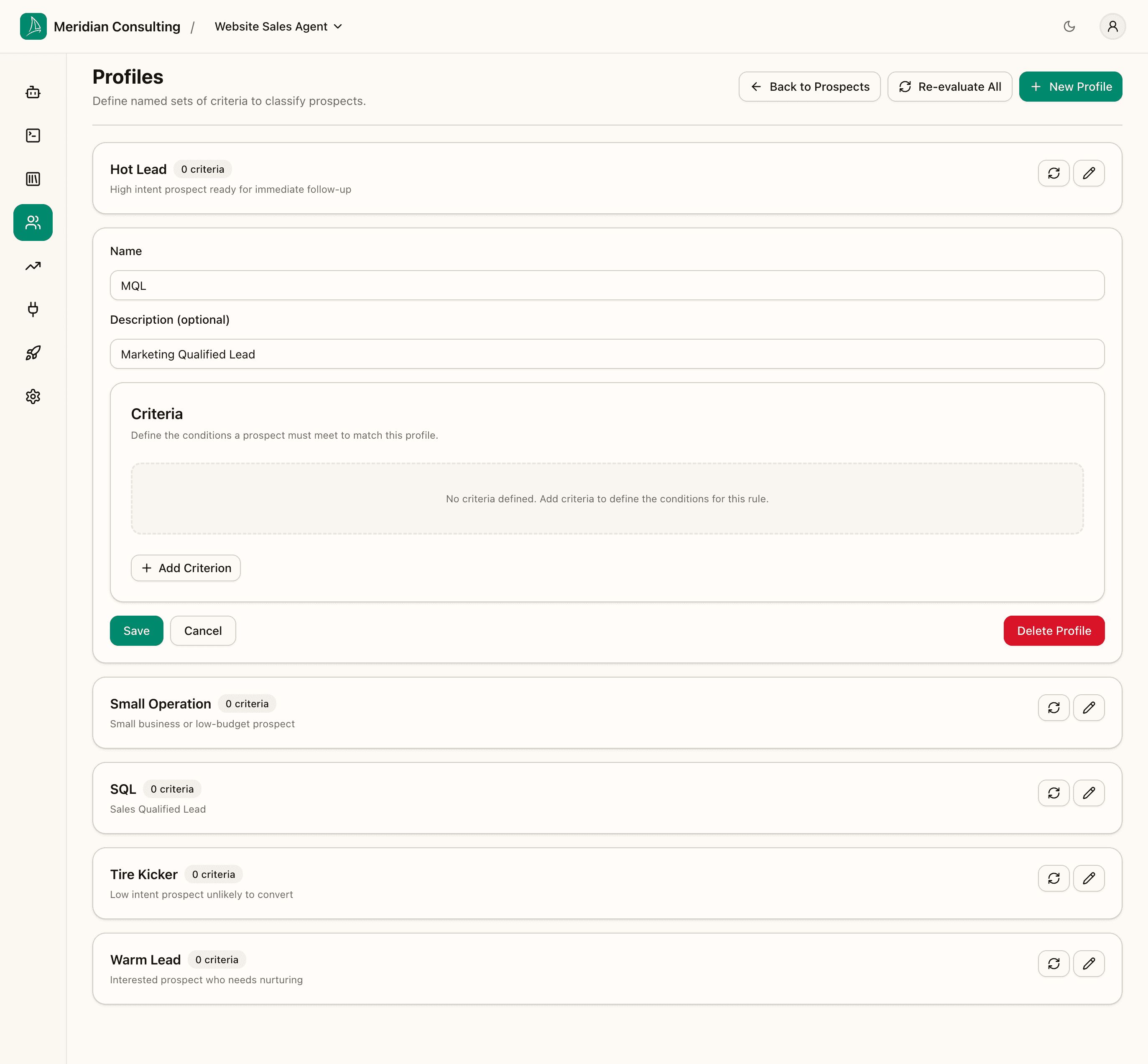
You can edit the name and description. Below them is the Criteria builder — with zero criteria the profile is a no-op and will never match any prospect.
Click Add Criterion to add the first one.
Conditions reference
A criterion tests one memory type against one condition. Which conditions are available depends on the memory type's data type. This section explains every condition and exactly when a prospect will and will not match.
Text (Text type)
| Condition | Prospect will match when | Prospect will not match when |
|---|---|---|
| Present | The agent has captured any non-empty value for this memory | The value is blank — never mentioned in conversation |
| Not present | The value is blank | The agent has already captured a value |
| Equals | The stored value matches the text you enter (case-insensitive) | The value is different or blank |
| Not equals | The value is anything other than the text you enter, or blank | The value matches the text exactly |
| Contains | The stored text includes the phrase you enter as a substring | The phrase does not appear in the stored text |
Present is usually the right choice for Text. You typically care that the prospect told you their pain point, not that the specific words match a phrase. Use Equals or Contains when you need to distinguish by specific content (e.g. "Contains enterprise").
List of choices (List of choices type)
| Condition | Prospect will match when | Prospect will not match when |
|---|---|---|
| Present | At least one choice has been captured | No value has been selected |
| Not present | No value has been captured | A value is already stored |
| Equals | The stored choice matches the specific option you select | The stored choice is different or blank |
| Not equals | The stored choice is anything other than the one you select, or blank | The stored choice matches exactly |
When you pick Equals or Not equals on a List of choices memory, the criterion shows a radio list of all the options you defined. Select the one you want to compare against.
Number (Number type)
| Condition | Prospect will match when | Prospect will not match when |
|---|---|---|
| Present | A number has been captured | No number has been recorded |
| Not present | No number has been recorded | A number is already stored |
| Equals | The stored number exactly matches the value you enter | The number is different or blank |
| Not equals | The stored number is anything other than the value you enter | The number matches exactly |
| More than | The stored number is strictly greater than the value you enter | The number is ≤ the value, or blank |
| At least | The stored number is greater than or equal to the value | The number is < the value, or blank |
| Less than | The stored number is strictly less than the value | The number is ≥ the value, or blank |
| At most | The stored number is less than or equal to the value | The number is > the value, or blank |
Date and Date & Time types
| Condition | Prospect will match when | Prospect will not match when |
|---|---|---|
| Present | A date has been captured | No date has been recorded |
| Not present | No date has been recorded | A date is already stored |
| Before | The stored date is earlier than the date you enter | The date is on or after your value, or blank |
| After | The stored date is later than the date you enter | The date is on or before your value, or blank |
Yes / No (Yes / No type)
| Condition | Prospect will match when | Prospect will not match when |
|---|---|---|
| Present | The agent has captured a Yes or No answer | No answer has been captured |
| Not present | No answer has been captured | An answer is already stored |
| Equals | The stored value matches the choice you pick (Yes or No) | The stored value is the opposite, or blank |
Building the MQL profile
With the conditions reference above in mind, let's configure the MQL profile.
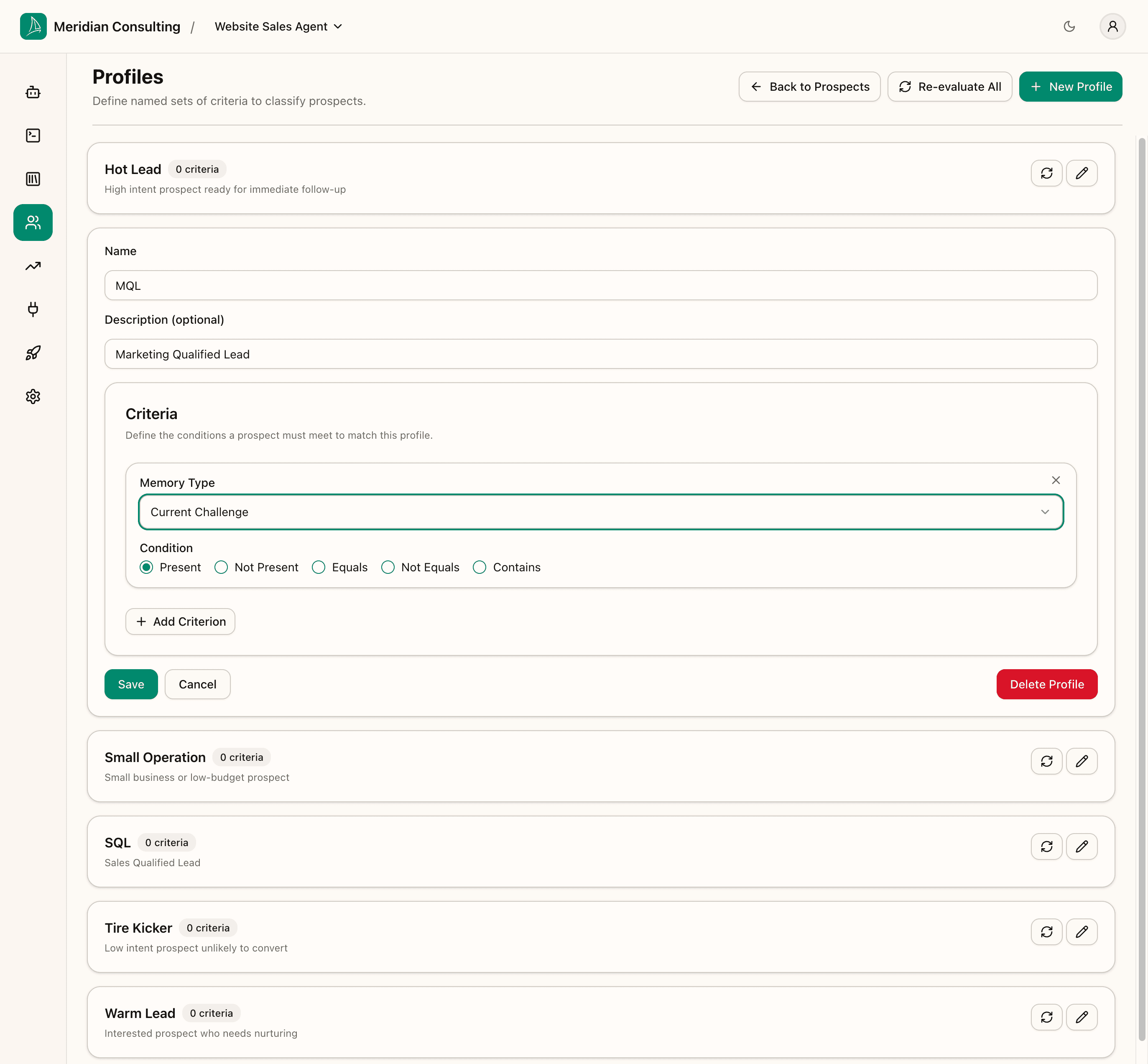
Click Add Criterion in the MQL editor. A criterion card appears with two fields:
- Memory Type — which memory you're testing (dropdown, shows all enabled memory types)
- Condition — which operator to apply (radio buttons, shown per the data type of the chosen memory)
Set the first criterion to your custom Current Challenge memory, condition Present. This means: "the prospect has told us what's driving them to look for a solution."
Click Add Criterion again and add a second criterion: Organization Size (or whichever memory makes a prospect worth following up on at your company), condition Present.
After adding the second criterion, a Match control appears below the criteria list:
- All criteria — both must be satisfied (AND logic). A prospect must have both Current Challenge and Organization Size captured.
- Any criterion — either is sufficient (OR logic). A prospect with either value qualifies.
Leave it on All criteria for MQL — you want the full picture before qualifying someone.
Click Save. The editor closes and the profile card now shows 2 criteria.
Applying your changes to existing prospects
Saving a profile does not automatically re-evaluate existing prospects. As soon as you save, a yellow notice bar appears at the top of the list:
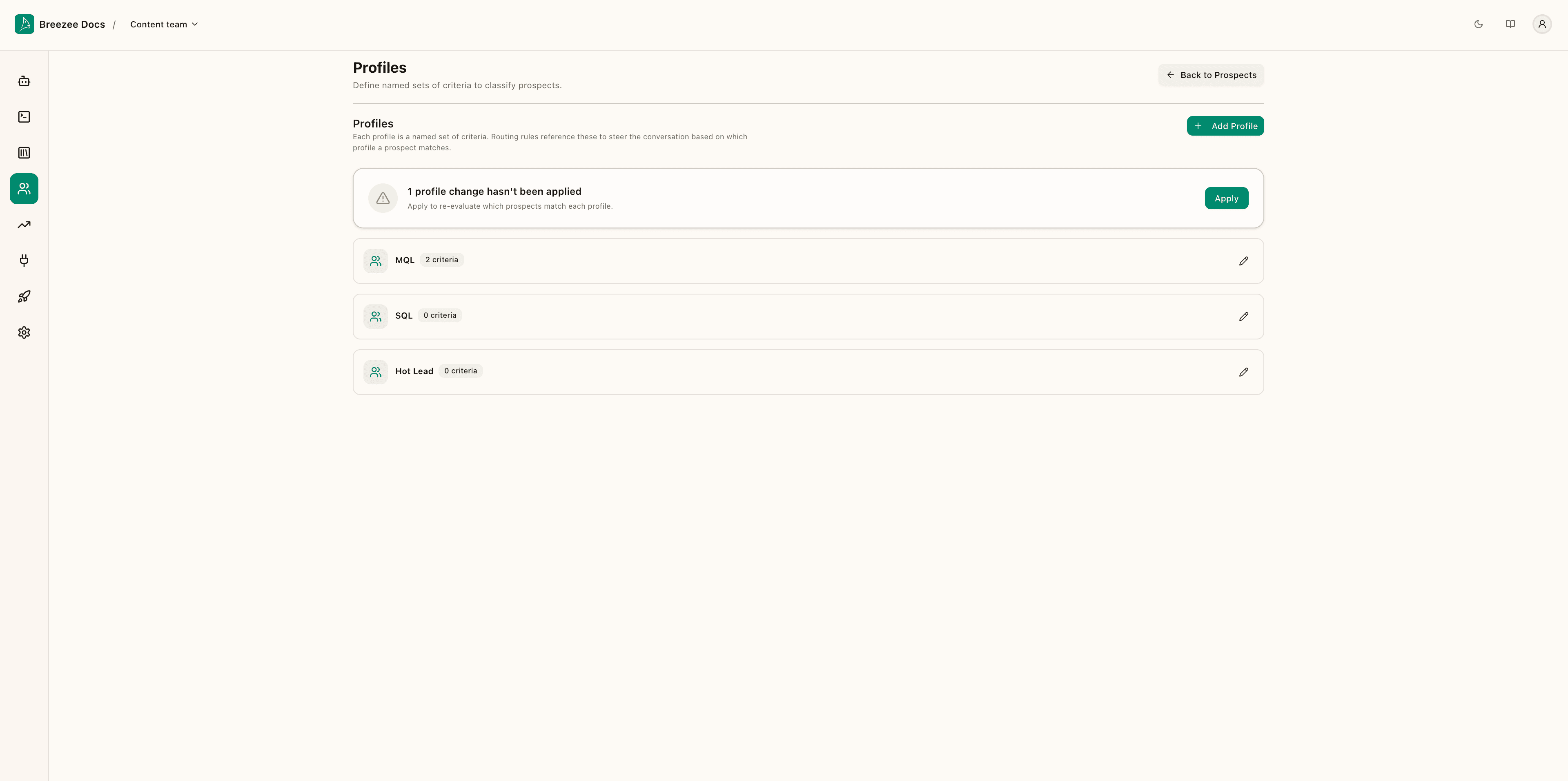
"1 profile change hasn't been applied — Apply to re-evaluate which prospects match each profile."
You must click Apply. Until you do, the updated criteria only take effect on future conversations. All existing prospects keep their old classification. Click Apply to re-run the evaluator across your entire prospect list. A progress bar tracks completion — for large lists this may take a few seconds.
Good habit: any time you add, change, or delete a criterion, always click Apply before moving on. It takes seconds and ensures your profile data is current when you look at it in routing rules or the prospects table.
Cardinality and combinations. You can add as many criteria as the segment requires. For more complex shapes — say, "MQL = articulated challenge AND (mid-market OR enterprise size)" — build two separate profiles (one for mid-market, one for enterprise) and have routing rules consume either. The criteria builder deliberately keeps each profile flat rather than supporting nested boolean logic; it's easier to reason about and debug.
Configuring the rest of the seeded profiles
For brevity this chapter only fully configures MQL. In a real tenant you'd configure several:
- Hot Lead — high intent, e.g.
Buying TimeframePresent ANDCurrent ChallengePresent - SQL — sales-ready, e.g.
EmailPresent ANDJob TitlePresent ANDBudgetPresent - Tire Kicker — low intent, e.g.
Current ChallengeNot present (use carefully — hard to get right without sufficient conversation length) - Small Operation — segment fit, e.g.
Organization SizeEquals a specific small-team value - Warm Lead — interested but unqualified, e.g.
Current ChallengePresent but not yet Hot Lead criteria
The pattern is always the same: name the segment, decide which memory types distinguish it, and pick the conditions.
How memory and profiles feed downstream
Memory and profiles by themselves don't change agent behaviour — they're the substrate that other configuration consumes:
- Configuring skills reads memory types to decide which values to actively pursue during a conversation flow and what to do next on each turn based on current memory state.
- Routing rules read prospect profiles. A rule like "suggest
book_meetingwhen the prospect matches MQL and has not yet booked a meeting" is exactly the loop we'll close in the next page.
This is why this chapter sits where it does in the manual order. Skills and routing both reference what you set up here by name. If you rename a memory type or profile later, revisit any dependent skill or routing configuration — the dashboard does not currently cascade renames automatically.
What's next
The substrate is set. Time to give the agent its repertoire.