Prospects
The Prospects screen is where every visitor who's interacted with your agent lands. It's your day-to-day operational view of who's in the funnel, what they've told the agent, and which of them are worth following up on. In a real tenant, this is the screen most admins keep pinned all day.
In this chapter you'll:
- Tour the prospects list, its filters, and what each column means
- Open the detail panel for a specific prospect
- Walk through the history and the Details rail — the full record of everything captured during the conversation
- See how properties and segments configured in Properties & segments show up here
You should have at least one prospect record by this point — the one created when you ran the playground session in Playground testing. The record is the same whichever way you answered that prompt: the details typed into a booking or a form are there, and so is everything the agent worked out from the conversation. That prompt governs the marker in the visitor's browser, not what is captured.
The prospects list
Open Prospects from the team's left-hand rail. The Prospects section has its own sidebar with three entries: Prospects (this list), Segments and Properties — the configuration screens from Properties & segments.
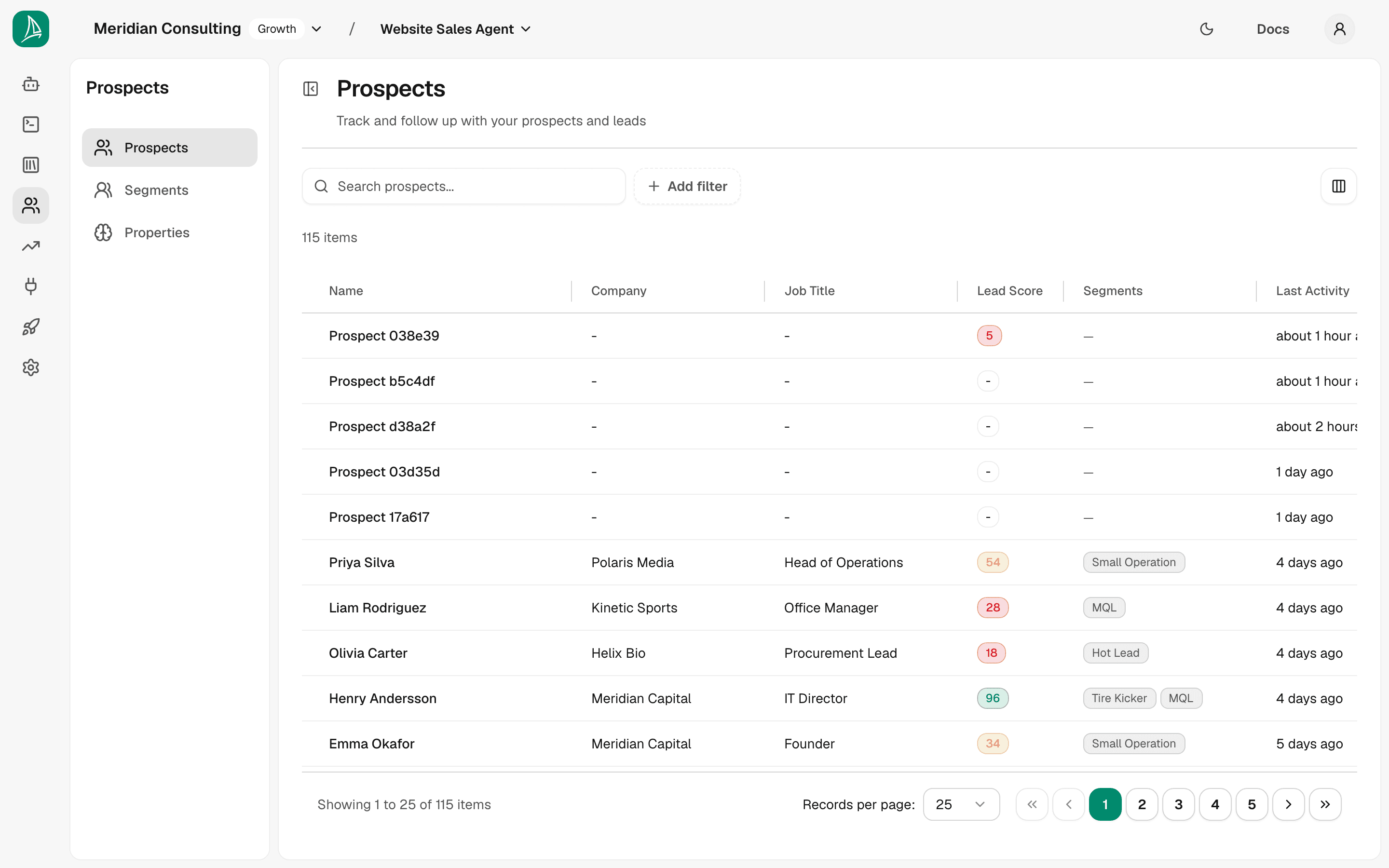
A row per visitor who's chatted with the bot. The columns shown to begin with (Source is hidden until you turn it on from the table's column picker, where you can also reorder columns):
| Column | What it shows |
|---|---|
| Name | First + last name if captured. Otherwise "Unknown" — visitors who never shared their name. |
| Company | The company name memory if captured. |
| Job Title | The job-title memory if captured. |
| Source | The agent type that drove this conversation — for sAIlsbot deployments, every prospect shows sAIlsbot. |
| Lead Score | A 0–100 numeric score the platform computes from the prospect's memories, activities, and profile matches. Higher = warmer. |
| Segments | The segments this visitor matches — MQL, SQL, Hot Lead, etc. Driven by the criteria you set up in Properties & segments. |
| Last Activity | Time since the most recent message or event. |
Multiple Unknown rows are normal. A visitor the platform doesn't recognise gets a new prospect record for each visit — people who bounce immediately, people testing the widget, people who chat without ever giving a name. A returning visitor who answered Yes is recognised instead, and their later conversations join the record they already have. Over time the table fills with a mix of named, named-with-rich-context, and anonymous prospects.
Filtering and search
The toolbar above the table gives you the standard set of slicing controls:
- Search box — free-text search across captured names, emails, companies.
- Segment — restrict to prospects matching a specific segment (MQL, SQL, Hot Lead, etc.).
- Lead score range — min and max (0–100).
- Activity date — date-range picker.
- Reset filters — clears everything.
Segments and Properties in the Prospects sidebar take you straight to the configuration screens you used in Properties & segments. Useful when a prospect surfaces a property or segment match you weren't expecting and you want to jump straight to the configuration to investigate.
Where's lead scoring? The old lead-scoring screen isn't linked from the Prospects sidebar any more. Qualification is expressed as segments — see Properties & segments.
Opening a prospect
Click any row to open the detail panel on the right. The most interesting row is usually the one with a segment (MQL, SQL, Hot Lead, etc.) and a non-zero lead score — that's the prospect that's progressed furthest in the funnel.
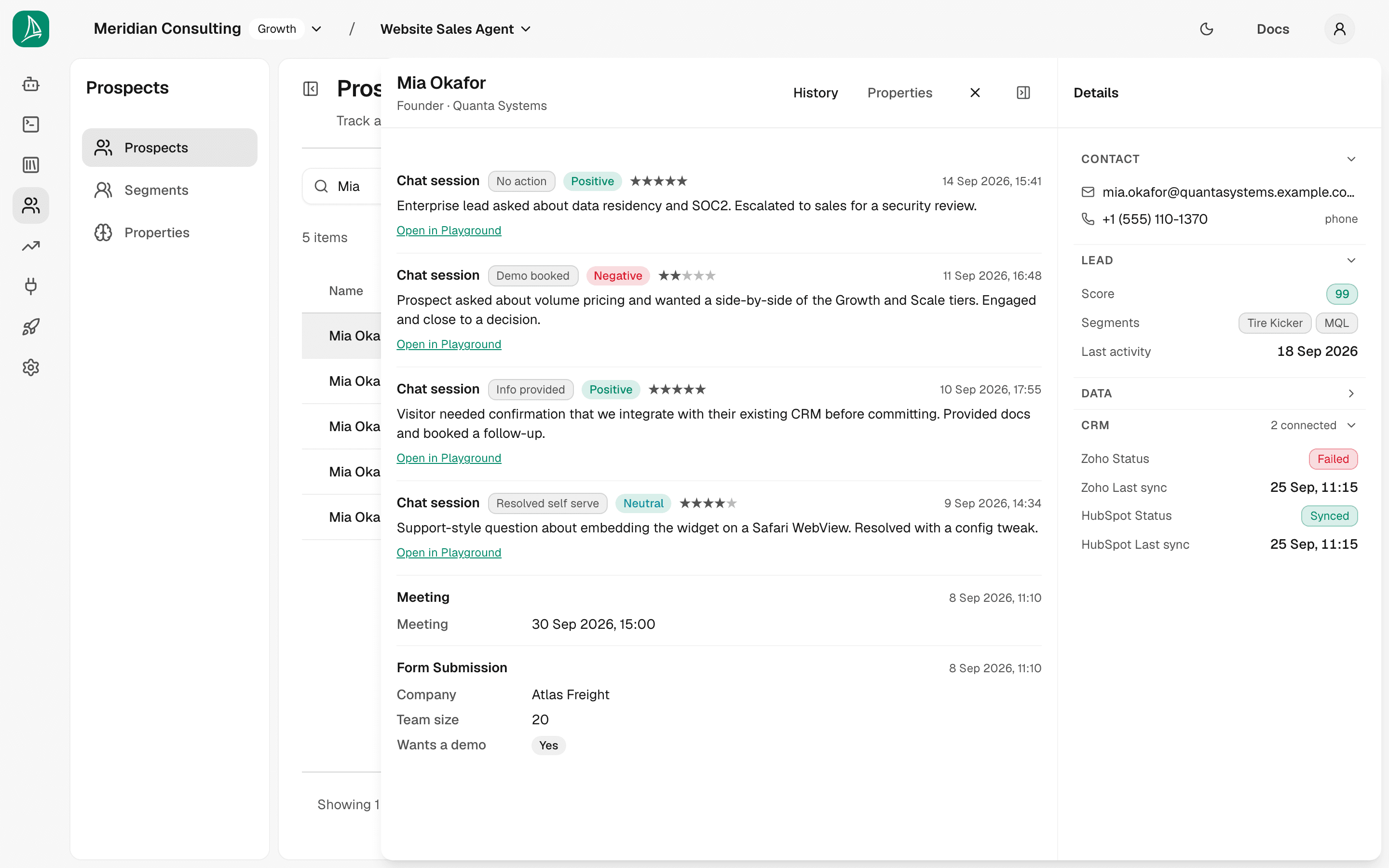
The panel has two columns: the subject on the left with History and Properties tabs above it, and a rail headed Details on the right holding everything that describes the prospect. The rail folds away with the button beside the close, when you want the full width.
The header
- Heading — the prospect's name if captured. Most prospects never give one, so the panel names
them by a short stable handle instead —
Prospect 7f3a9c— which is the same name the list shows, so a row and its panel always agree. - Subtitle — their role and company, where those were captured. Nothing otherwise.
The Details rail
Everything here is read-only: it is a record of what happened and what was captured, not a form.
- Contact — email, phone and mobile, each one followable. An email opens your mail client and a number dials. A prospect who has shared nothing says so in a sentence rather than showing empty rows.
- Lead — the lead score with its scale, every segment the prospect currently matches, and the
date they were last active. This one shows the MQL chip because the prospect has both
Current ChallengeandOrganization Sizeset, which was our segment definition in Properties & segments. - Data — where the prospect came from, when they were first seen, when the record last changed, and how many conversations there have been.
- CRM — whether the prospect reached your CRM and how that last went. A failed sync opens this section on its own and shows the error; a prospect that was never sent says so.
Properties — what the agent captured
Click Properties. This is the structured information the agent extracted and persisted during the conversation, grouped by category. It gets the full width of the panel rather than a place in the rail, because a property's label is whatever you called it on the Properties screen — often a whole question — and a narrow column would leave no room for the answer beside it.
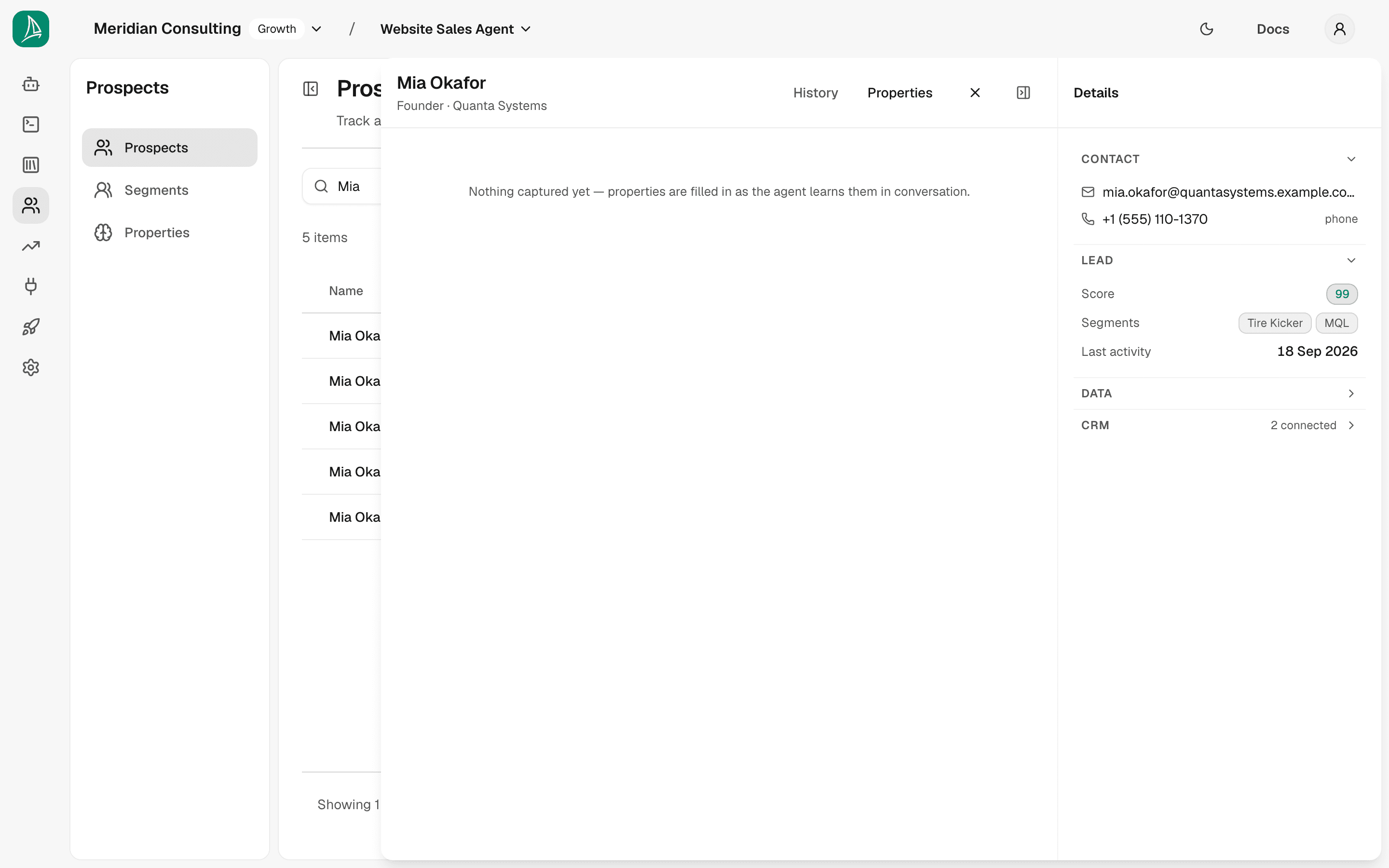
For our prospect:
- Personal — Email:
prospect@example.com, Job Title:SaaS, Company Name:Breezee - Custom — Current Challenge:
pipeline quality(this is the custom property we added in Properties & segments — it's been populated) - Discovery — Problem Statement:
growth has stalled; Pain Points:pipeline quality; Current Process:pipeline has flatlined for two quarters; Target Outcomes:strategy call to frame the issue and decide next steps; Buying Timeframe:unknown - Situation — Organization Size:
60; Industry:SaaS
Every one of these was captured during the conversation and structured by the slot extractor — the contact details because the visitor submitted them, the rest because the agent worked them out. Neither depends on how the visitor answered the remember-me prompt. Note:
- The custom property we created in Properties & segments (
Current Challenge) is right there, populated with the visitor's articulated concern. This is the end-to-end loop closing: configure → consume in skill → capture in conversation → persist on prospect. - Job Title got
SaaSrather than a job role. This is a real quality issue — the model inferred from "we're a 60-person SaaS" that the visitor's job title was "SaaS", which is wrong. In a real tenant you'd tune this by sharpening the property's description, to make it clearer to the extractor what counts as a job title. Captured values can't be edited on the prospect record — they're a record of what the agent heard. - Some memories are
unknown— that's not a failure; it's the slot extractor explicitly recording "I tried but I couldn't tell." Better than a missing field because it tells you the agent looked.
History — what has happened
The left column is a timeline of every significant event for this prospect, newest first, with conversations and form submissions in one list because they happened in one order. For our playground session:
- Status Change —
new → mql(16/05/2026, 09:35:21). The platform's profile evaluator promoted the prospect to MQL after the conversation captured the criteria. - Meeting — booked for 18/05/2026 14:00:00 (created 16/05/2026, 09:33:31). The Cal.com booking is recorded as a first-class activity.
- Chat session — created 16/05/2026, 09:29:48. The row carries the session's outcome, its sentiment and the summariser's rating, then the AI-generated summary, then an Open in Playground link back to the transcript.
The history grows as the prospect interacts further: subsequent chat sessions, additional bookings, contact form submissions, profile changes, and integration events (e.g. Synced to HubSpot) all show up as new entries.
What lead score and profiles drive
The combination of memories, profile matches, and activities turns into the Lead Score column on the list. A higher lead score is the platform's best guess that this prospect is worth following up on. Use it to sort the list — "show me the highest-scoring prospects I haven't followed up with yet."
Segment matches drive conditions and nudges on subsequent conversations. If this prospect returns and starts a new chat from the same browser (with consent intact), the agent already knows they're MQL. That does not by itself re-fire a nudge keyed on MQL — see the note below.
Property values carry across sessions; nudges don't replay them automatically. A returning visitor's persisted values will be visible to the responder, but the nudge engine works against the current session's slot state. There's a known limitation here — persisted values don't automatically re-trigger nudges on a new session. In practice this means the agent picks up the conversation knowing who the visitor is, but nudges only re-fire if the conversation re-surfaces the relevant facts.
Acting on a prospect
The platform doesn't provide a built-in CRM. The expectation is that you connect HubSpot or Zoho (see Integrations) and qualified prospects, with their lead score, flow into your CRM for the team to action there.
In the dashboard itself you can:
- Open the original session in the playground — useful if you want to see the full transcript that produced the memories. Deleting a prospect isn't available from the dashboard. A visitor can ask for what's stored about them to be erased from the Manage data option in the widget's menu; for any other erasure request, contact support.
For now, that's the prospect screen end-to-end.
What's next
You've configured the agent, deployed it, run a conversation, and reviewed the prospect record. The next surface is the aggregate view — how is the agent doing across all the prospects and sessions?