Properties & segments
The agent will talk to visitors who arrive knowing nothing about your business and leave with you knowing — ideally — quite a lot about them. Properties are the schema for what the agent remembers about each visitor. Segments are named patterns over those property values — labels like "MQL" or "Hot Lead" that classify a prospect for nudging, gating and triage.
This page is sequenced deliberately: Configuring skills and the conditions and nudges you set on those skills both depend on what you set up here. Get this right first.
By the end of this chapter you'll have:
- Reviewed the seeded properties catalogue and toggled one off and on
- Added a custom property
- Configured one segment (MQL) with criteria built from properties
Lead scoring lives in segments. MQL/SQL thresholds are expressed as segment criteria over properties, covered later in this chapter. There is no separate scoring screen.
Four screenshots in this chapter are older than the rest — the custom property once created, and the three showing MQL's criteria. Where one shows "Memories", "Memory Types" or "Profiles", the screen now says Properties and Segments, and its layout has since been redesigned.
Opening the Properties screen
Click Prospects in the left-hand rail, then choose Properties in the Prospects sidebar (its three entries are Prospects, Segments and Properties).
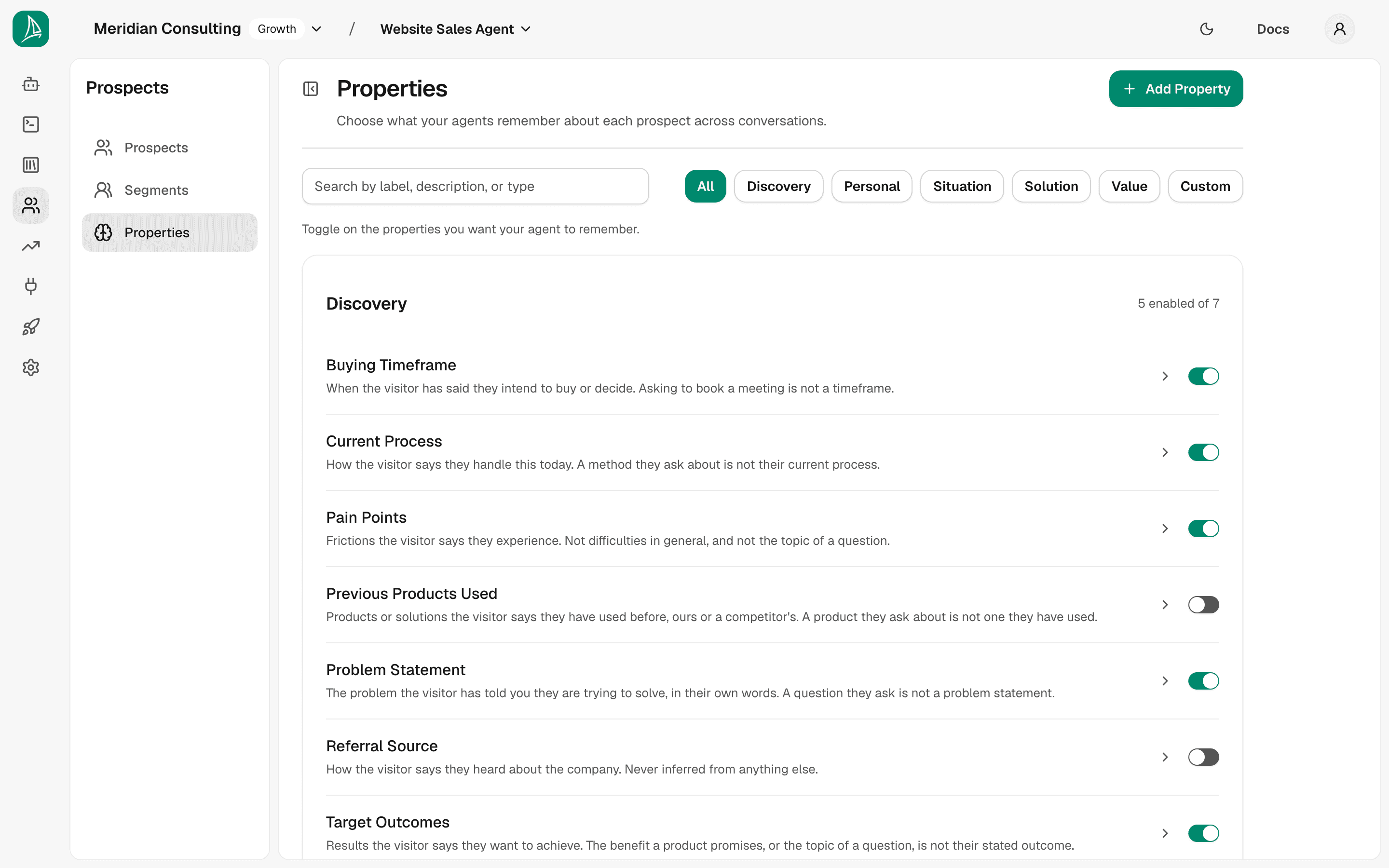
The page has a search box on the left and a row of category filter buttons on the right: All, Discovery, Personal, Situation, Solution, Value, and Custom. All is selected by default and shows every property grouped into category cards.
Each category card shows how many properties are enabled vs. available — e.g. Discovery: 5 enabled of 7. Toggles on the right of each row control what's on and off.
Enabled vs. required. Toggling a property on doesn't force the agent to ask for it on every conversation — it just enables the agent to capture and remember that value when it surfaces naturally. Skills, conditions and nudges decide when the agent should actively pursue specific values. Toggle on liberally; the agent will not become pushy just because you enabled something.
The built-in categories
| Category | What it covers |
|---|---|
| Discovery | What the prospect is trying to do — pain points, buying timeframe, target outcomes |
| Personal | Who the prospect is — name, email, job title, contact details |
| Situation | Context about their business — industry, org size, tech stack, geography |
| Solution | What they need from a product — capabilities, integrations, success criteria |
| Value | The commercial picture — budget, ROI goal, decision criteria, approval process |
| Custom | Properties you add yourself |
How this maps to tools you may already use. HubSpot calls these Contact Properties and uses Smart Lists to classify contacts. Salesforce calls them Fields and uses Lead Scoring rules. Intercom calls them Attributes and uses Segments. Breezee's properties are the equivalent of those contact properties/attributes; segments (covered below) are the equivalent of those smart lists or segments — but evaluated in real time during the conversation rather than after the fact.
Inspecting a built-in property
Click any seeded property — for example, Current Process — to open its details in a panel on the right. Built-in properties are read-only, so there is nothing to save or delete there; the switch stays on the row.
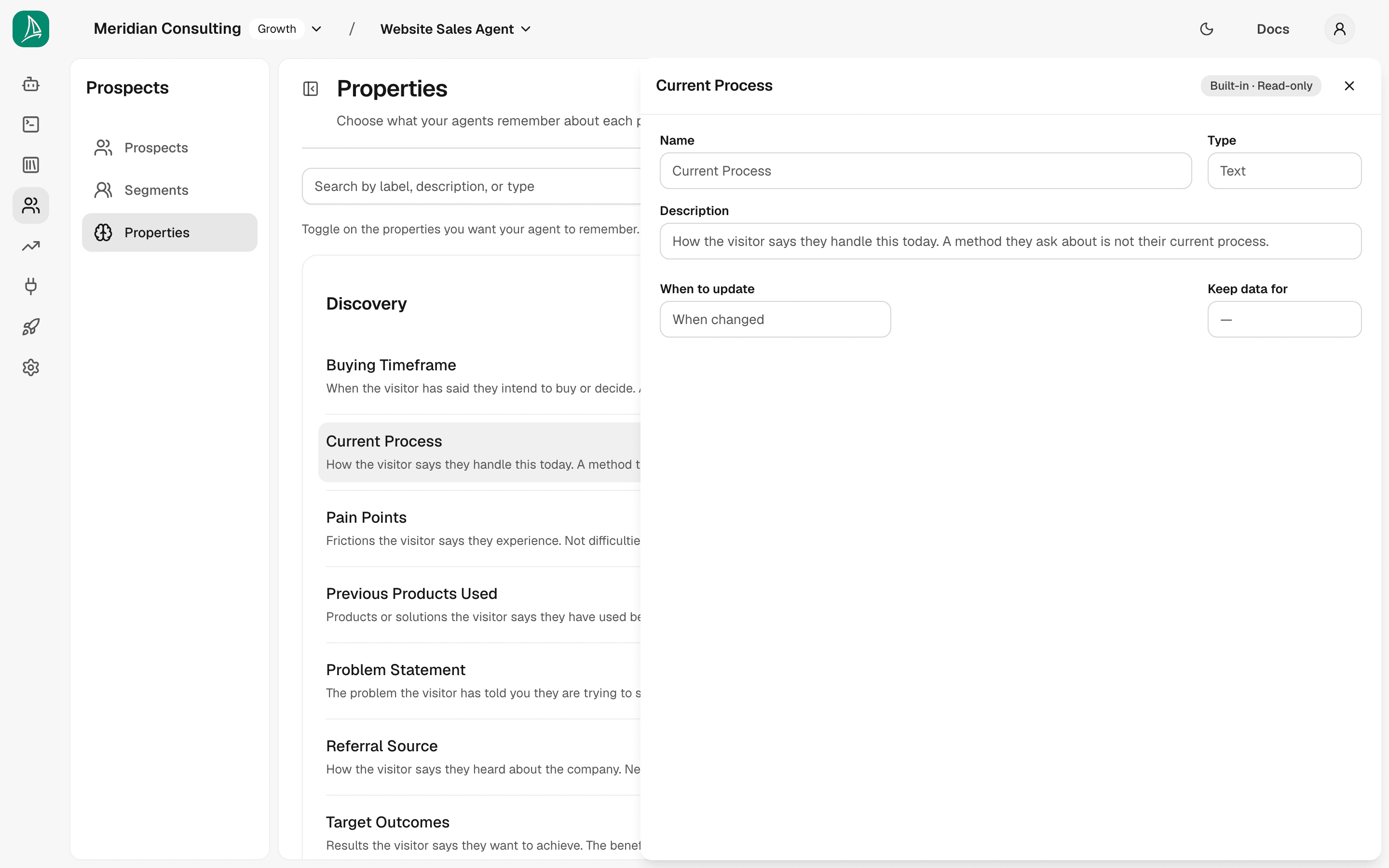
Built-in properties show their name, description, data type (Text, in this case), and settings (when to update, retention period). They're marked Built-in · Read-only — you can enable, disable, and use them in segments, but you cannot edit them.
Toggling a property off and back on
Find a property you want to disable and click its toggle. The "X enabled of Y" counter in that category card updates immediately, and the change is saved when you click Save toggles (see below). From then on the agent stops trying to capture that value in new conversations. Click the toggle again to re-enable.
Turning a property off — or deleting a custom one — also removes it from every test that used it: the segments here, and any test written directly on a skill's condition or nudge. A segment or rule left with nothing to test stops deciding anything, so a condition that relied on it lets everybody through. Check the conditions and nudges on any skill that relied on the property before you turn it off.
The seeded set covers the standard B2B discovery axis well. Most teams leave it largely as-is, then add one or two custom properties for concepts specific to their business.
Adding a custom property
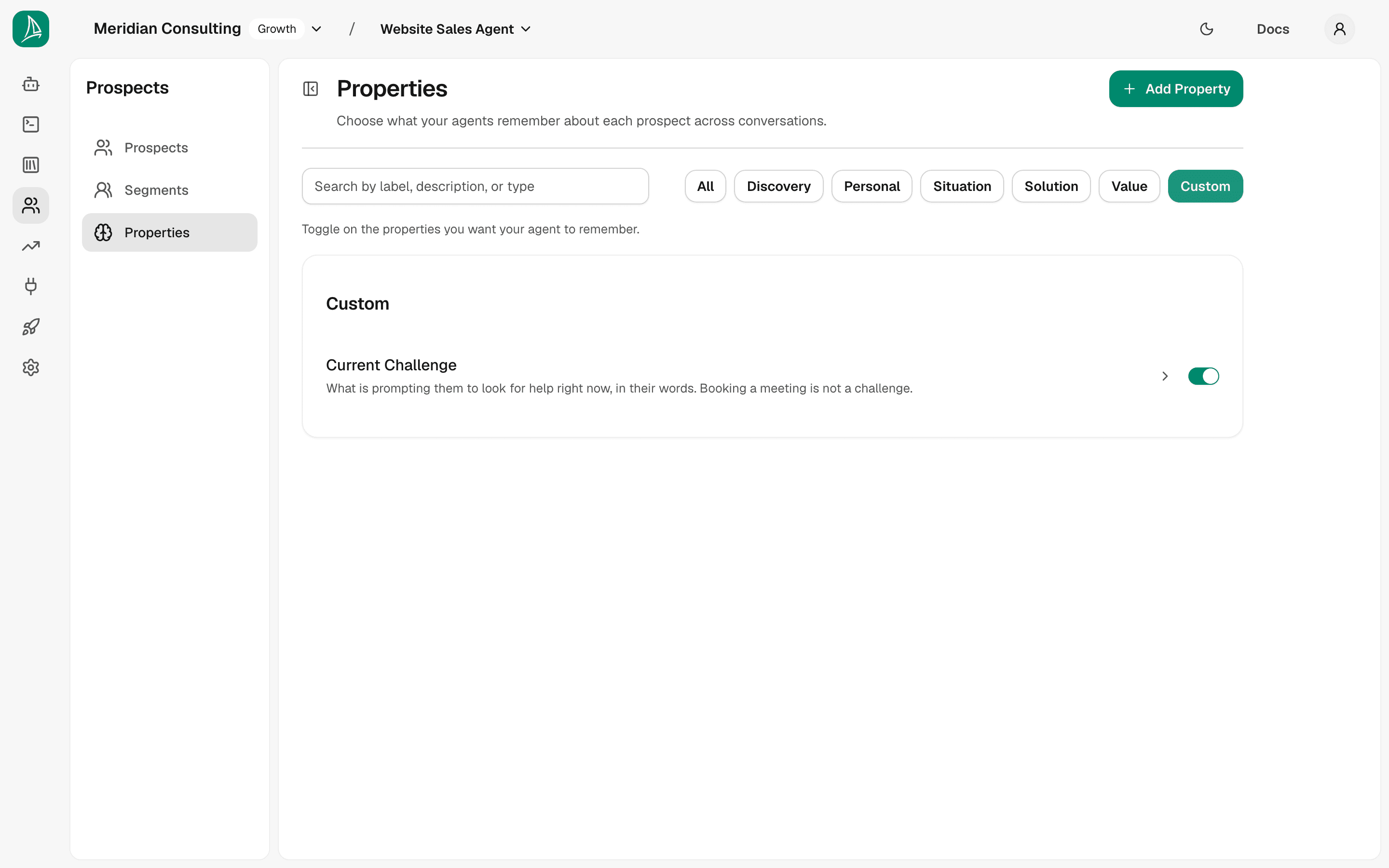
Click Add Property, at the top right of the page beside its title. The create form opens in a panel on the right, and the page switches to Custom so you can see where the new property will go. A fresh team has no custom properties yet.
The form takes:
- Name — up to 50 characters. What you (and the agent prompts) will call this property. Names must be unique within your project — if the name is already taken by another property (including a built-in one) or by a prospect attribute, the form tells you so and asks for a different name.
- Description — up to 200 characters. Your agent reads this to decide what counts as this property, so say what does and doesn't — "When they plan to buy. Booking a demo is not a timeframe."
- Type — the data type (see the table below). Text is the default. The type you choose here determines which conditions are available when you use this property in a segment criterion.
- When to update — controls how aggressively the agent overwrites an existing value when new information surfaces.
- Keep data for — how long the captured value is retained. 12 months by default.
Property data types
| Type label | What it stores | Example |
|---|---|---|
| Text | Free-form text of any length | "Wants to reduce support ticket volume" |
| List of choices | One of a fixed set of values you define | Industry: "Healthcare", "Finance", "Retail" |
| Yes / No | A boolean flag | Uses Salesforce: Yes / No |
| Number | A numeric value, optionally bounded | Employee count: 250 |
| Date | A calendar date | Trial start: 2025-03-01 |
| Date & Time | A date with a time component | Demo booked: 2025-03-01 14:00 |
| An email address (validated format) | prospect@company.com | |
| Website link | A URL (validated format) | https://company.com |
Type is permanent. Once a custom property is saved, its type can't be changed. If you need a different type, use Duplicate as new, at the bottom of the property's panel beside Delete property, to copy it and pick a new type.
For List of choices types, enter the allowed values in the Options field, separated by commas (e.g. Enterprise, Mid-market, SMB). You can also turn on Allow more than one choice if a prospect may legitimately hold multiple values (e.g. a use-case property where "Sales automation" and "Marketing automation" can both apply).
The screenshot below shows a custom property called Current Challenge — a free-text capture of what's prompting the visitor to engage.
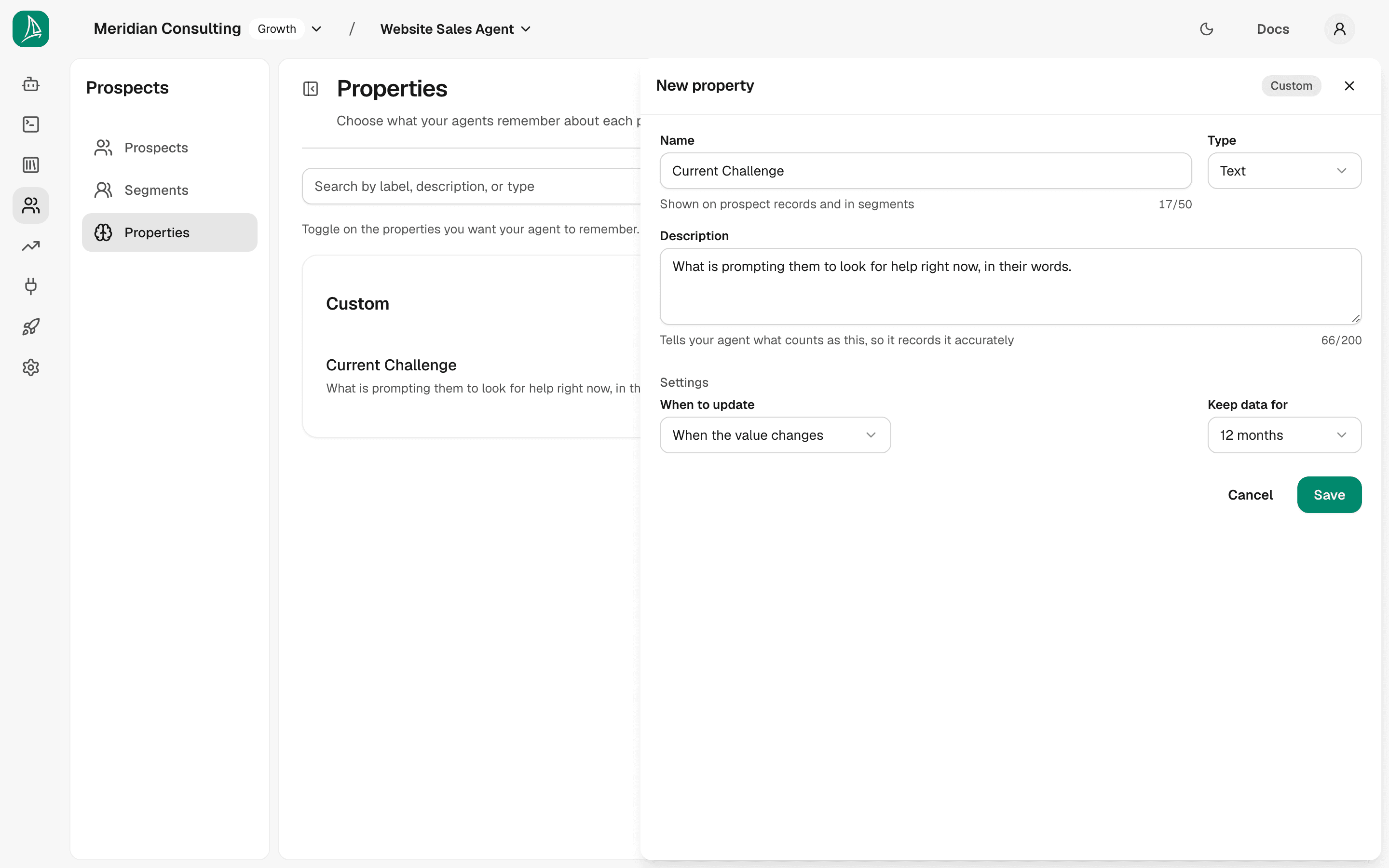
Click Save. The new property appears in the Custom card, defaults to enabled, and is immediately available to skills, nudges, conditions, and segments.
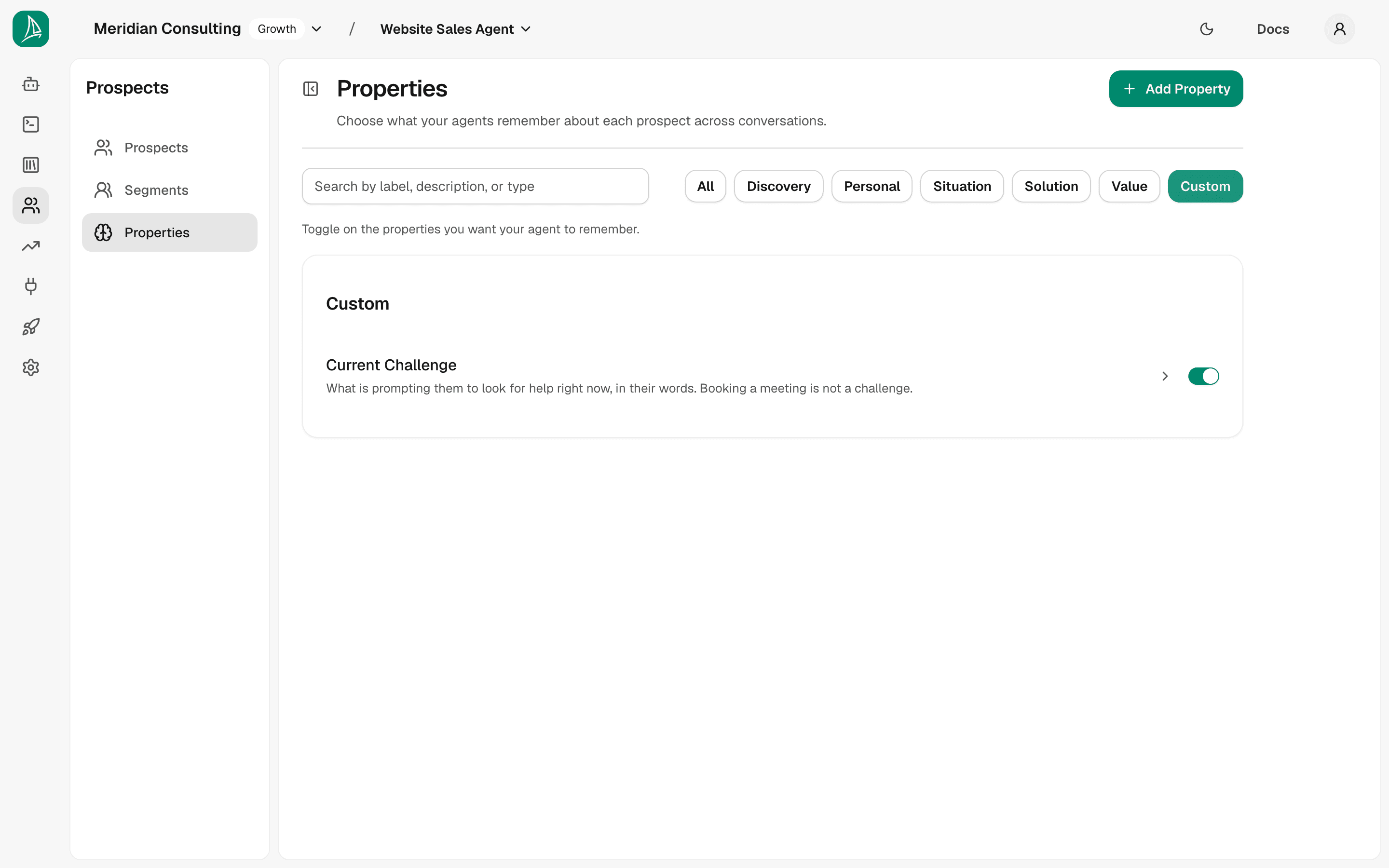
Click a custom property to open its editor in the panel on the right; the list stays where it is, with the open property marked. Delete property is at the bottom-left of that editor, opposite Cancel and Save, and asks you to confirm. The enable/disable switch stays on the row, so switching a property on or off never opens it.
When you change any toggle, an unsaved changes banner appears at the bottom of the page. Click Save toggles there to commit. Changes are local until you save.
Segments
Navigate to Prospects in the left-hand rail, then choose Segments in the Prospects sidebar.
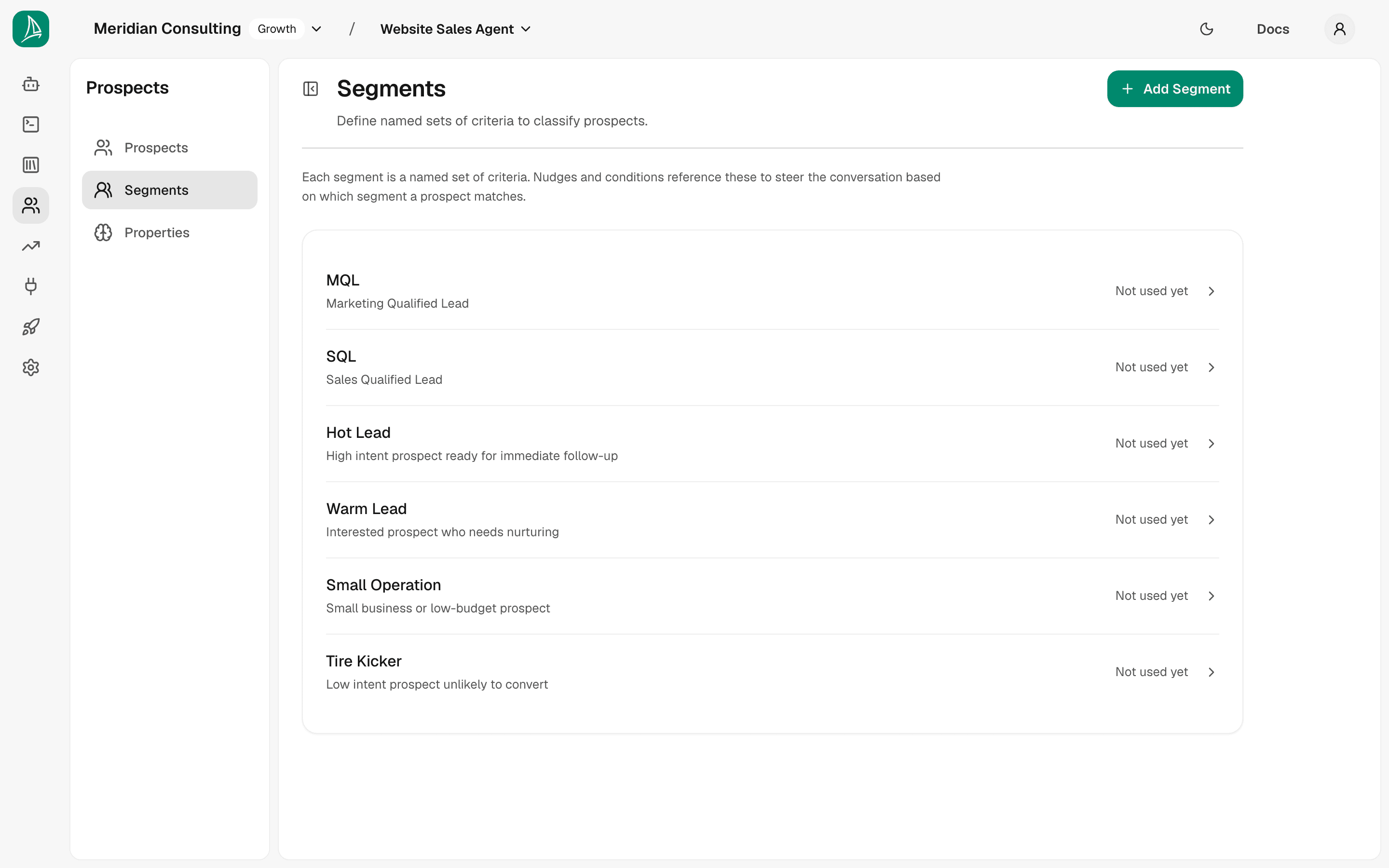
The page lists the seeded segments — MQL, SQL, Hot Lead, Warm Lead, Small Operation, Tire Kicker — each one a recognisable shape from B2B sales playbooks. They start with no criteria: empty templates waiting for you to define what they mean for your business. The right of each row says where the segment is used — Not used yet until a condition or nudge names it.
A segment is, mechanically:
- A name and description
- A set of criteria, each one a row: a property, a comparison and a value
- A match mode — either All criteria (AND) or Any criterion (OR)
When a visitor's accumulated property values satisfy a segment's criteria, that prospect is classified under that segment. One prospect can match multiple segments simultaneously (e.g. Warm Lead and Small Operation). Segments are evaluated continuously during the conversation and continue to update after the chat ends as background processing surfaces new information.
How this maps to tools you may already use. HubSpot's Smart Lists match contacts on property values — same idea. Salesforce Lead Scoring uses point thresholds; Breezee uses explicit criteria instead of scores. Intercom Segments use attribute filters. The mental model is the same in all cases: you define the shape of a qualified prospect, and the system tells you who fits.
Two actions are available at the top of the list:
- Add Segment — creates a new named segment alongside the seeded ones.
- Apply banner (appears after you save criteria changes) — re-evaluates every existing prospect against the updated segment. Use this after changing a segment's criteria to refresh which prospects are classified under it.
Deleting a segment also deletes the conditions and nudges that use it. Delete lives inside the segment's editor — click the segment, then Delete segment at the bottom-left of the panel. A condition or a nudge with no segment has nothing to test, so it goes with the segment rather than sitting there inert. The confirmation dialog counts them for you before you commit — if it says "2 conditions and 1 nudge", that is what disappears alongside the segment, and it cannot be undone. If you only meant to change who the rule applies to, edit the rule on the skill it governs instead.
Editing the MQL segment
Click the MQL segment to open its editor in the panel on the right.
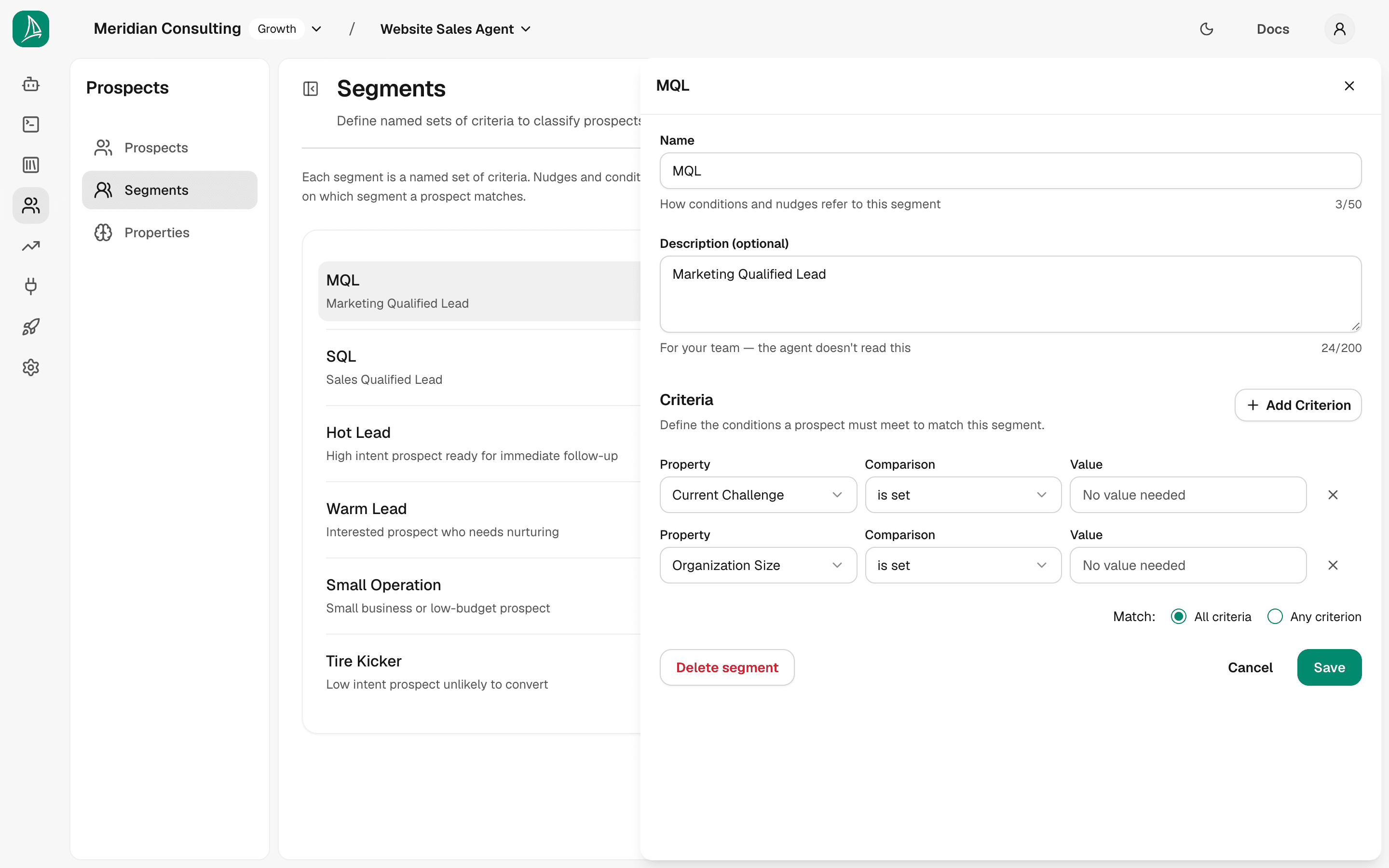
You can edit the name and description. Below them is the Criteria builder — with zero criteria the segment is a no-op and will never match any prospect.
Click Add Criterion to add the first one.
Comparisons reference
A criterion tests one property against one comparison, and the row reads as a sentence: Current Challenge · is set. Which comparisons are available depends on the property's data type. This section explains every one and exactly when a prospect will and will not match.
Text (Text type)
| Comparison | Prospect will match when | Prospect will not match when |
|---|---|---|
| is set | The agent has captured any non-empty value for this property | The value is blank — never mentioned in conversation |
| isn't set | The value is blank | The agent has already captured a value |
| is | The stored value matches the text you enter (case-insensitive) | The value is different or blank |
| isn't | The value is anything other than the text you enter, or blank | The value matches the text exactly |
| contains | The stored text includes the phrase you enter as a substring | The phrase does not appear in the stored text |
| is one of | The stored value matches any value in the list you enter | The value matches none of them, or is blank |
| isn't one of | The stored value matches none of the values you enter | The value matches one of them |
is set is usually the right choice for Text. You typically care that the prospect told you their pain point, not that the specific words match a phrase. Use is or contains when you need to distinguish by specific content (e.g. contains enterprise).
List of choices (List of choices type)
| Comparison | Prospect will match when | Prospect will not match when |
|---|---|---|
| is set | At least one choice has been captured | No value has been selected |
| isn't set | No value has been captured | A value is already stored |
| is | The stored choice matches the specific option you select | The stored choice is different or blank |
| isn't | The stored choice is anything other than the one you select, or blank | The stored choice matches exactly |
| is one of | The stored choice is any of the options you tick | The choice is none of them, or blank |
| isn't one of | The stored choice is none of the options you tick | The choice is one of them |
When you pick is, isn't, is one of or isn't one of on a List of choices property, the Value field becomes a chip picker: click it to open the list of options you defined, tick every option you want to compare against, and each one you tick appears on the row as a chip. Remove one with the × on its chip, or by unticking it in the list. The row stays the same height however many options the property has.
Number (Number type)
| Comparison | Prospect will match when | Prospect will not match when |
|---|---|---|
| is set | A number has been captured | No number has been recorded |
| isn't set | No number has been recorded | A number is already stored |
| is | The stored number exactly matches the value you enter | The number is different or blank |
| isn't | The stored number is anything other than the value you enter | The number matches exactly |
| is more than | The stored number is strictly greater than the value you enter | The number is ≤ the value, or blank |
| is at least | The stored number is greater than or equal to the value | The number is < the value, or blank |
| is less than | The stored number is strictly less than the value | The number is ≥ the value, or blank |
| is at most | The stored number is less than or equal to the value | The number is > the value, or blank |
| is one of | The stored number matches any number in the list you enter | It matches none of them, or is blank |
| isn't one of | The stored number matches none of the numbers you enter | It matches one of them |
Date and Date & Time types
| Comparison | Prospect will match when | Prospect will not match when |
|---|---|---|
| is set | A date has been captured | No date has been recorded |
| isn't set | No date has been recorded | A date is already stored |
Date comparison is not available yet. A Date or Date & Time property can only be tested for presence — whether the agent captured a date at all. There is no way to ask whether the stored date falls before or after a date you choose. If you need that, tell us: it needs building in the matching engine, and until it exists a date criterion can only mean "we have one" or "we do not".
Yes / No (Yes / No type)
| Comparison | Prospect will match when | Prospect will not match when |
|---|---|---|
| is set | The agent has captured a Yes or No answer | No answer has been captured |
| isn't set | No answer has been captured | An answer is already stored |
| is | The stored value matches the choice you pick (Yes or No) | The stored value is the opposite, or blank |
Building the MQL segment
With the conditions reference above in mind, let's configure the MQL segment.
Click Add Criterion in the MQL editor. A criterion row appears with three fields:
- Property — which property you're testing (dropdown, shows all enabled properties)
- Comparison — how to test it (dropdown, offering only the comparisons the chosen property's data type admits). It defaults to is set
- Value — what to compare against, in whatever control the comparison calls for. is set and isn't set compare against nothing, so no Value field appears for them.
It is the same row a skill's own conditions and nudges use for a one-off test, so a comparison reads the same way in both places.
Set the first criterion to your custom Current Challenge property, comparison is set. This means: "the prospect has told us what's driving them to look for a solution."
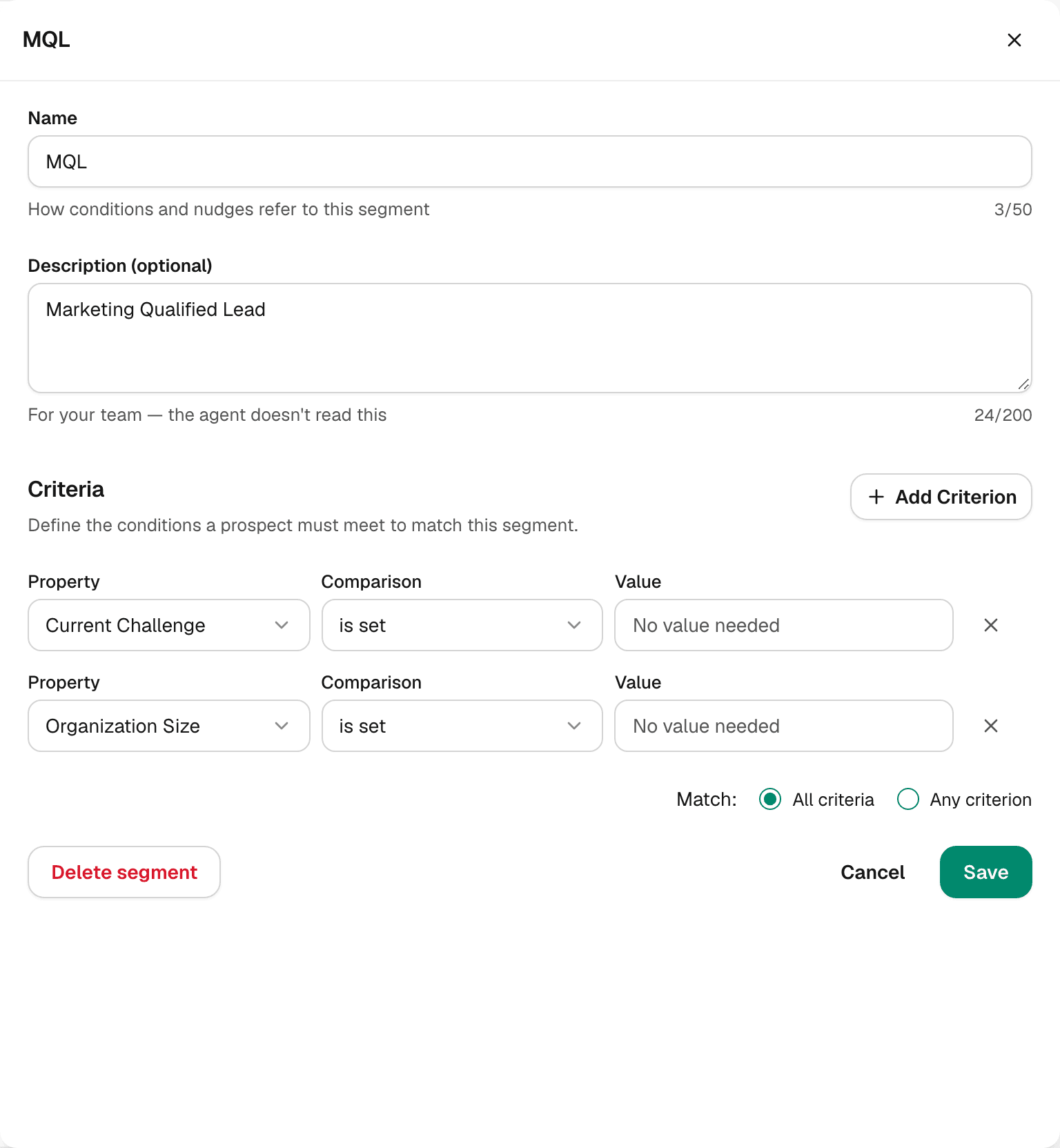
Click Add Criterion again and add a second criterion: Organization Size (or whichever property makes a prospect worth following up on at your company), comparison is set.
After adding the second criterion, a Match control appears below the criteria list:
- All criteria — both must be satisfied (AND logic). A prospect must have both Current Challenge and Organization Size captured.
- Any criterion — either is sufficient (OR logic). A prospect with either value qualifies.
Leave it on All criteria for MQL — you want the full picture before qualifying someone.
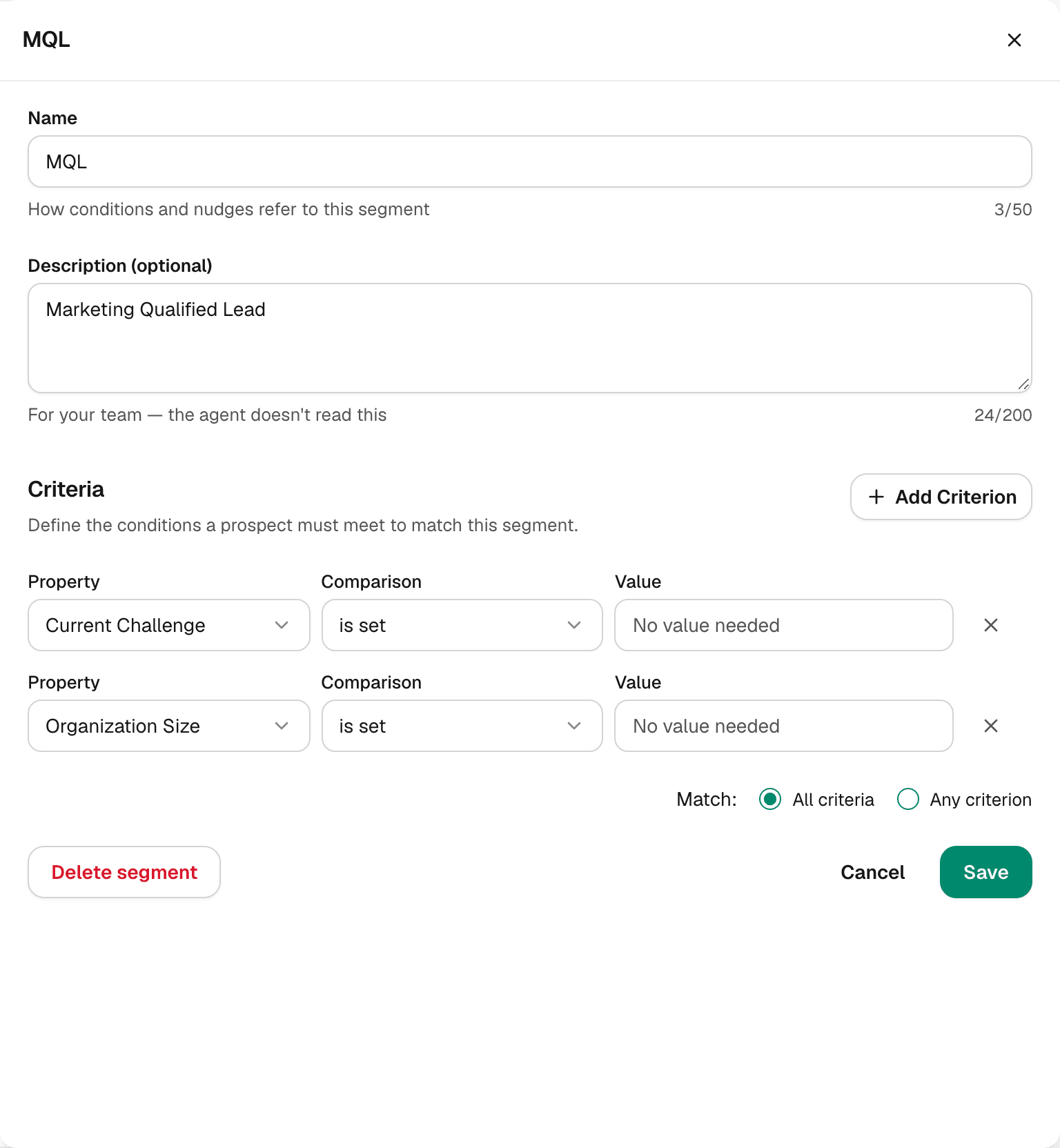
Click Save. The panel closes and MQL is saved with its two criteria.
Applying your changes to existing prospects
Saving a segment does not automatically re-evaluate existing prospects. As soon as you save a change to what a segment matches, an amber notice appears above the list, naming the segments that are waiting:
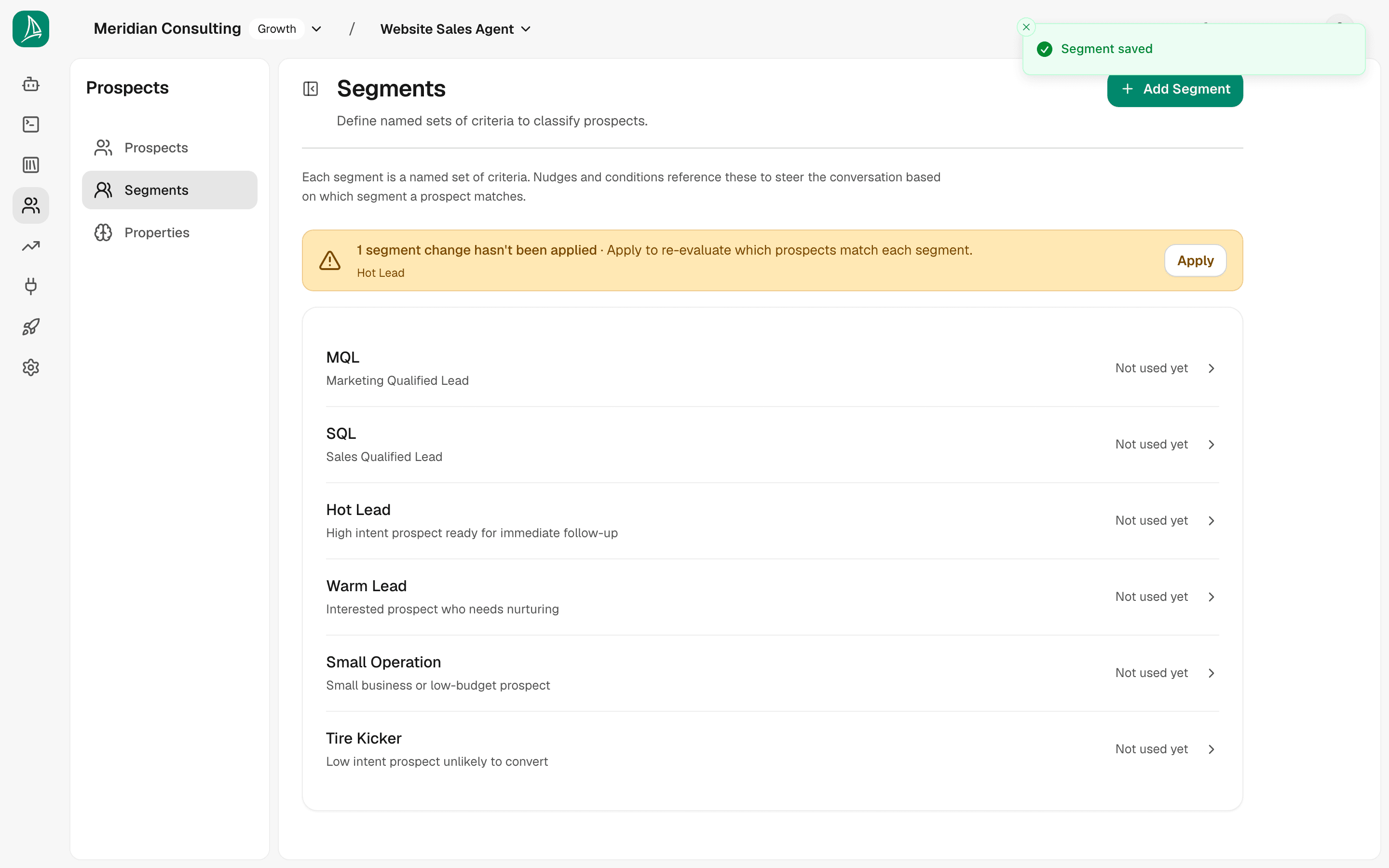
"1 segment change hasn't been applied · Apply to re-evaluate which prospects match each segment."
You must click Apply. Until you do, the updated criteria only take effect on future conversations. All existing prospects keep their old classification. Click Apply to re-run the evaluator across your entire prospect list. A Segment re-evaluation card replaces the notice and tracks progress — for large lists this may take a few seconds.
Good habit: any time you add, change, or delete a criterion, always click Apply before moving on. It takes seconds and ensures your segment data is current when you look at it in nudges, conditions, or the prospects table.
Cardinality and combinations. You can add as many criteria as the segment requires. For more complex shapes — say, "MQL = articulated challenge AND (mid-market OR enterprise size)" — build two separate segments (one for mid-market, one for enterprise) and have nudges consume either. The criteria builder deliberately keeps each segment flat rather than supporting nested boolean logic; it's easier to reason about and debug.
Configuring the rest of the seeded segments
For brevity this chapter only fully configures MQL. In a real tenant you'd configure several:
- Hot Lead — high intent, e.g.
Buying Timeframeis set andCurrent Challengeis set - SQL — sales-ready, e.g.
Emailis set,Job Titleis set andBudgetis set - Tire Kicker — low intent, e.g.
Current Challengeisn't set (use carefully — hard to get right without sufficient conversation length) - Small Operation — segment fit, e.g.
Organization Sizeis a specific small-team value - Warm Lead — interested but unqualified, e.g.
Current Challengeis set but not yet Hot Lead criteria
The pattern is always the same: name the segment, decide which properties distinguish it, and pick the conditions.
A rule can also take a condition directly
Segments are the reusable way to describe a group of people, and they are what a skill's conditions and nudges reach for first. A rule can also carry a one-off test of its own instead — one property, one comparison, one value, written on the rule's card rather than saved as a named segment. It is the same row you build a segment's criteria with, so nothing about it has to be learned twice; a rule takes exactly one of them, where a segment takes as many as you need.
It is the shortcut for a one-off. A condition written on a card is used by that rule alone, and a prospect who matches it is not recorded as belonging to any segment, so they will not appear in segment reporting. It is also a single test: anything that needs two properties to line up is a segment, which is what a segment is for. Configuring skills covers when each is the right choice.
How properties and segments feed downstream
Properties and segments by themselves don't change agent behaviour — they're the substrate that other configuration consumes:
- Configuring skills reads properties to decide which values to actively pursue during a conversation flow and what to do next on each turn based on what's known so far.
- Conditions and nudges, on the skills they govern, read segments. A nudge like "push Book Meeting when the prospect matches MQL" is exactly the loop we'll close in the next page.
This is why this chapter sits where it does in the manual order. Skills, conditions and nudges all reference what you set up here. References are linked by id, so a rename won't break them — but conversations already in flight when you rename a property can carry the old name until they end, so prefer renaming in a quiet moment.
What's next
The substrate is set. Time to give the agent its repertoire.