Playground testing
The playground is a safe sandbox for testing your agent the same way a real visitor will — same chat pipeline, same retrieval, same skills, same nudges. The only difference is that you're driving the conversation as the visitor.
In this chapter you'll:
- Start a fresh playground session
- Run a complete advisory → qualification → meeting-booking conversation
- Read the two kinds of button the agent shows: answer chips and next-step offers
- Actually complete a booking from inside the chat
- Accept the "remember me" consent prompt that fires after personal details are shared
- End the session and watch the Insights panel populate with the summarisation outputs
By the end of this page you'll have a fully realised playground session that we'll come back to in Prospects to see the persisted prospect record.
Use the playground constantly while you're configuring. Every change you make to agent profile, skills, conditions and nudges should be tested here before it goes live. A 90-second playground session catches more configuration errors than any amount of staring at the settings pages.
The playground screen
Open Playground from the team's left-hand rail.
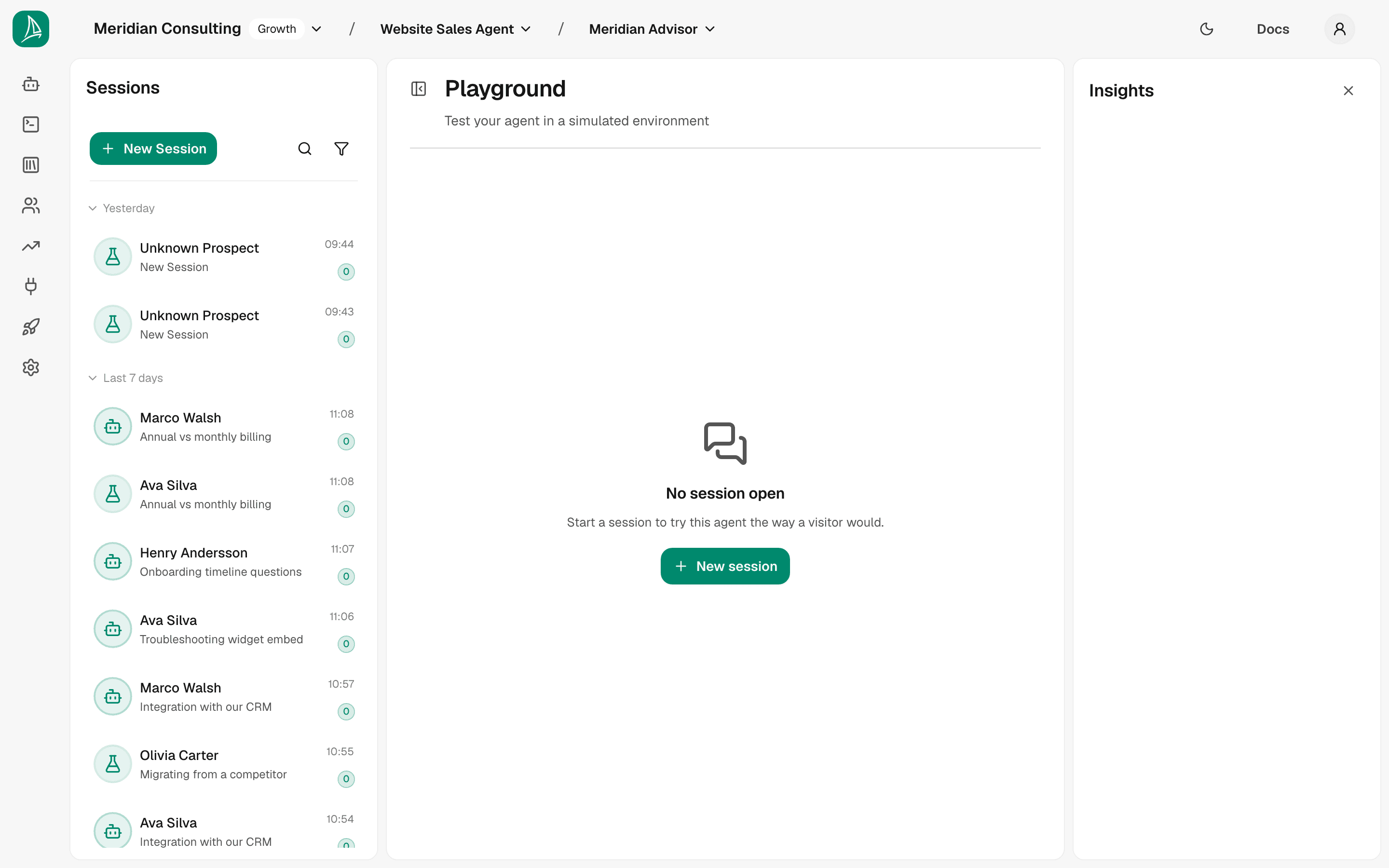
Three panels:
- Left: Sessions list — every test session you've run, grouped by day. Filter by search, thumbs up/down, sentiment, and channel. Group by channel if you want to compare widget vs. playground conversations.
- Middle: Conversation pane — the chat itself. Includes the greeting, suggested questions, and the message input.
- Right: Insights panel — fills in after a session ends with summary, sentiment, outcome, resolution, conversation quality, content analysis, and key words.
A fresh team has no sessions; the middle panel just invites you to create one.
Starting a session
Click New session in the left sidebar. The platform creates an empty session and the conversation pane comes to life with the agent's greeting and your three suggested-question chips — exactly what we configured in Building your first agent.
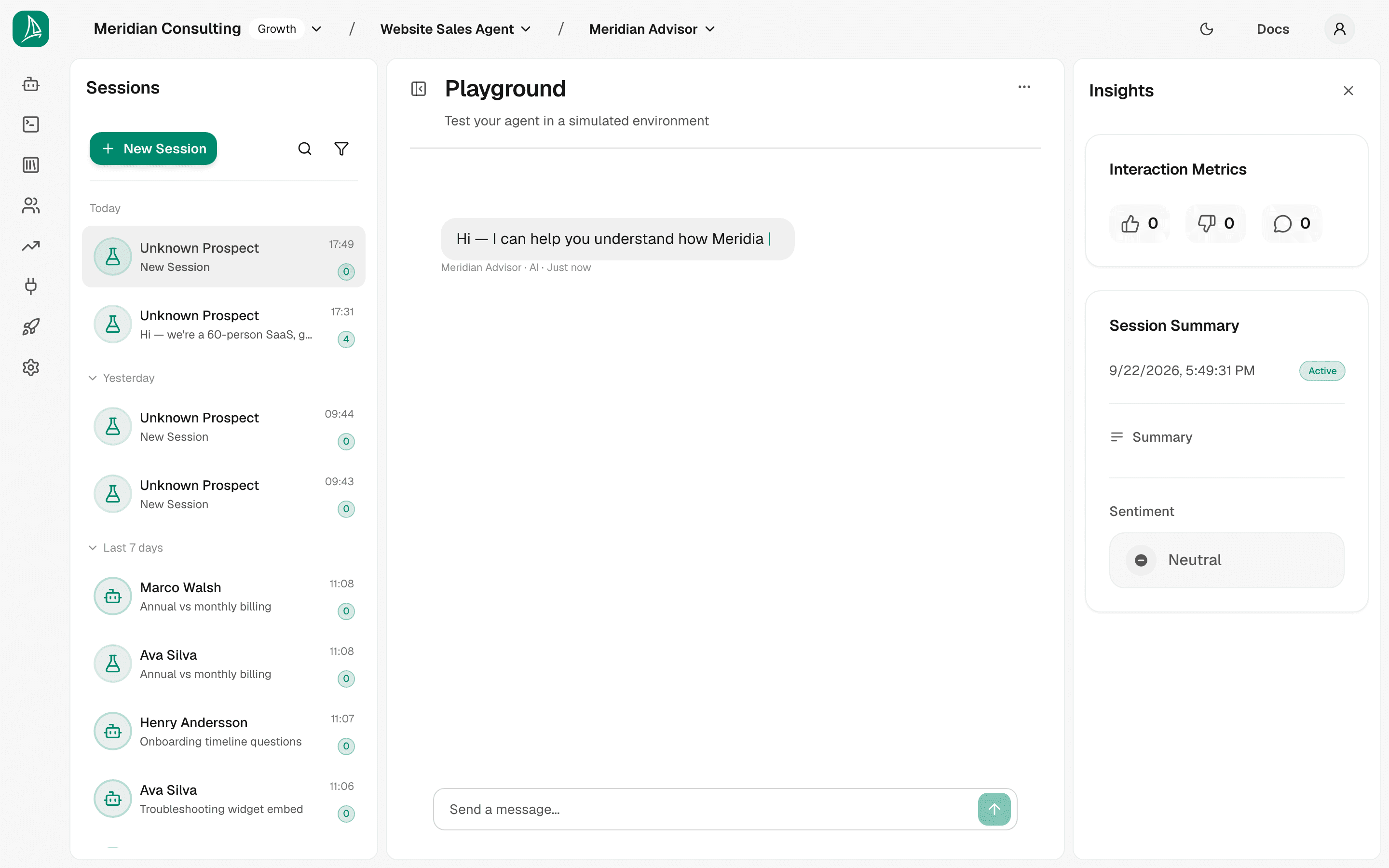
Two things to notice:
- The greeting matches what you typed in the Greeting step of the agent wizard.
- The placeholder text in the input box — "Ask about services or book a strategy call..." — is the Chat input hint field from the same screen.
If either of these doesn't match what you configured, you have a clue about where to look (the agent's greeting page).
The advisory-to-booking path
A useful test conversation is one where a visitor arrives unsure what they need and ends up booked into a meeting. It exercises the Advisory Guidance skill — both its consultative tone and its capture of the conversation inputs you configured on it — and the Book Meeting skill (the booking calendar inside the chat).
Turn 1 — Open with the problem
Type a realistic opener into the input. For this run we use:
Hi — we're a 60-person SaaS, growth has stalled. Not sure if it's a positioning problem or an ops problem. Can you help?
Click send. The agent thinks for a few seconds, then streams its reply. For our configuration:
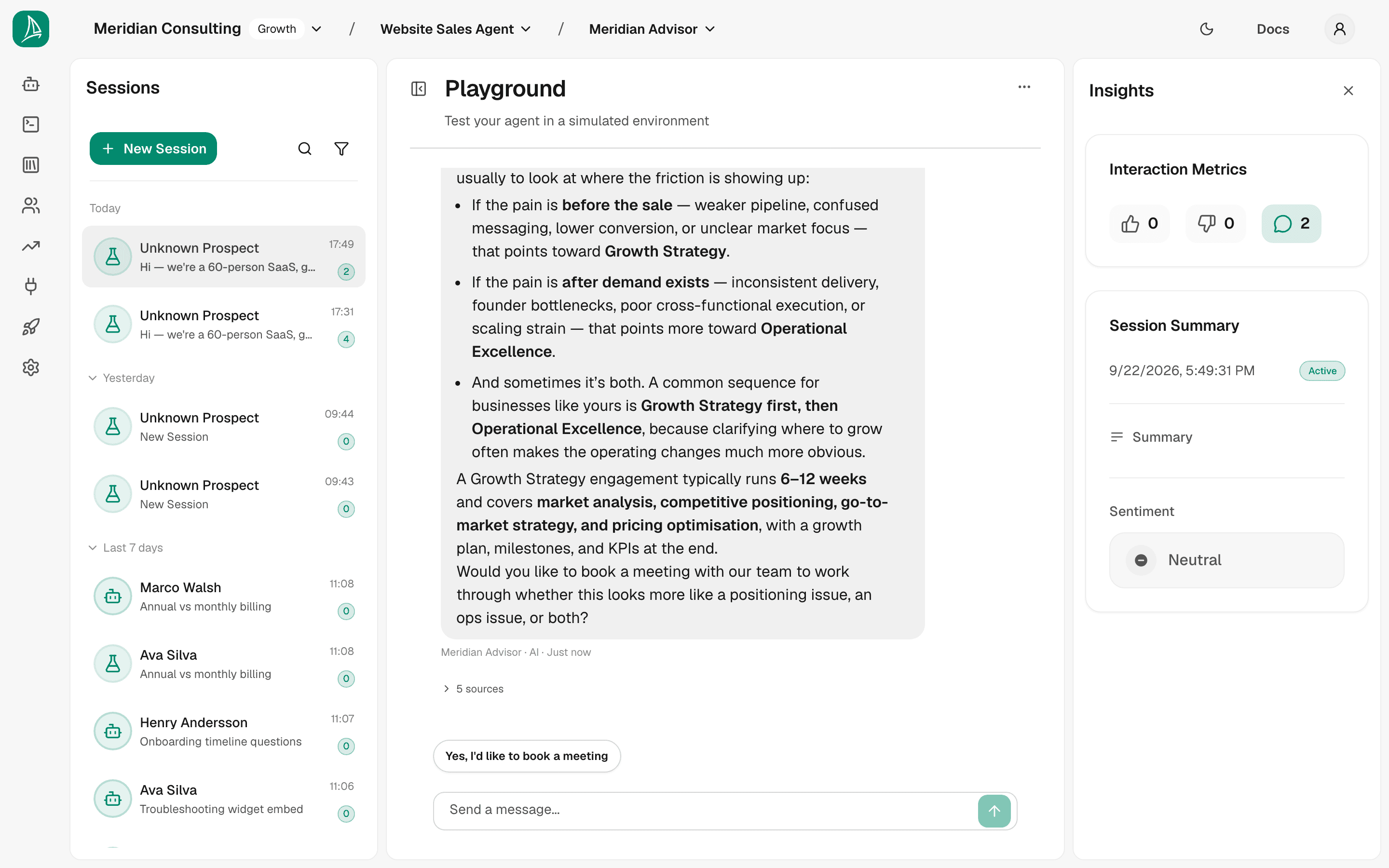
The reply opens with a brief framing of the issue, then asks for the Current Challenge property in clearer terms. The word current challenge is highlighted in the agent's message — that's the platform telling you a property is being actively pursued. The agent has also recognised the Organization Size (60-person SaaS) from the visitor's message and silently captured it.
This turn is doing a lot at once:
- Intent planner: classified as advisory.
- Slot extractor: captured
Organization Size = ~60. - Tool planner: didn't search the knowledge base (this turn is about understanding the visitor, not answering a question).
- Responder: ran the advisory skill, asked for the next value we need (
Current Challenge). - Summariser: updating the session summary in the background.
Turn 2 — Provide the detail
Reply with concrete specifics:
Pipeline has flatlined for two quarters. We were doubling new logos every six months until late last year. Now we're winning about the same number of deals each quarter and our average deal size hasn't moved.
The agent's response now ties the situation to a specific service line, draws on the ingested content for diagnostic patterns, and offers the next step:
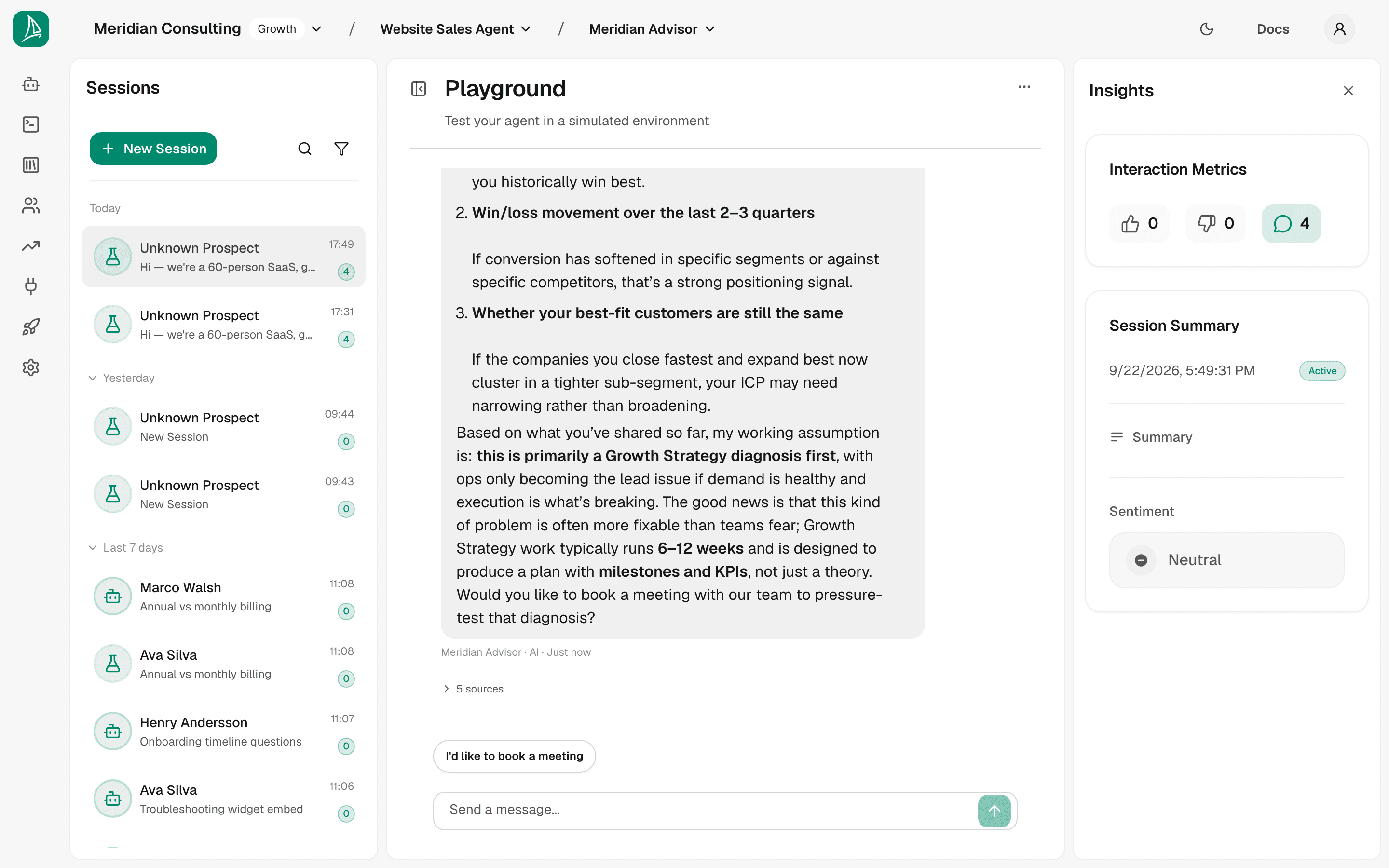
Note the 5 sources chip beneath the reply — the agent searched the knowledge base and is citing chunks from the content you uploaded in Ingesting knowledge. The whole reply is grounded in your own copy.
Turn 3 — Accept the strategy call
Reply with:
Yes, that sounds useful. Can we set up that strategy call?
The Book Meeting skill activates. The agent acknowledges, and a booking calendar appears in the chat:
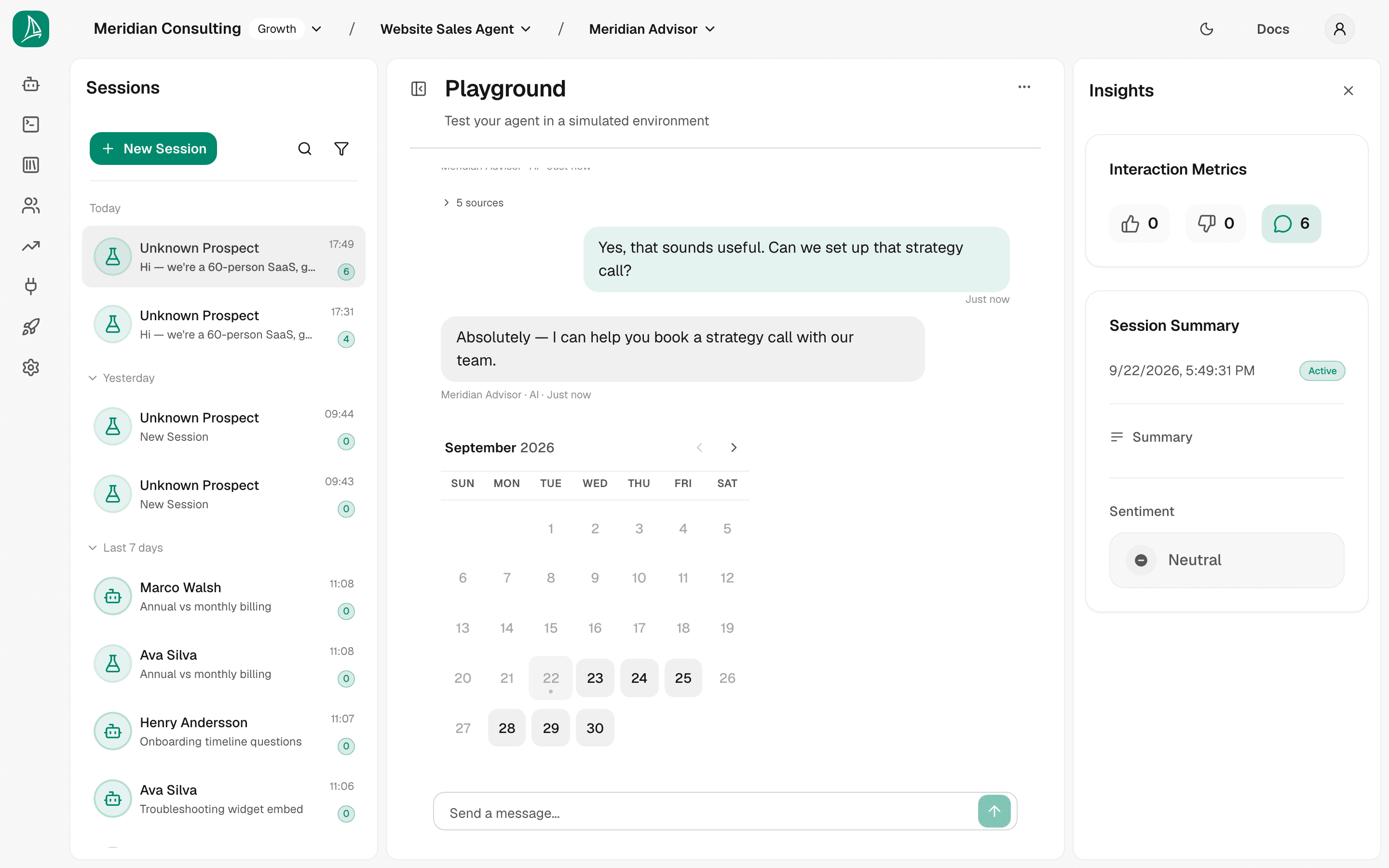
The calendar shows the real availability of the event type you selected for the Book Meeting skill on your connected Cal.com account (see Integrations) — the bookable dates and the time slots. It's drawn by Breezee inside the chat, so the visitor never has to leave the conversation; the booking itself is made in your Cal.com account.
Completing the booking
Pick a date, then a time — for this run we pick Monday 18 May at 14:00. The booking form appears below the calendar. Fill it in.
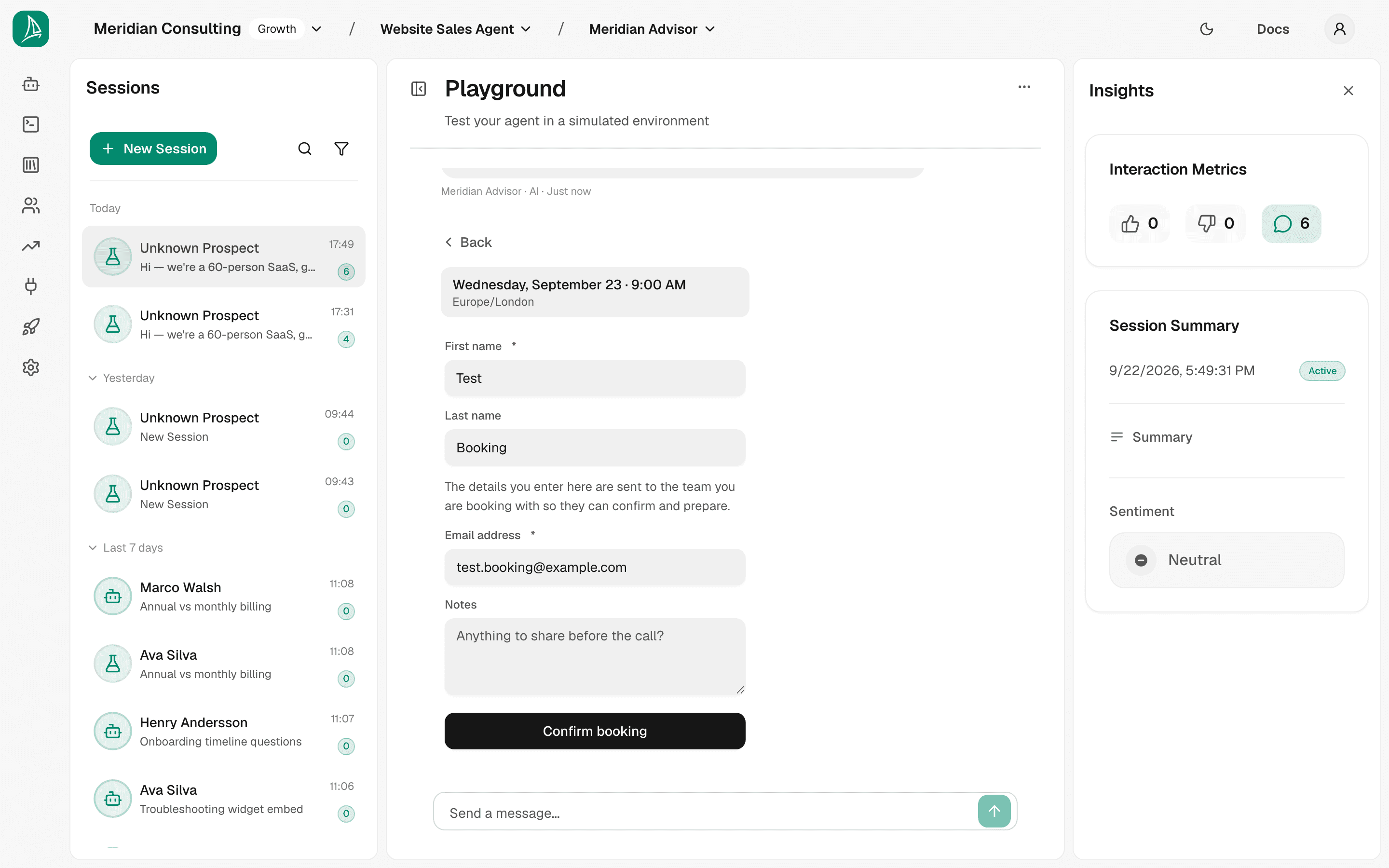
For this manual we use:
- First name: Test
- Last name: Booking
- Email address: test.booking@example.com
If the event type offers more than one way to meet, a Location choice appears as well.
Click Confirm booking. The booking is made in your Cal.com account, the calendar invite goes out, and the chat updates with a confirmation and an agent acknowledgement:
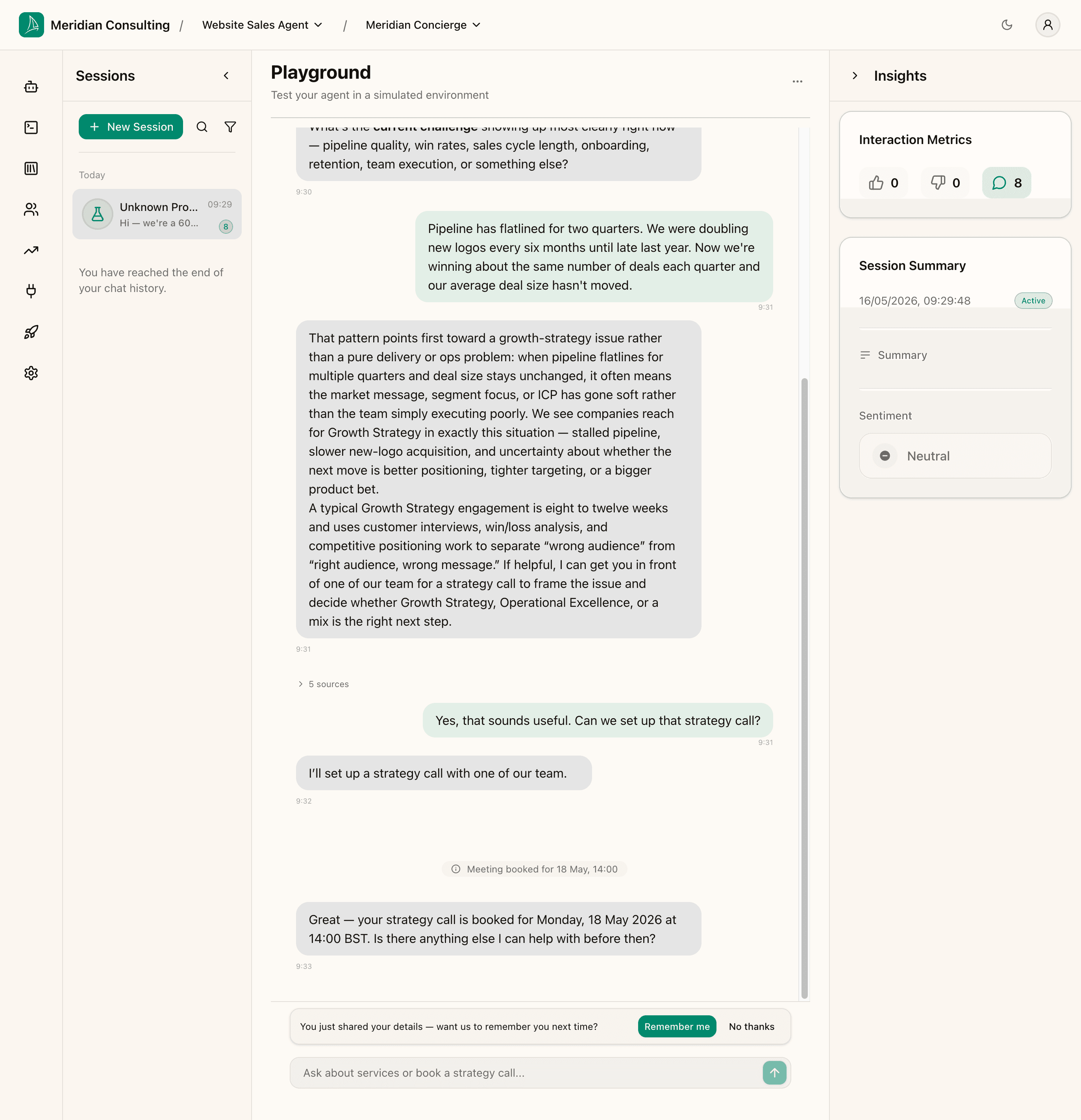
Two things just happened at once.
- Booking confirmed. The agent says "Great — your strategy call is booked for Monday, 18 May 2026 at 14:00 BST." The platform recognises the booking event and the agent is now post-booking aware.
- "Remember me" prompt fired. At the bottom of the chat: "Do you want us to remember you next time?" with [Yes] and [No] buttons.
The prompt asks about one thing, and it is narrower than you might expect: whether the platform may keep an identifier in this visitor's browser, so they are recognised as the same person if they come back. It appears when a visitor has just submitted details — through a booking or a contact form — or after a set number of turns. The wording is the same either way.
What the visitor typed into a form or a booking is not held back while they decide. Their name, email and the enquiry itself reach your prospect list — and your CRM, if one is connected — straight away, whether they answer yes, no, or not at all.
Neither is what the agent works out from the conversation. Properties, the lead score and the session summary are recorded for every visitor, under your own lawful basis for handling an enquiry someone chose to send you. The prompt does not gate any of that. It gates the browser.
Accepting "Remember me"
Click Yes. The prompt disappears.
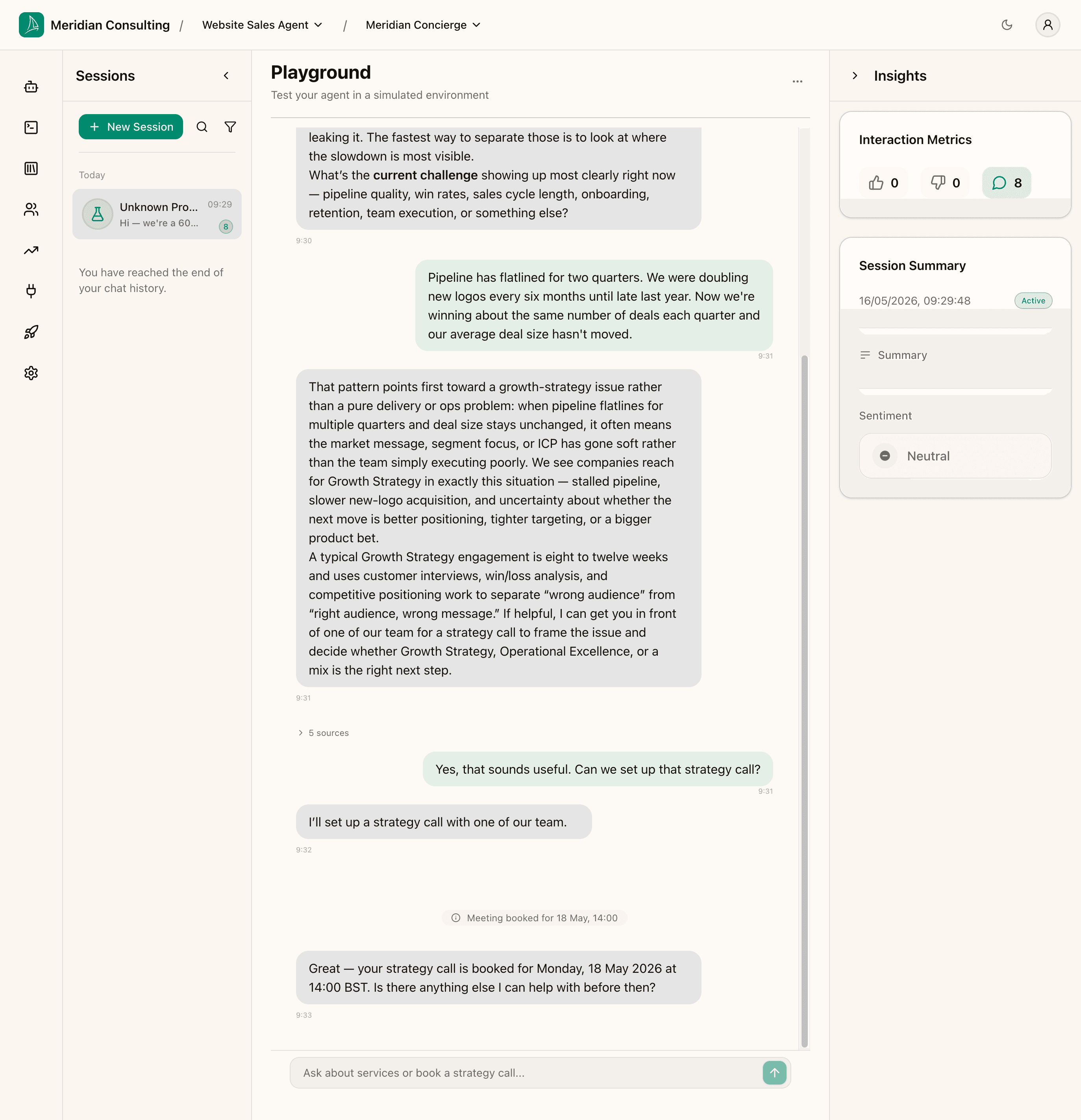
From this point on the visitor is recognised when they come back: the identifier stays in their browser, so a later session is joined to this same prospect record instead of starting a new one. What the agent works out during the conversation — here the Current Challenge and the Organization Size — is kept against the prospect record either way.
What if the visitor clicks "No"? The conversation continues exactly as before, and nothing is held back from you. The details they submitted still arrive — they sent them on purpose — and so do the properties the agent worked out, the lead score and the summary. What changes is the visitor's device: no identifier is kept in their browser, so a later visit starts as a new visitor rather than being joined to this one. The platform records the refusal, and the visitor can change their mind through the Manage data option in the session actions menu (below).
Tappable answers and next-step offers
Two things appear as buttons in the conversation, and it's worth knowing which is which when you're reading a test session.
Answer chips show up under a question the agent asked. They appear when the thing being asked for has a fixed set of allowed values — the options on a field's attribute, or the answers to a condition on a skill:
Agent: What budget range are you working with?
[ Under £10k ][ £10k–50k ][ £50k+ ]
Tapping one answers the question in a single tap — no typing, and the value lands in exactly the shape your segments match against. A question with no fixed set of answers (a free-text challenge, a number) is asked as ordinary text instead. If you expected chips and got a plain question, the field's attribute has no options defined — see Properties & segments.
Next-step offers are different: the agent has finished something and is proposing where to go next — "Want me to get that call booked?" It offers at most one at a time, and only when the conversation is genuinely at a resting point rather than mid-answer.
Things worth checking on a test run:
- Does an offer arrive at a sensible moment, or does it interrupt?
- Is it the right next step for what the visitor just said?
- If the visitor ignores it and asks something else, does the agent drop it gracefully rather than re-offering the same thing every turn?
- If a skill carries a condition, does the agent ask its qualifying question before offering that skill — not after?
The session actions menu
Click the three-dot Session actions button to the right of the Playground heading.
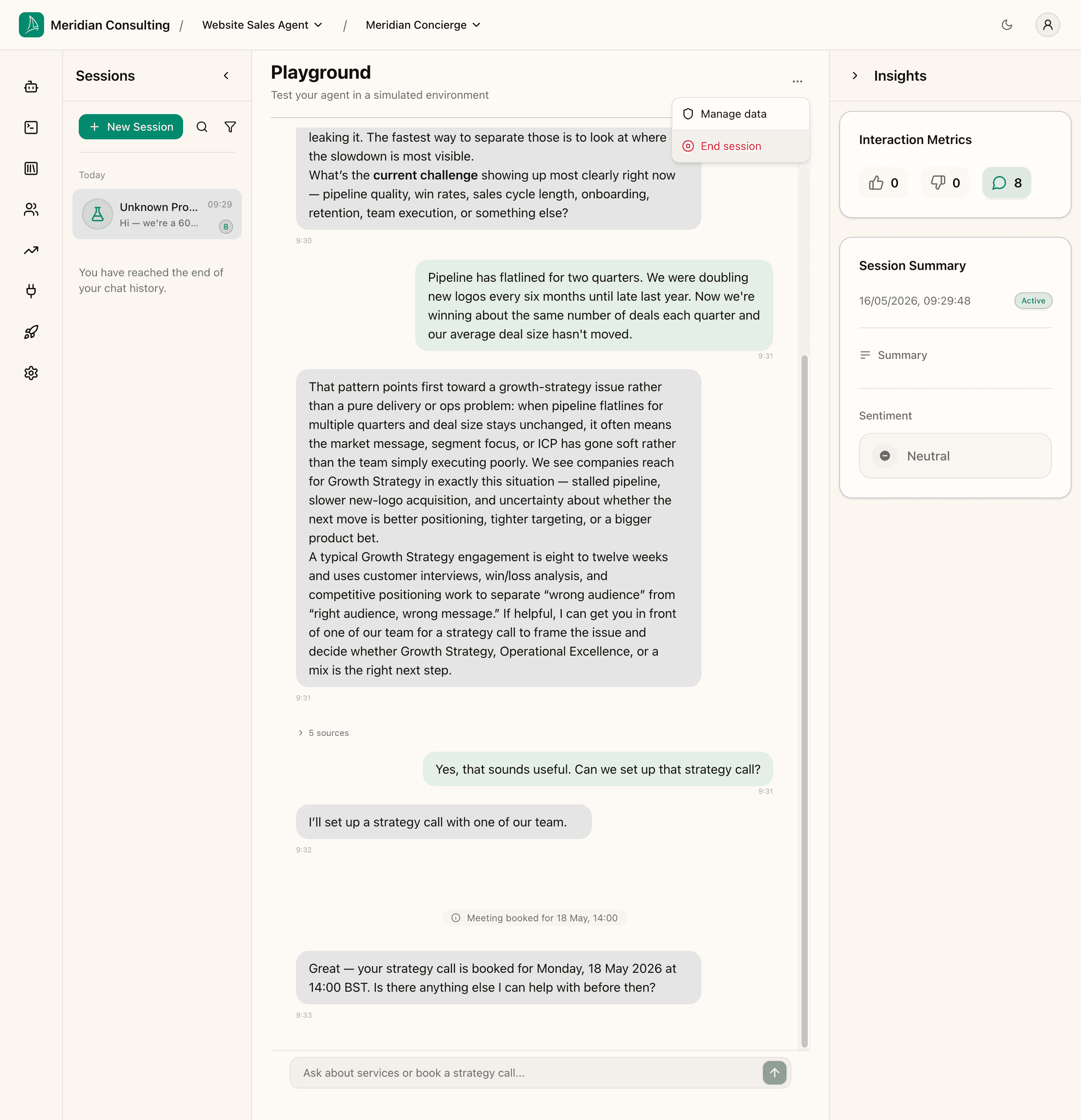
Two items:
- Manage data — opens the GDPR data-management panel. From here, the visitor can review what's been captured about them and request erasure. In a real widget deployment this is also surfaced to end users; in the playground, you use it the same way to see the visitor's perspective.
- End Session — closes the session, triggers the summariser, and locks the conversation. After this, you can't send more messages in this thread — though you can always start a new one.
End the session
Click End Session. The message input greys out and a banner appears: "This session has ended. You cannot send more messages."
The summariser runs in the background, which can take a few seconds. Reload the page after a moment and the Insights panel populates.
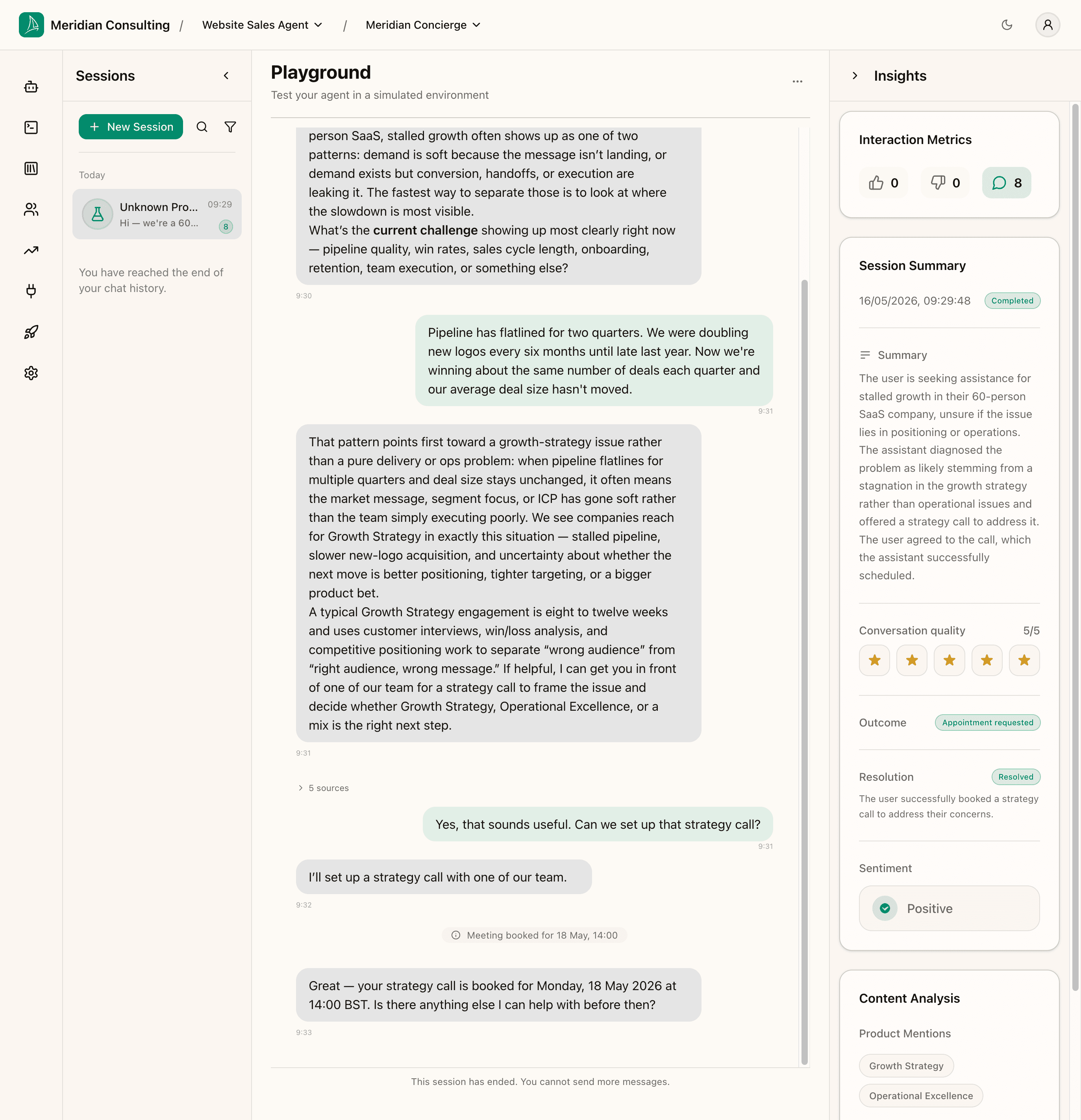
This is what comes back:
- Status: Completed.
- Summary — a one-paragraph synthesis of the conversation: "The user is seeking assistance for stalled growth in their 60-person SaaS company, unsure if the issue lies in positioning or operations. The assistant diagnosed the problem as likely stemming from a stagnation in the growth strategy rather than operational issues and offered a strategy call to address it. The user agreed to the call, which the assistant successfully scheduled."
- Conversation quality: 5/5 (the platform's own assessment of how well the agent handled the conversation).
- Outcome: Appointment requested.
- Resolution: Resolved — "The user successfully booked a strategy call to address their concerns."
- Sentiment: Positive.
- Content Analysis — product mentions (Growth Strategy, Operational Excellence) and key words (stalled growth, growth strategy, pipeline, positioning, strategy call).
All of this surfaces in the analytics dashboard and contributes to the prospect record.
What to test in the playground beyond the golden path
The conversation above is the happy path. A real configuration review should also exercise:
- Cold-start informational queries — "What industries do you work in?" or "How do you bill?". Tests knowledge-base retrieval and the FAQ fast-path.
- Edge-case intents — type something genuinely off-topic ("Can you recommend a good pizza place?"). The platform classifies this as
unrelatedand the agent declines gracefully. - Unhappy paths — start a session, give one terse answer, never engage. Does the agent get pushy? Does it keep re-offering the same next step despite weak signal?
- Multi-turn drift — eight or ten turns deep into a conversation, does the agent still remember what was said early on?
- Different prospect shapes — a 5-person consultancy (out of fit), a 300-person enterprise (in fit, big), a vague "I'm exploring" visitor. Tests that the qualification, conditions and nudges behave sensibly across the range.
You don't need to do all of this every time you change a setting, but it's worth a 10-minute pass before any deployment goes live.
What's next
You've configured the agent and verified it works. Time to put it in front of real visitors.